Add a Create Translation Action to a topic workflow template
In a Topic Workflow template, you can include an Activity for translating content. When you create a Transition from an Activity such as Approving topics to another Activity such as Translate content, normally the job is created manually by the user in the activity's Workgroup. To help automate the creation of a translation job, you can use an Action to have Inspire open a new Translate component screen automatically, and populate any known details and attach associated components. This lets the workflow user quickly create the job and advance the workflow to the translation stage.
 Required permissions
You must have permission to the Projects Module to work with projects and workflows.
 Keep in mind that administrators and other users can set permissions on components and folders.
- You must have permission to edit the workflow template component.
- You must have folder permissions where the template is stored.
- For details on how to check and set permissions, refer to: Set permissions
 In an active workflow, the user in the Workgroup assigned to the Activity that triggers this automated action must be a Translation Coordinator.
 For a complete list of permissions, including starting a workflow from a template, read: Workflow permissions.

 Tips and tricks
- You can create an entirely new workflow template component that has no default Activities and Transitions.
- Use the Topic workflow template explained in this topic as an example of what you can create.
- To create a new template, follow the steps in: Create a workflow template component.
- This automated Action is only available in a Topic workflow template (not a sequential reviewer template), or a completely new workflow template component.
- This automated Action is helpful because the user who is sending content to translation can easily create the job without having to leave the Project's Workflow panel (or the Dashboard).
- When a user advances a project workflow task and the Transition has an Action of InspireCreateTranslation, Inspire does the following:
If a workflow has more than one component, the user can select what to translate. For example, the workflow might contain maps, topics, images, and PDFs, and the user wants to translate only the map.
- If a workflow has more than one component, the user can choose if they want to create a single job or multiple jobs.
The user is shown the Translate component screen.
- Inspire uses the Activity workflow details to populate the following information: Name (uses the Component name), and Components.
- The user can add, edit, or simply verify these details and click Queue or Translate.
- Inspire then creates the translation job and either puts it on hold in the queue or prepares the files to send to an integrated vendor or method.
- Inspire advances the workflow to the next task (such as Translating).
- When a user advances a project workflow task and the Transition has an Action of InspireCreateTranslation, Inspire does the following:
- A component cannot be included in the translation process if the TranslateNotRequired tag has been attached to the component. For more details, read: Exclude a file from translation using a tag.
- After you add this new Action to the provided template or a custom template you've created, you can use it in a workflow transition.

- If you don't want to use this automated Action then the user must manually open the
 Translations module, click Create, and add all job details and components.
To add a Create Translation action to a topic workflow template:
-
Click
 Components.
-
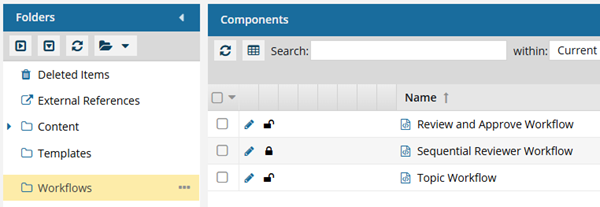
In the Folders pane, select Workflows.
 You can save a workflow template to another folder. If you did this, open that folder instead of the Workflows folder.
 -
In the Components pane, select a workflow.
The InspireCreateTranslation action is only available in Topic workflows or a completely new workflow template component.
-
In the workflow editor toolbar, click
 Actions.
-
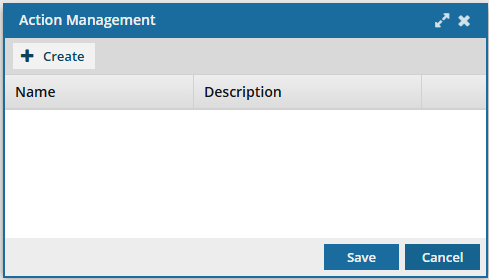
On the Action Management screen, click
 Create.
-
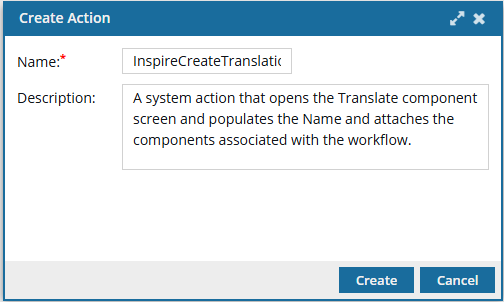
On the Create Action screen, in Name, enter the following string of characters exactly: InspireCreateTranslation.
 Important notes:
- Do not use any spaces
- Make sure to use capital letters for Inspire, Create, and Translation
- If the string is not entered exactly as shown, Inspire will not be called to open the Translate component screen
-
To save your changes on the Create Action screen, click Create.
 Results:
- You can see your new action on the Action Management screen.
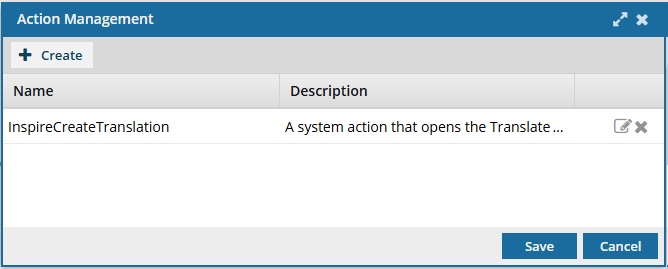
- You can see your new action on the Action Management screen.
-
To save the list of actions, on the Action Management screen, click Save.
This Action has been added as an option but is not in use until you add it to a transition. Follow the steps in: Add the action to a transition.