View a component usage report for multiple project components
You can select a project component and create a report that shows the complete hierarchy of references. This report provides more details than when you select a component and choose Details to open the Where Used tab. On the Where Used tab, you can see the list of components that directly reference the selected component. If you want to trace those parent components all the way back to their first reference, you can create a component usage report. When you select multiple project components to report on, you get a separate report for each one.
 Tips and tricks
- The Component usage report option is also available when working in the Components browser.
 View a component usage report for multiple components
 - You can also run a report on a single project component. View a component usage report for one project component
- You can see the Report Date before the table of data. Knowing the date and time that the report was requested is important if you are forwarding the report notification or the report itself.
- The report contains the following information:
- The hierarchy of the components that reference the selected component
- The same reference hierarchy, but showing the full filenames
- For more information, refer to Working with component usage reports

To view a component usage report for multiple project components:
-
Click
 Projects.
-
To open project details, select the project and double-click it.
 You can also open a project by:
 - Right-clicking the project and then selecting Open.
- Clicking
 the Options menu and then selecting Open.
-
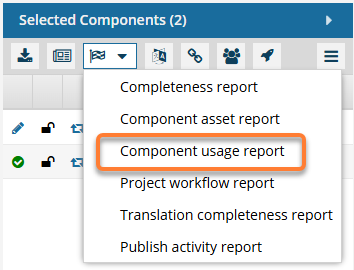
On the Selected Components panel, select
 Reports, and then Component usage report.
-
On the Convert Time screen, select one of the following options:
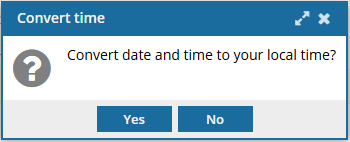
- Yes. Changes all dates and times in the report to reflect the Time Zone specified in your Profile. (To change your Time Zone, follow the steps in: Select your time zone.)
- No. Displays all dates based on the Time Zone where your Inspire server instance is located.
 Results: When you run a report on multiple components:
- Inspire always creates a separate report for each component
- You see a notification for each report process that starts
- You see another set of notifications for each report that has been created
-
In the top menu, click
 Notifications.
 You do not receive a copy of the report in email or Slack, and it cannot be configured.
 -
From the list of notifications, select any with a Subject of Component Usage Report.
There is no way to tell from the Subject or Summary which component is included in the report.
- Both the Subject (Component Usage Report) and the Summary (A component usage report request is completed.) only provide generic text.
- To see which component is included in the report, you will have to open each notification.
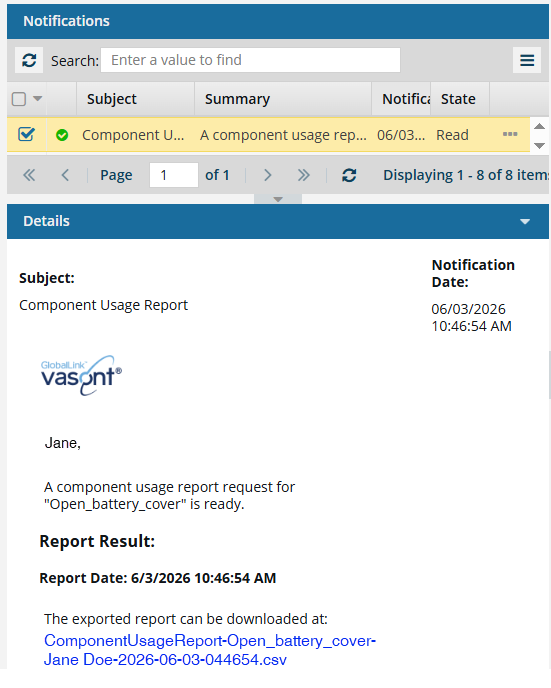 For each separate report that Inspire creates, it adds the component name to the report's CSV file name
 -
On your local computer, open the report to see the details.
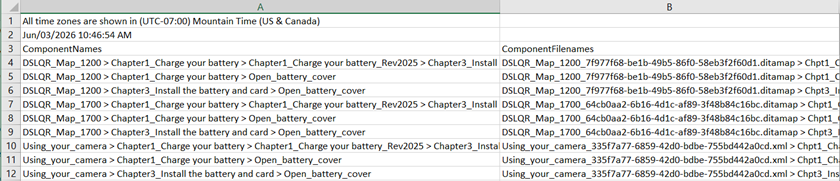 Results: There are two columns in the spreadsheet.
 - ComponentNames. This is the first column, which lists the names of components that, at some level, reference the selected component. A greater-than sign is used as a separator, and the selected component is always listed last.
- ComponentFilenames. The second column lists the same hierarchy except that the display names are appended with the GUID to create the full filenames.
The following sample report has been modified to add bolding and color.
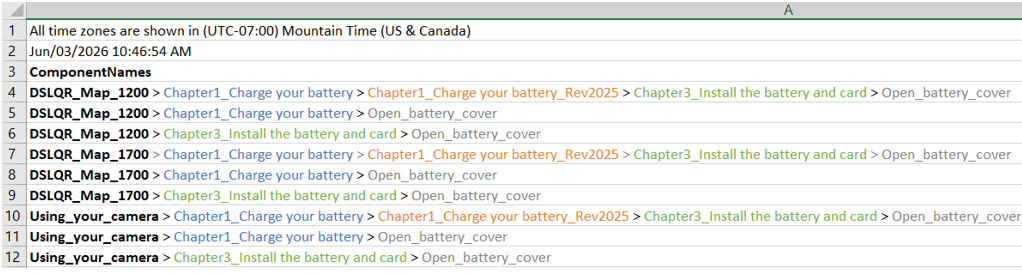
The report can be visualized in the following hierarchical relationships:

- The root-level component is shown in Bold.
On the left side:
 is directly referenced by
  .
.- has a relationship with
 because it is a branched copy of .
 - is not directly referenced by the map.
- is directly referenced by the map.
- On the right side:
- is directly referenced by
 .
. - is directly referenced by the map.