Update an assignment
If you are an assignee, you can add components to the assignment as you create or edit them, and you can also change the state of the project when you complete your assignment. If you are a project owner or administrator, you can change project details, such as to whom the assignment is given, the Activity, and start and end dates. All users associated with an assignment can add or edit the assignment description and add notes.
 You must have permission to the Projects Module to work with projects.

 Tips and tricks
- Updating who the task is assigned to. If you need to change who is working on a task, follow the steps in Re-assign a project task to a participant.
- Updating project components. If you need to change the components used in a task, follow the steps in Update components for an assignment.
- You can update a project in any of the following States:
- To Do
- Ready to Claim
- In Progress
To update an assignment, do one of the following:
-
Click
 Projects.
-
On the Project Management tab, double-click to open the project that contains the assignment you want to update.
 You can also open a project by:
- Right-clicking the project and then selecting Open.
- Clicking
 the Options menu and then selecting Open.
-
Right-click the assignment and select Update.
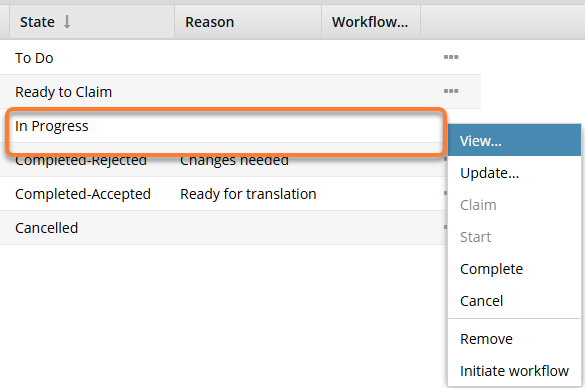
 Results: The Update Assignment screen opens.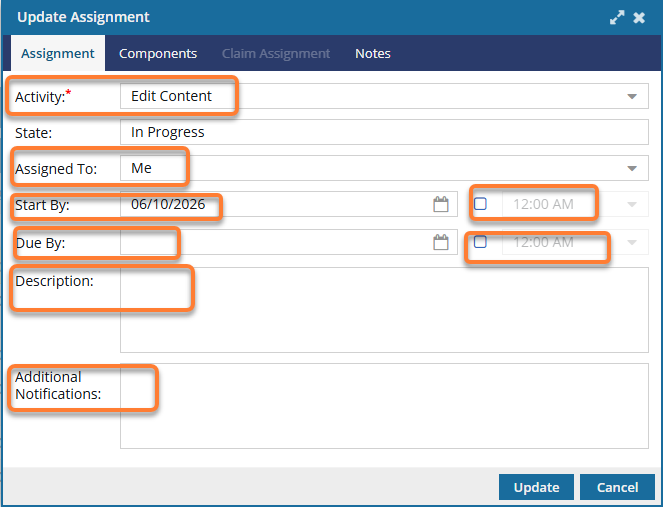
-
Optionally, you can add the following information:
-
In Assigned To, select a participant who has been added to the project.
 Make sure you assign work to a participant who has access to the component, otherwise you will see an error when you click Update.
 -
In Start By, to choose a date when work should begin, click the calendar icon
 and select a date on or after the current date.
-
In Due By, to choose a date when work should be complete, click the calendar icon and select a date after the Start By date.
-
In Assigned To, select a participant who has been added to the project.
-
On the Update Assignment screen, you can optionally add or remove components in the assignment.
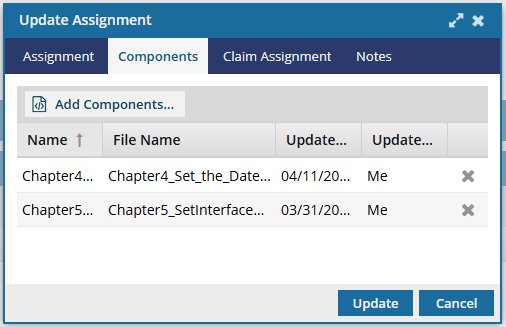
-
Optionally, to add more components, click
 Add Components...
-
In the Components pane, select the checkbox for each component you want to add, and then click Select.
Inspire checks whether the component(s) you want to add are in another assignment, project workflow, or review workflow.
- You see warnings if a component is already in use.
- If you want, you can close the warnings and create the assignment or workflow anyway.
-
Optionally, to remove a component from the assignment, in the component's row, click
 Remove.
-
Optionally, to add more components, click
-
To add the list of users who will receive the project assignment notification to claim the work:
You can only use this step if you created the assignment in the State of Ready to Claim. You cannot update the State in this screen, so if you have not already set this state, the Claim Assignment tab is not available.
-
Select the Claim Assignment tab.
Result: You see a grid where you can create a list of users who can potentially claim this project assignment.
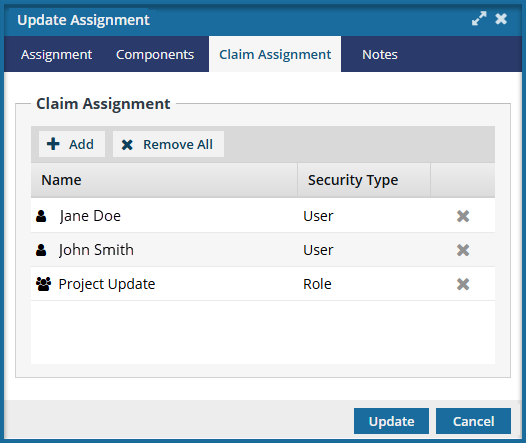 You can use the Security Type column to see if the account shown in Name is
  an individual User account or
  a group Role
 -
On the Select Users/Roles screen, select the checkbox for each user or role you want to send a notification to and allow claiming this assignment.
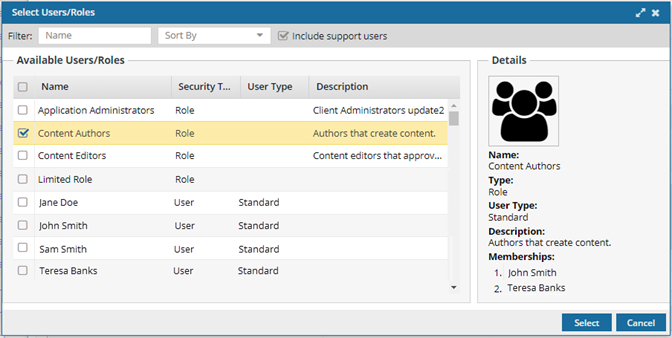 If you are selecting an individual user, check the value in the User Type column to ensure the account has permission to complete the assignment. For example, an account with a User Type of ReviewOnly may be unable to complete a publishing assignment.
 -
On the Select Users/Roles screen, click Select.
Result: On the Claim Assignment tab, you see a list of the selected users and roles.
-
Optionally, to take one user off the list, at the end of their row, click
 Remove.
-
Select the Claim Assignment tab.
-
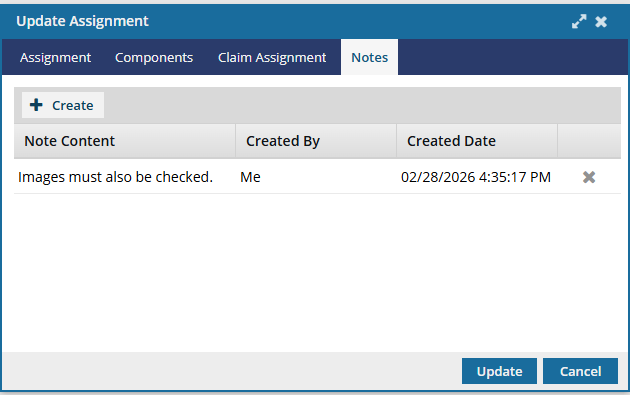
Optionally, if you need to provide more instructions to the user about the work to be done, you can add a list of notes.
-
Optionally, to create another note, click
 Create.
Results: The Project Assignment Note screen opens.
Create.
Results: The Project Assignment Note screen opens.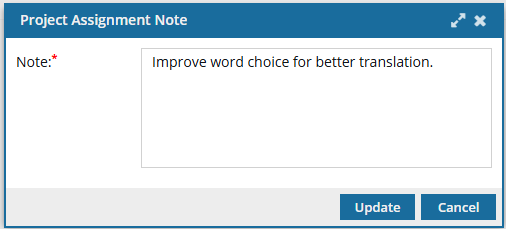
-
On the Project Assignment Note screen, click Update.
Results:
- The Project Assignment Note screen closes.
- On the Notes tab, you see up to 50 characters of your Note Content.
- To display the entire note, hover your cursor over truncated text.
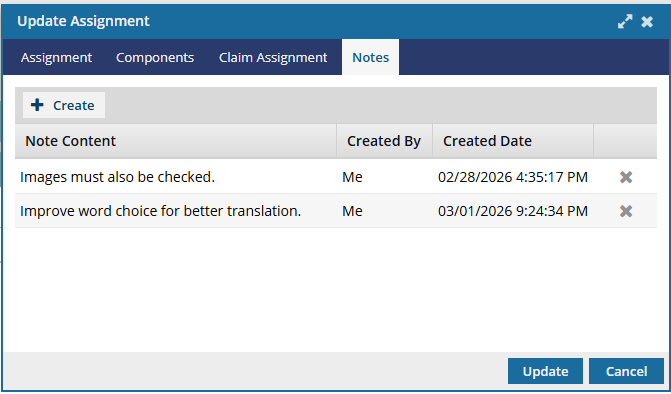 The Notes you enter can be seen in:
- Assignment Notifications
- When using the View Assignment option in a project
-
Optionally, to remove a note from the assignment, in the note's row, click Remove.
-
Optionally, to create another note, click
-
On the Update Assignment screen, click Update.
Results:
- Participants associated with this assignment receive an email notification that changes were made to the assignment.
- If you are the Project Coordinator and a participant for the assignment you just updated, you won't receive an email notification.
If you try to assign work to a participant who doesn't have access to the component, you will see an error. 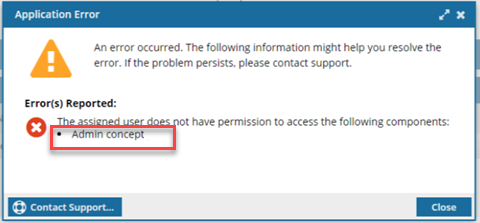
- The error tells you the name of the restricted component.
- You are returned to the Update Assignment screen to change the participant or the component.
- For details on how to set permissions, refer to: Set permissions.