Edit Discussions for a review in Resolving
Before a review is marked as completed, you can edit or delete discussion comments made about the entire review. These comments are outside the Review editor and can be found by opening the Collaboration pane and going to the Discussions pane.
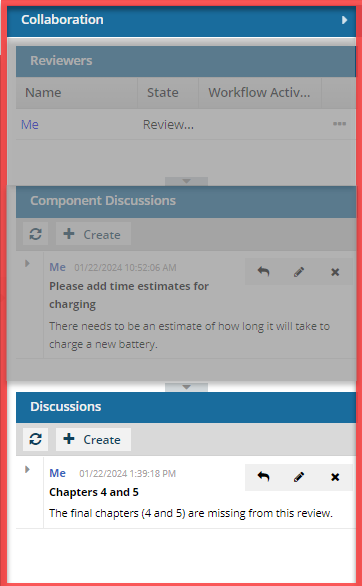
The Collaboration panel can be hidden or expanded to view the list of reviewers and the discussions they had about the review content or details.
- Discussions. Every review has a Discussions pane. These messages are not linked to any specific text or component. The messages will not change depending on the component you select.
- These messages can be used to provide comments on multiple components in the review or raise issues about the review itself.
- To see review Discussions, open the Collaboration panel and go to the Component Discussions pane.
 Previously, a review coordinator could set an option to restrict discussions during the Resolving phase. Although this setting no longer appears, all reviews work as if this option were selected. No new discussions can be saved by any type of user when the review is in the State of Resolving.
- The Create button is active in both the Component Discussions and the Discussions panes.
- You can enter text on the Create Discussion screen, but after you select Create, you see a warning that "Discussions can only be created during the review phase."
- Only the review coordinator or administrator can edit or delete messages in the Component Discussions and Discussions (for the entire review) panes when the review is in the Resolving state.
- If the review is not in a State of Resolving, reviewers can add, edit, and delete their own comments in the Collaboration panel until all users have completed their review or the review is canceled.

To edit Discussions for a review in Resolving:
-
Go to the right side of the screen and open the Collaboration panel by clicking
 the Open arrow.

-
To reply to a discussion thread, select the thread, and then click the Reply (arrow) icon
 .
.
-
On the Create Discussion form, do the following:
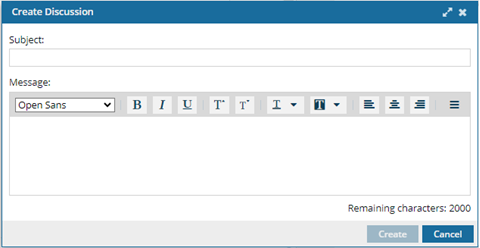
- In Message, enter your text. You can use the text formatting options if necessary.
- Click Create.
-
To edit your message in a thread, select the thread and then click the Edit (pencil) icon
 .
.
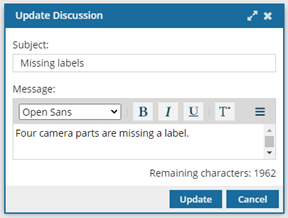
- In Subject, edit the brief title for your discussion thread.
- In Message, edit your text. You can use the text formatting options if necessary.
- Click Update.
-
To delete a message that you posted in the thread, select the thread and then click the Delete icon
 .
.
 If you're trying to delete the first message in a thread and there are replies, you see the following error: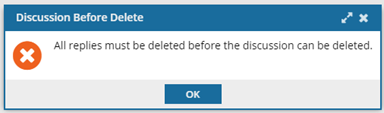
You must delete all the replies before you can delete the thread.
-
To delete an entire thread it must have no replies. You can delete a comment in the following ways:
- If the thread has replies, delete those first.
- To delete a thread with no replies, click the Delete icon .
 You will see a screen asking you for a confirmation. Click Yes.