Preview large images as thumbnails
If you store many of your images with high resolution, you can configure Inspire to show a thumbnail image instead of the larger version. When a user previews content in the Components browser by selecting Details, they see a thumbnail instead of the high resolution version. Users also see thumbnails in Projects when previewing content.
- By default, this feature is enabled.
- When a user previews content in the Components browser by selecting Details:
- In the preview, you see all images as a thumbnail.
- When you double-click the thumbnail, you see the image in its high resolution version.
- You also see this behavior in Projects when previewing content.

- Turning this feature off.
- When a user previews content in the Components browser by selecting Details:
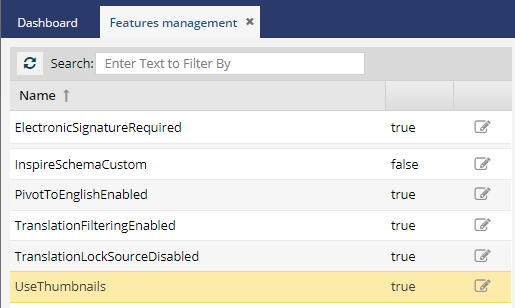
To manage the Thumbnail feature:
-
On the Features management tab:
- After UseThumbnails, note the state.
- If the feature says true, users always see a thumbnail in previews.
- If the feature says false, users see a thumbnail only if the image is larger than 2 MB.
-
After UseThumbnails, click
 Update.
-
The checkbox is highlighted in blue. To change the state, clear or select the checkbox.

- To set the feature to true, select the checkbox.
- To set the feature to false, clear the checkbox.
-
Click Update.
 Users must log out and back into Inspire for the setting to take effect.