Open the View Translation screen
After you send components for translation, you can review the job settings.
 Required Permissions
 For full access to all translation jobs, you must be an administrator.
- An admin can edit and cancel any translation job regardless of Translation module permissions.
- To configure permissions, administrators can follow the steps in: Update module access permissions.
- For full access to your own jobs, you must be a coordinator.
- Coordinators retain access to their own jobs regardless of Translation module permissions.
- A user who is the coordinator of a job can still edit and cancel it even if they have no explicit Translation module-level Update permission.
- To edit and cancel any translation job, a non-admin user must have both the Read and Update permissions for the Translation module.
- To see all jobs, a non-admin user must have the Read permission for the Translation module

 The tabs you see when you open the View Translation screen will vary depending on the type of Translation Project you select when creating the translation job. On the Details tab, this is shown as Vendor.

- You always see the Details, Languages, and Components tabs.
- If the Translation Project type you selected when creating the job has attributes associated with it, then you see an Attributes tab.
- If the Translation Project type you selected when creating the job uses the PD Rest API, then you see a Reference only tab.
- If the Translation Project type you selected when creating the job allows Inspire to communicate with another application such as Project Director, then you see an Integration tab.
If there were issues when creating the translation job, you also see the Log tab.
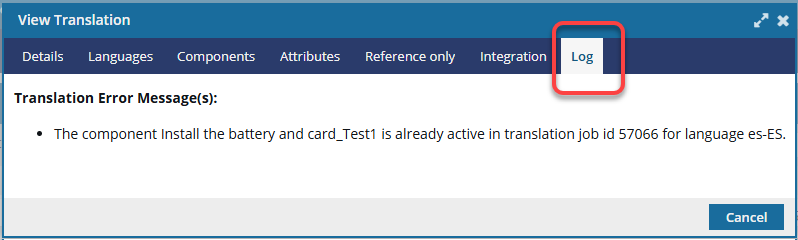
- Only errors that occurred during job creation are listed here. Any other errors encountered afterward are not listed here.
- The information on the Log tab is the same as what you receive with in-app notifications and in the Notifications module.
- For more details, read: Use the Log tab after creating a job.
For more information about sending components to translation, read:
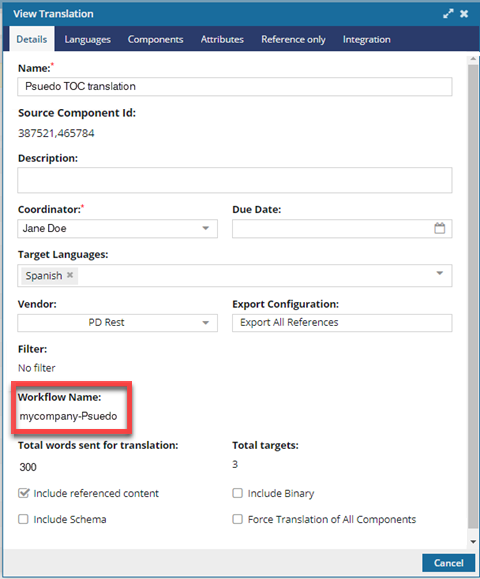
 If the translation job was sent to Project Director, you can now see the workflow used for the submission in Workflow Name.
- When using PivotToEnglish, the same workflow will be used for both phases of translation.
- For example, from a foreign language to English, and then from English to a different foreign language.
To open the View Translation screen:
-
Select
 Translations.
-
On the Translations Management tab, in the list, find the translation you want to view more details for.
If you can't find the job you're looking for, do any of the following:
- If there are multiple pages, scroll to the next page using the controls at the bottom of the list.
- Sort the list by clicking a column heading.
- Search for items in the list that contain a keyword or phrase.
- Limit the list to show only jobs in a specific state. Go to States, select an option, then click the search icon
 .
. - Show hidden jobs by selecting the checkbox for Include Archived. By default, the options for Include Completed and Include Cancelled are selected.
-
To open the View Translation dialog, double-click the translation job.
You can also right-click on the job or use the job's
 Options menu and select View.
 -
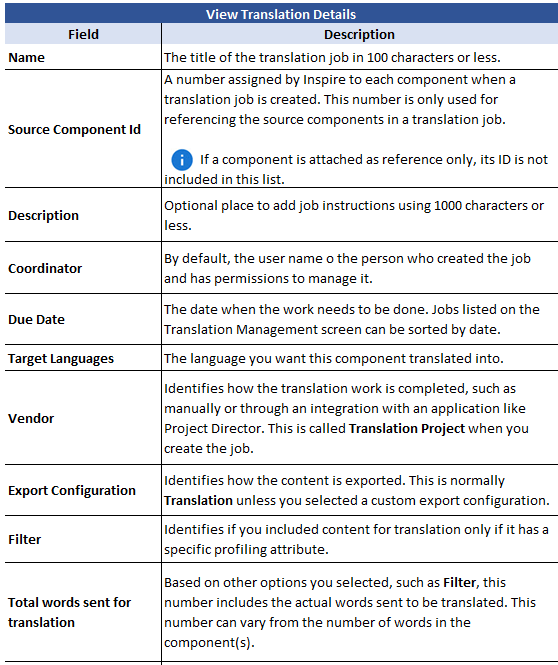
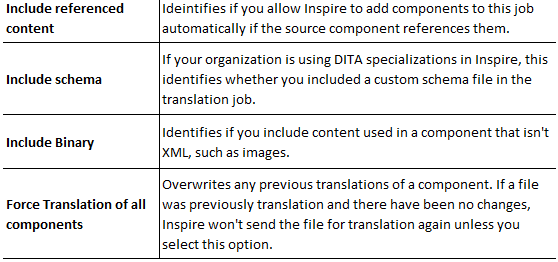
On the Details tab, all required fields are marked with a red asterisk. Use the following table to see details about each field: