Import components
If you want to add content to a component, such as an image, and it isn't stored in Inspire yet, you can import it. You can import files from the Components browser or a project folder by browsing or by dragging and dropping.
 Topics in this article:

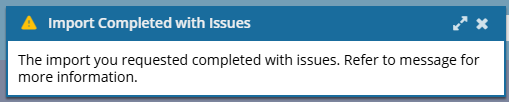
After import, if you see the following message, read Understanding import error messages.
Import rules
You can bring in external data or content into Inspire, where it is stored as XML or a binary and made available for use. Be aware of the rules Inspire imposes on files that can be imported.
- You can import one or more files in one import process.
- You can import a combination of XML files, image files, or non-XML files.
- You can import a ZIP archive and choose to have the contents of the ZIP file extracted during the import process.
 To create a new folder structure in Inspire by importing a ZIP file, an administrator or user must have the required permissions. See the section below for specific permission requirements.
 If you import a ZIP file that contains folders and references that use the shorthand syntax (#./), the imported components show a valid relationship regardless of whether an administrator has configured Inspire to Allow internal links to use a short format.
 - You can import files into one folder only.
- If a file already exists, Inspire imports it again into its existing folder. The imported files will be given a unique filename (component name + GUID). It will not overwrite the existing content.
- If a file already exists and it has a binary type, you can choose to replace it. Inspire gives the imported binary file the same filename as the component you selected to replace. The component name also stays the same, and a history record is created. Follow the steps in: Replace a binary file. This option is not available for an XML file.
- Inspire now supports content references to ditabase topics. A ditabase topic is a composite topic. Before maps, ditabase was used to collect multiple topics and structure them within a single topic file.
- When you import a topic with a conref to a ditabase topic, Inspire creates a valid reference.
- When you import an XML file with elements, Inspire will either assign a unique ID to all elements that don't have one, or only to supported elements. If you are an administrator, read Create automatic IDs for all elements. After importing content, you may or may not have generated element IDs. An administrator can configure an element to never be assigned an ID. You can verify whether elements in the imported content have IDs by opening them in the Oxygen editor.
For example, if a Ditabase component is created or imported into Inspire, normally an ID is automatically added to the root. For Ditabase, this ID renders the component invalid when opened in the XML editor because IDs are not allowed on DITA components.
If an element is configured to not use IDs:
- When content is imported, no ID is generated
- In the Oxygen editor, no ID is generated when the Generate IDs or Save and Submit options are used
- This behavior is enforced even if the AutomaticIds option is turned on
- When you import multiple components, their relationships are analyzed during the import process. This prevents references from changing after the Import Complete message.
- When you complete a task that triggers a notification, such as importing content, the Slack and email message bodies contain:
The notification with ten or fewer Issues, Errors, and Warnings.
A link at the bottom of the message [See Full Version]
You can click the [See Full Version] link to expand a section under the link with the full details
Import restrictions
Inspire imposes rules to control certain import actions for security or administrative purposes. These rules can be based on various criteria, ranging from the file's name, publisher, or type.
 Application administrators and users must have special permissions to create subfolders.
To create a new folder structure in Inspire by importing a ZIP file, an administrator or user must have the required permissions.
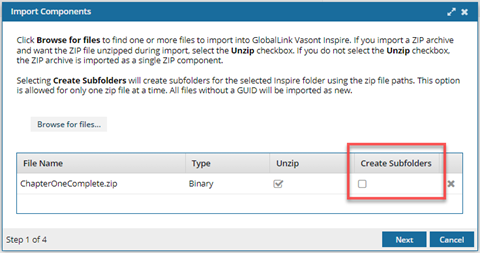
For administrators, the required permissions vary by admin role type.
- Application Administrators. By default, when importing a ZIP file, your organizational admins do not see the Create Subfolders option.
- If you want users who belong to this role to create a new folder structure when importing a ZIP file, you must give them permission.
- To grant these permissions, add the Application Administrators role, an admin user, or a non-admin user to the Content Browser module property called can_create_import_subfolders.
- Follow the steps in Allow application administrators to import subfolders.
- System Administrators. By default, when importing a ZIP file, Vasont Inspire administrators can see and select the Create Subfolders option. You can't change or remove this default permission.
 Malformed XML isn't imported.
If you import an XML file with incorrect syntax or illegal characters, Inspire no longer imports it as a binary with the Invalid XML file type.
- If your document does not conform to the XML syntax rules of a Document Type Definition (DTD), XML Schema, or other type of schema that defines the structure of an XML document, you see an error.
- After Inspire shows you an error, the malformed XML file is skipped.
 You can correct the XML errors and try again.
File names must be 100 or fewer characters.
When you create a component in Inspire, you must use a file name of 100 or fewer characters.
When you export a component, a GUID (globally unique identifier) is added to the file name.
When you import a file back into Inspire, the file name and GUID together must not exceed 200 characters.
If the file name and GUID length exceeds 200 characters, Inspire won't import the file.
The files can't be part of an active translation job.
When you import files, Inspire checks to ensure none are in an active translation job.
If the files you are importing are part of an active translation job:
- The entire import will fail, even if some files are not part of an active translation job.
- You see an error message: You are trying to import files that are part of an active translation job. Use the "Import translation" action in the translation management tab instead.
- You see one error for each file you are trying to import that is part of an active translation job. File ({fileName}) was found in translation job ({translation job id}).
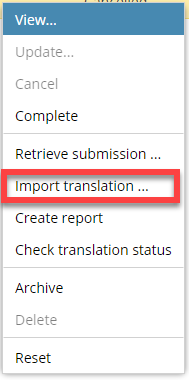
To import translation files:
- Go to the
 Translation Management tab.
 - Select the job that the files belong to.
- Right-click the job or click the
 Options menu.
 - Select Import translation...
For more information, read Import translated components
Supported file types
Importing a file is different from simply opening a file because it involves either converting a non-XML file to binary or saving an XML file and validating it according to your framework and schema rules. After the file is successfully stored, if it is a binary file, you cannot edit it, but you can view it or attach it to files, reviews, and translations. If the file is an XML file, you can also edit, translate, review, and publish it.
Supported File Types ( ,
,  ,
,  ,
,  ,
,  ).
).
In the Component's browser, you can look for the icon shown immediately before the component Name to see what type of content is stored in the file or the application that created it
- Microsoft Word file (). You can import files with the .DOC and .DOCX extensions. In Inspire, these files are treated as binary, so you have limited options for viewing them and no options for editing them. You can attach it to other components, send it as a reference file for translation jobs, and manage it in the Components browser. For help using these files in Inspire, read: Working with DOCX files.
- Image file (). After you import an image, Inspire stores it in a binary format so that you can select it and insert it into your content. You can also attach it to other components, send it as a reference file for translation jobs, and manage it in the Components browser. However, because they are stored as a binary file, you can't edit the image in Inspire or Oxygen. For help using these files in Inspire, read: Work with images in Oxygen.
- BMP. Microsoft Bitmap Picture format.
- EPS. Encapsulated PostScript format.
GIF. Compuserve Graphics Interchange Format.
JPG. Joint Photographic Experts Group format.
PNG. Portable Network Graphics format.
SVG. Scalable Vector Graphics XML format.
- TIF (or TIFF). Tagged Image File Format.
- Adobe PDF file (
 ). After importing a PDF file into Inspire, you can reference it the same as you would an image. It's a binary file, so you can't edit it, but you can add it to a topic or map using Oxygen, attach it to other components, send it as a reference file for translation jobs, and manage it in the Components browser. For help using these files in Inspire, read: Work with PDFs.
 - Microsoft Excel file (
 ). After importing a file with an .XLS and .XLSX extension, you can reference it the same as you would an image. It's a binary file, so you can't edit it, but you can add it to a topic or map using Oxygen, attach it to other components, send it as a reference file for translation jobs, and manage it in the Components browser. For help using these files in Inspire, read: Working with XLSX files.
 - ZIP archive file (). You can import a ZIP archive (or ZIP file) that bundles one or more files and folders into a single file. When you import an archive, you can choose to extract and save the files within it, or save the compressed file without extracting the individual files it contains. If you choose to save the compressed file, it is stored as a binary file. In Inspire a binary file can't be edited or extracted, but you can attach it to other components, send it as a reference file for translation jobs, and manage it in the Components browser. For help using these files in Inspire, read: Import a folder structure from the Components browser.