Creating components
All your content lives in self-contained files called components. You can create components from various types of XML templates, including topics, maps, images, and DocBook articles. You can also create a component from non-XML content, such as images and PDF documents. These components are called binaries because they can't be edited in Inspire.
 What do you want to learn about?
- Filename recommendations
- Places to create a component
- Required fields
- Creating multiple components at once
- Find your newly created component

Filename recommendations
If possible, try to avoid using DITA control characters such as square brackets ([]) in the name. This can cause a validation error when you add the topic to a map.
- You can now use square brackets in a component name, and when you add it to a map, it won't cause validation errors.
- However, you will have to go back and fix any previously created map references to a component with square brackets in the name.
File names must be 150 or fewer characters.
- When you import a file back into Inspire, the file name and GUID together must not exceed 200 characters.
- If the file name and the GUID length exceed 200 characters, Inspire won't import the file.
- When you export a component, a GUID (globally unique identifier) is added to the file name.
- By default, the Filename is created from the New component name with all the spaces removed. To create your own system filename, you can override the default.
- This name can include underscores instead of spaces, to make it easier for Web services, scripts, and plugins to process.
- This name can include special characters like brackets [], but it's not recommended.
Places to create a component
There are many ways to create a component in Inspire. To get you started, these instructions tell you how to create a component from the Components tab.  Create a component in the Components browser
If you are working in other parts of Inspire, you can also create a component while doing these tasks:
- Working with projects. Create a component in a project.
- Working with maps. Create a component from a map.
- Save as. Choose how to save a copy of a component.
- Branching. Branch components.
Required fields
To create a component, you must fill out the required details on the Create Component screen.
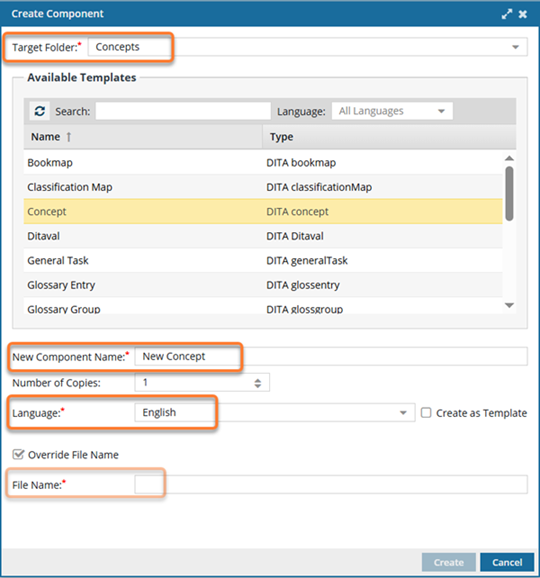
- Target Folder. By default, this is set to the folder you were in when you selected the option to create a component. You can change the location where the component will be stored by selecting a new folder.
- Available Templates. This setting identifies what type of content is in this component. The template type defines the component's XML structure and which elements can be included. For example, the XML structure differs between a Concept and a Task because they have different root elements, different allowed children, and different required structures.
- New Component Name. This setting holds a title for the component in 100 or fewer characters. It is a user-friendly display name used anywhere components are listed, and it can include spaces and special characters. It is not the same as the Filename, which is used by the system and is subject to restrictions.
- Language. By default, this is set to the English language. To change the default, select the language in which the content is written.
 When you open this component for editing, Inspire loads the spelling dictionary for the language you choose. For example, if you choose the French language, when you're editing this component and turn on spell check, correctly spelled English words will be underlined in red as a warning of a misspelling. French words spelled correctly won't be underlined in red.
 - If Override File Name is selected, you must create a new system File Name. Recommendations:
- This name includes underscores instead of spaces to make it easier for Web services, scripts, and plugins to process.
- This name can include special characters like brackets [], but it's NOT recommended.
- File names must be 150 or fewer characters.
When you import a file back into Inspire, the file name and GUID together must not exceed 200 characters.
If the file name and the GUID length exceed 200 characters, Inspire won't import the file.
Creating multiple components at once
On the Create Component screen, Inspire provides an option for you to create more than one copy. By default, the Number of copies is set to 1. To create multiple components at once with the same settings, use the up and down arrows or enter the number of components you want to create.
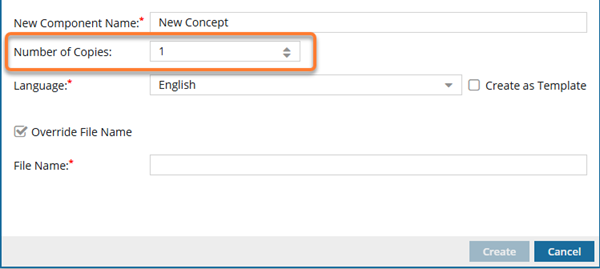
If this number is greater than one:
- Inspire creates multiple components of the same type in the same place.
- Inspire appends a suffix of (1), (2), (3) to the end of each component's New Component Name.
Find your newly created component
After you select Create, the screen closes, and you are returned to the Components browser.
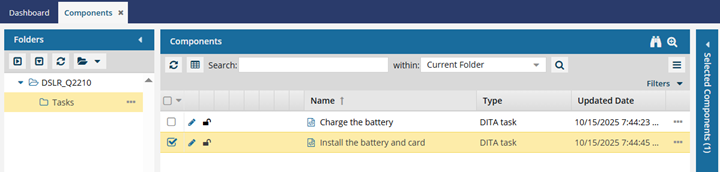
- In the Folders panel, the location you selected in Target Folder is highlighted.
- In the Components pane, the component you created is selected and highlighted in yellow.
You do not need to refresh the Components browser to find your new component.