Create a component from a map
When you're organizing topics into a map's hierarchy, you can add references to topics that you know you need but haven't created yet. After you create the new topic and save your changes in the map, don't forget to open the new topic and add content.
 Tips and tricks
- If you want to add a reference to an existing topic, follow the instructions in Add existing topics to a map in Oxygen.
- To add a placeholder in the map without creating a new topic, follow the instructions in Add an empty topic in a map using Oxygen.

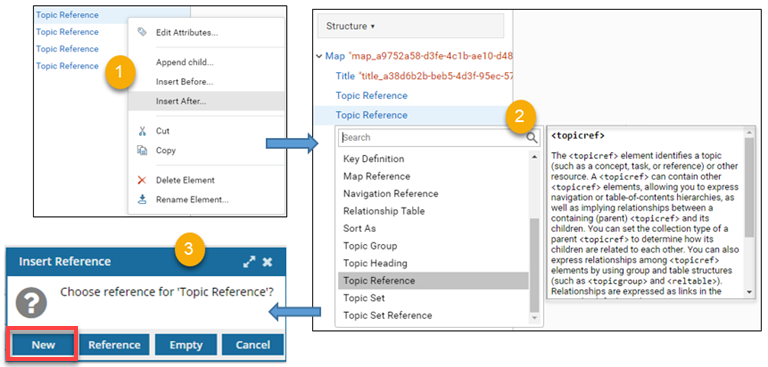
To create a new topic in a map:
-
Click
 Components.
-
On the Components pane, right-click the map component and then select Edit ...
 You can also open the map by:
- Double-clicking
- Clicking
 the Options menu, and then selecting Edit ...
-
On the Insert Reference dialog, click New.
 Results: The Create Component screen opens.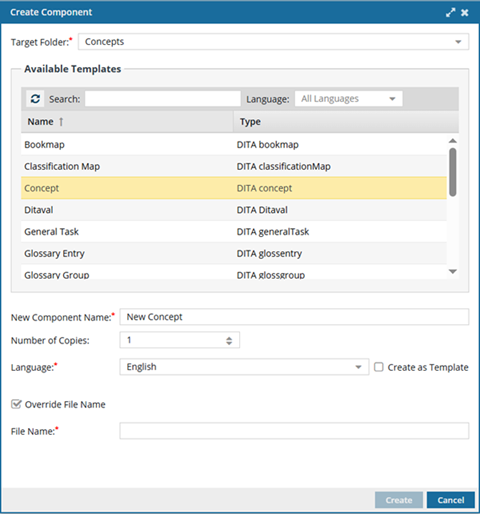
-
In Target Folder, by default, you see the folder you were in when you selected the option to create a component.
To change the location where the component will be stored, use the dropdown arrow to select a new folder.
-
In Available Templates, select what type of content is in this component.
The template type defines the component's XML structure and which elements can be included.
- For example, the XML structure differs between a Concept and a Task, because DITA uses different topic shells for each information type.
- A concept and a task aren’t just stylistic variations; they have different root elements, different allowed children, and different required structures.
-
In New Component Name, enter a title for the component in 100 or fewer characters.
You can easily change a component's name after creating it.
-
In Language, by default, it's set to the English language. To change the default, select the language in which the content is written.
When you open this component for editing, Inspire loads the spelling dictionary for the language you choose. For example, if you choose the French language, when you're editing this component and turn on spell check, correctly spelled English words will be underlined in red as a warning of a misspelling. French words spelled correctly won't be underlined in red.
Notes:
- The language you select is applied to the root level element in the xml:lang attribute.
- To ensure content that is read from Right-to-Left displays correctly in Oxygen, Inspire may set the Reading property.
- For the language you choose, if the language Reading property is rtl (Right-to-Left) and it doesn't exist yet, Inspire sets it.
- For example,
<concept id="concept_guid" xml:lang="ar-Ar" dir="rtl"> - Inspire makes no changes if the language Reading property is ltr (Left-to-Right)
- If necessary, an administrator can change the language after you create the component.
-
Optionally, if you want this component to contain a template structure instead of content, select Create as Template.
 Only users with the following permissions can create templates when creating a component:
- Administrator permissions
- Access to the Content Browser module, and listed as a user for the can_create_template property.
- Access to the Content Browser module, and belonging to a role that is listed for the can_create_template property.
- Even if you don't have permissions to create a template, you can still access a component's Details and add or remove the Template property.
- If you are an administrator, to grant permissions, refer to Allow users to create a template.
-
In Number of copies, you MUST leave the default set to 1.
You cannot create multiple components at once in Oxygen.
-
Optionally, you can create a File Name that is different from the Component Name by selecting Override File Name.
By default, the File Name is the same as the component Name, except with underscores instead of spaces. This makes it easier for Web services, scripts, and plugins to process. Inspire will add a GUID and a file extension to the file name after you click Create.
-
Edit the File Name using underscores instead of spaces. (File names must be 150 or fewer characters.)
For more information on the different types of names that Inspire uses, read How to name a component.
-
Edit the File Name using underscores instead of spaces. (File names must be 150 or fewer characters.)
-
In the toolbar, do one of the following:
- To save your changes locally and keep working, click
 Save .
 - To save your changes to the database and close the map, click
 Save and Submit.
After you save your changes in the map, don't forget to open the new topic and add content. - To save your changes locally and keep working, click