Approve a component from a project
When you're working in a project where you've collected components, you can easily let other reviewers know that a component is ready to work on by giving it an approved state.

 Approval requirements:
 - To approve components, you must have at least one of the following roles or permissions:
- Be an administrator.
- Non-admins must be added to the Content Browser's can_approve module property. Follow the steps in: Control who can approve components.
- You must have permissions to update the component.
Otherwise, the Approve option is greyed out and unavailable.
- Permissions can't be blocked. A content owner or administrator can set permissions to deny access to components or folders. If your permissions to content have been blocked, and you are not an administrator, you cannot use the Approve option in a project's Content pane.
- The component must be unlocked
 .
. - You may be prevented from selecting a component to approve if the ApprovalNotRequired tag has been attached to the component. For more details, read Exclude a file from approval using a tag.
- Before you approve a component, do all the following to prevent seeing errors:
- Remove all tracked changes or comments. Work in the Oxygen editor
- Correct any errors. Validate XML in the editor
After you approve a component in Inspire, to help avoid accidental editing of approved content:
- The approved component may be locked with
 a green system lock.
 An administrator can control if a system lock is placed on the component after a user approves it. By default, this optional feature is set to false, so no lock is placed on a component after approval.
 - This action happens regardless of whether the approval requires a signature or not.
- To edit an approved component, you must unlock it by Unapproving it.
- The approved component may be locked with
 Before you begin
- By default, only the selected project component is approved, and no referenced components are included. If you also want to approve referenced components:
- To approve the source and all referenced components at the same time, add the component to the Selected Components panel and use the Approve components option. Follow the steps in:Approve multiple project components.
- To select specific referenced components to approve, after approving the source component, go to the Components browser. Select it again and use the Approve or unapprove referenced components... option. Follow the steps in: Approve component references.
- You cannot add a Label and Comment to the approval history record if you select Approve from the right-click or
 Options menu.
 - To add a label and comment while approving one component, use the Selected Components panel. Follow the steps in:Approve multiple project components.
To approve one component
-
Click
 Projects.
-
On the Project Management tab, all projects in your organization are listed.
 To find a specific project, you can:
 - Filter the list of available projects by words in the project name. In the Search text box, enter a keyword, and then click
 the magnifying glass.
 - Filter the list of available projects to include only those you own or are participating in. In Type, select an option to filter the list by that criterion.
- To include completed projects in the list, select Include Completed and then click the magnifying glass.
- Filter the list of available projects by words in the project name. In the Search text box, enter a keyword, and then click
-
To open a project, select it and double-click.
You can also open a project by:
- Right-clicking the project and then selecting Open.
- Clicking the Options menu and then selecting Open.
-
In the Content pane, select the component you want to approve.
To see the complete name of the components and use advanced search to search through all folders within a project, click
 the Select Project Components option.
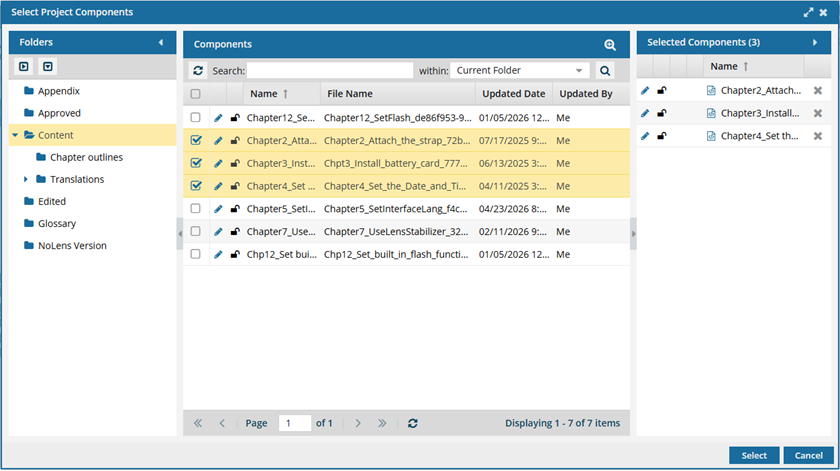
- To see more text in the Components pane, collapse the Folders panel by clicking
 the arrow that's pointing left.
- To quickly expand or collapse the folders, use the
 expand all and
  collapse all buttons.
- To find a component by keyword, in Search, enter words or phrases used in the component's name. In Within, select where in the project you want to search (Current Folder, Current and Subfolders, All Folders). Click Search .
- To find a component by creating a query, click
 Advanced Search.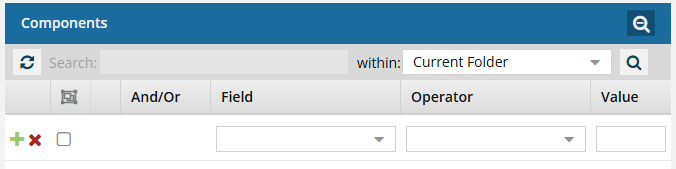
- Fields correspond to the columns in the grid. In the Field list, select the column you want to search in, such as Component State.
- After you select a Field, you must describe the relationship it has with the Value. In the Operator list, to include or exclude some or all of the values that you want to use, select an operator, such as
<>(not equal to). - The options in the Value list change depending on what you selected in Field. In the Value, select or enter the word, phrase, or number you are searching for in relation to the Field. For example, Component State (Field)
<>(Operator) Invalid (Value). - In Within, select where in the project you want to search (Current Folder, Current and Subfolders, All Folders).
- Optionally, to enter another clause to your query, click
 Add. Select whether you want to narrow your search by requiring that all statements must be true (And), or expand your search by requiring that any of the statements can be true (Or).
 - Click Search .
- To select a component to manage, select its checkbox.
- To close the Select Project Components screen, click Select.
- To see more text in the Components pane, collapse the Folders panel by clicking
-
Click the Options menu, and then select one of the following options:
- Approve (if an electronic signature is not required)
- Approve... (if an electronic signature is required)
-
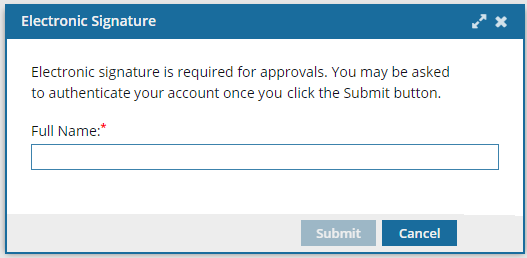
If an electronic signature is required, on the Electronic Signature screen, enter your Full Name and click Submit.
- Do not include underscores or email addresses.
- You must use the name as it appears in your user profile.
- To see what this is, click the
 Profile icon.
 - For example: Jane Doe.
- You only have to enter your name once to sign all selected components.
-
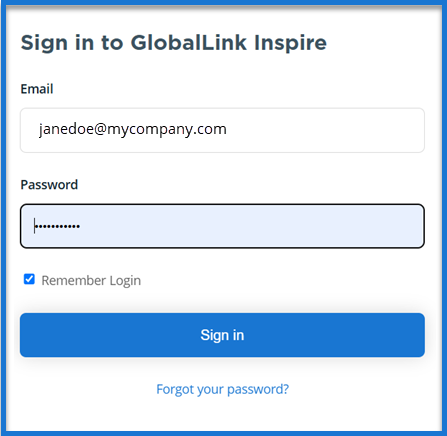
If you are required to authenticate your account:
-
On the Sign in screen, next to
 the lock, enter your password.
 Notes:
You don't have to re-enter your username. Inspire displays your account's email address.
You must use the same password that you use to sign in to Inspire.
-
On the Sign in screen, next to
-
The component is approved.
 Results:In the Content pane's components list, you see: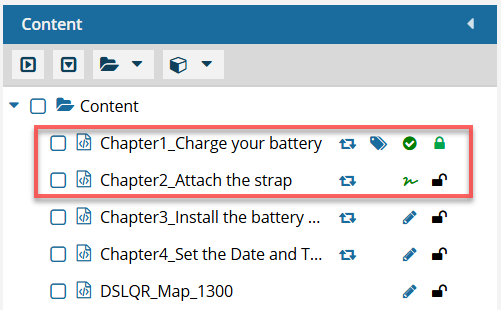
- One of the following approved icons next to the approved component:
- If no signature is required: a green checkmark
 .
. - If a signature is required: an e-signature icon
 .
.
- If no signature is required: a green checkmark
- The state of the component is changed to one of the following:
- If no signature is required: Approved displays when you hover over the green checkmark.
- If a signature is required: Signed displays if you hover over the e-signature icon.
Go to the  Notifications module and check for any Issues.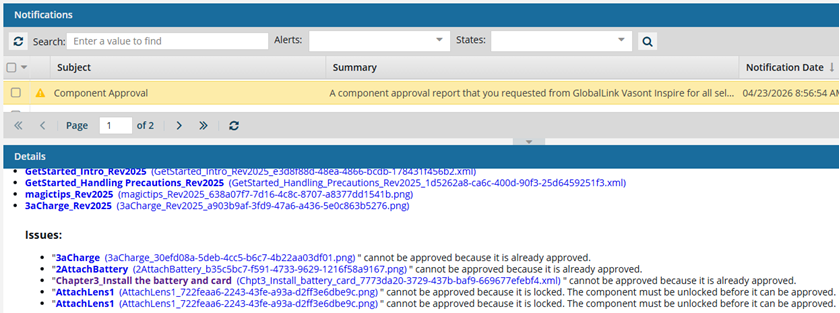
For example, referenced components might be skipped and not approved if they are:
- Locked
- In review
- Tagged with ApprovalNotRequired
- Already approved
The component metadata now includes the name of the user who signed the approval and the date. To see this data, follow the steps in: See Approval signatures. - One of the following approved icons next to the approved component: