Remove a workflow from a project
Users with permissions can remove canceled or completed workflows from a project if you no longer want to see the workflow in the list. Make sure that you don't need to retain the workflow data before you remove it, as this action cannot be undone.
 Required permissions
To create, view, update, and delete workflows you must either be an Administrator, the project Owner, or have the following permissions:
- Create, read, update, and delete permissions to the
 Projects module.
 - For the Projects module, your user account must be listed under the following Property: can_initiate_assignment.
- If you are an administrator, refer to Allow users to create project assignments and workflows.
To work with Review workflows, you also need:
- Create, read, update, and delete permissions to the
 Reviews module.

 Tips and tricks
- You cannot remove an active workflow. If you want to remove a workflow, you must first cancel or complete it.
- You can also Remove a workflow from the Workflows module.
 However, in the Workflows module you can only remove workflows with a State of Cancelled. If you want to remove a workflow with a State of Completed, you must do it from a Project.
 - The Remove option is only active if the following requirements are met:
- You are the project Owner or an Administrator
- The workflow has a State of Cancelled or Completed

To remove a workflow from a project:
-
From the top menu, click Projects.
-
To open a project, do one of the following:
- Double-click the project
- Right-click the project and then select Open
- Click
 the Options menu and then selecting Open
-
From the Workflow panel, select the workflow you want to remove.
 If the panel is not open, click
  the expand arrow.
-
In the workflow's row, select the Options menu, and then select Remove.
 Results: The Remove Workflow screen opens.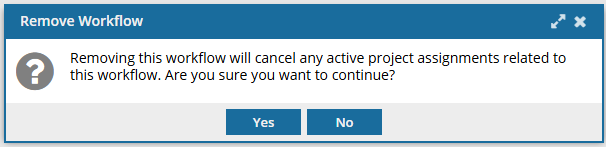
-
On the Remove Workflow screen, click Yes.
Results: The selected workflow is removed from the list of workflows associated with this project.