Delete a workgroup from a template
Inspire provides you with workgroups that you can use to collect participants that are needed to complete task activities. If you no longer want to be able to select a workgroup when configuring activities, you can delete it from the template.
 You must have permission to work with workflow templates.
- By default, only users with the following permissions can create project workflows and assignments:
- Administrator permissions
- Access to the Project Module with the Create permission
- Even if you don't have these permissions, you can be granted a special permission to create workflows and project assignments after a project is created.
- If you are an administrator, refer to Allow users to create project assignments and workflows.

 Tips and tricks
If you want to learn more about the default Workgroups provided by Inspire, read Manage template workgroups.
- If you just want to change the workgroup used in an Activity, follow the steps in: Update an activity's workgroup.
- You can also edit an existing workgroup to make changes so it is usable. Follow the steps in: Edit a template workgroup.
- Workgroups are specific to the template where they are created. If you want to remove the same Workgroup in multiple templates, you must open each template and delete the Workgroup.
Before you begin
To avoid breaking any activities in the workflow template that uses the workgroup you want to delete, you must first remove it from all activities that use it.
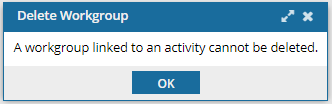
- If you try to delete a workgroup and it's being used, you see a message that workgroups linked to an activity can't be deleted.
- To check if the workgroup is in use, for each Activity, follow the steps in: Update an activity's workgroup.
To delete a workgroup from a template:
-
Click
 Components.
-
In the Folders pane, select Workflows.
 If you have moved the template to another folder, go that location instead.
 -
In the Components pane, select a workflow.
To open the template, do one of the following:
- Double-click the file
- Right-click the file, and then select Edit...
- Click
 the Options menu, and then select Edit...
 Results: You see the workflow activities and transitions in the editor.
 -
On the toolbar at the top of the editor, click
 Workgroups.
Results: You see the Workgroup Management screen.
Workgroups.
Results: You see the Workgroup Management screen.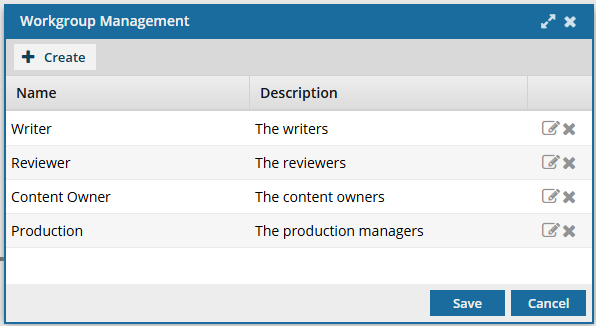
-
On the Workgroup Management screen, select the workgroup you want to remove from this template, and then click
 Delete.
If the workgroup is being used, you see a message that workgroups linked to an activity can't be deleted.
Delete.
If the workgroup is being used, you see a message that workgroups linked to an activity can't be deleted. Check each Activity in your workflow template and change any Workgroups that use the one you want to delete.
-
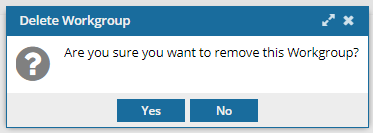
If the workgroup is not being used, on the confirmation screen, click Yes.
-
To save your changes, on the Workgroup Management screen, click Update.
Results:
- Your workgroup is deleted.
- When you open Workgroups, you will not see this workgroup listed.
- When you create or update an Activity, you will not be able to select this workgroup.
You can now:- If you are done updating the workflow, to close the workflow editor, click
 Save and Submit.
 - If you want to keep working but save your changes locally, click
 Save Progress.