Update an Activity's workgroup
Each activity in the workflow template has an associated workgroup that identifies who completes the work. You can change workgroup assignments by editing the specific activity. If you want to update the workgroup itself, follow the steps in Edit template workgroups.
 Required permissions
You must have permission to the Projects Module to work with projects and workflows. Other than that, you do not need special permissions to create, edit, or delete workflow templates.
 However, keep in mind that administrators and other users can set permissions on components and folders.
- You must have permission to edit the workflow template component.
- You must have folder permissions where the template is stored.
- For details on how to check and set permissions, refer to: Set permissions
 For a complete list of permissions, including starting a workflow from a template, read: Workflow permissions.

 Tips and tricks
- Activities are exclusive to the template they are in. If you want to add a new activity to multiple workflow templates, you must open each template and add the activity separately.
If you want to learn more about the default Workgroups provided by Inspire, read Manage template workgroups.
- You can create a new workgroup before updating an Activity. Follow the steps in: Create a new template workgroup.
- Workgroups are specific to the template where they are created. If you want to use the same Workgroup in multiple templates, you must open each template and create the Workgroup.
- After you assign users to Workgroups, their names are pre-populated in workflow templates and when a workflow is started.
Workgroups are especially important for the Assign User by Metadata feature.
- This option lets you pull in a component's element or attribute that contains an email address. Inspire automatically assigns the Activity to that user, rather than requiring a user in an active workflow to make the assignment.
- Inspire inspects the first component in the assignment and evaluates the XPath statement. If it encounters any errors, the Activity is assigned to the user in the Fallback User field on the Next Activity screen, rather than in the Assign To field.
- For more information, read: Assign a workflow activity using metadata.
 Before you begin
- The changes to an Activity will be applied to all new workflows that are started using this template.
- For workflows that use this template and are in progress:
- If the Activity you are updating has not occurred yet, the changes will be applied when the workflow moves to the updated Activity.
- If the Activity you are updating has already been completed, the changes will not be applied.
To update an Activity's workgroup:
-
Click
 Components.
-
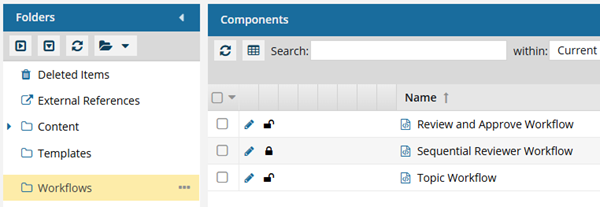
In the Folders pane, select Workflows.
 If you have moved the template to another folder, go to that location instead.
 -
In the Components pane, select a workflow.
To open the template, do one of the following:
- Double-click the file
- Right-click the file, and then select Edit...
- Click
 the Options menu, and then select Edit...
 Results: You see the workflow activities and transitions in the editor.
 -
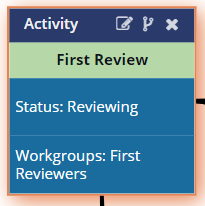
In the workflow editor, select the Activity you want to update.
Result: The box you select is highlighted in orange.
-
In the Activity's title bar, click
 Edit.
Results: You see the Update Activity screen.
Edit.
Results: You see the Update Activity screen.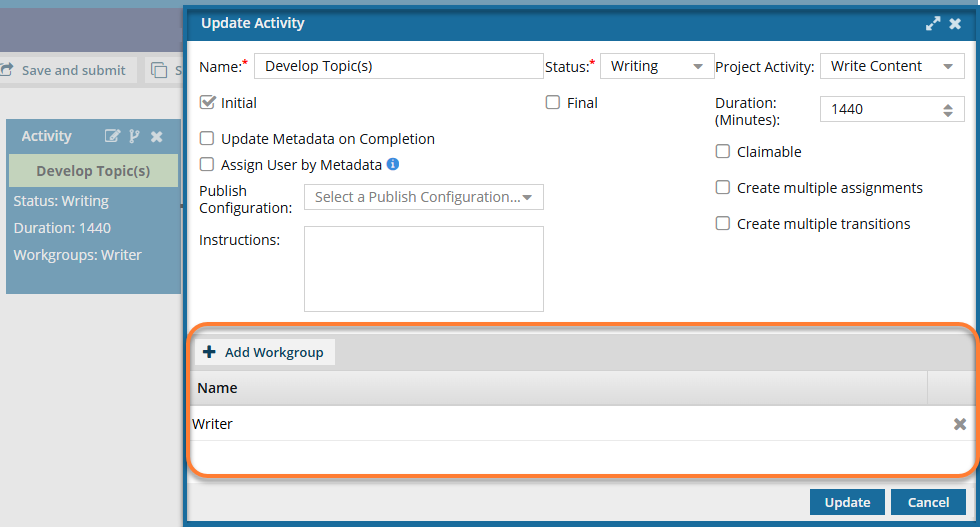
-
To add a Workgroup:
-
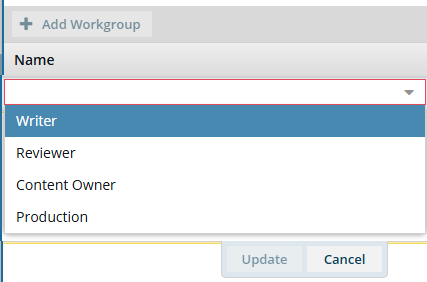
Select
 Add Workgroup.
-
In the new row that appears inline, select an option such as Writer, Reviewer, Content Owner, or Production.
 These options are configurable. Follow the steps in: Manage template workgroups.
 -
Click Update.
Results: You see the workflow listed under Name.
-
Select
-
To remove a workgroup:
-
Click
 Remove.
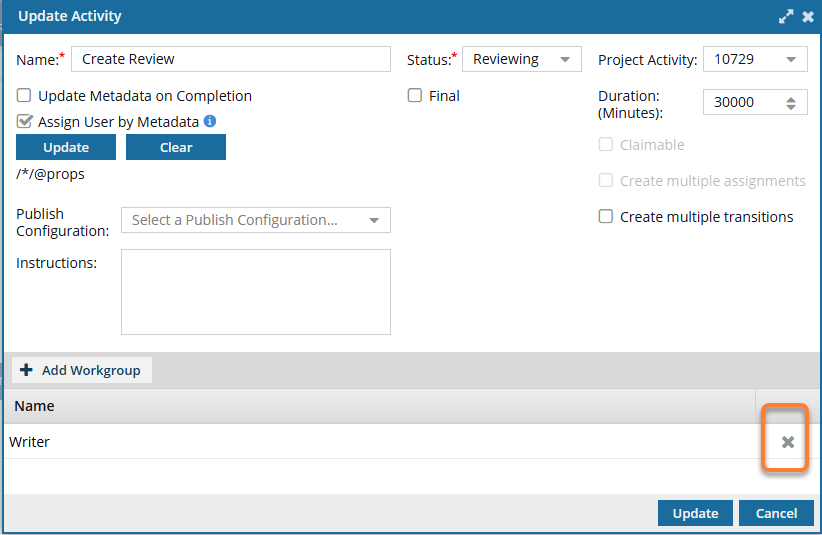
-
On the confirmation screen, click Yes.
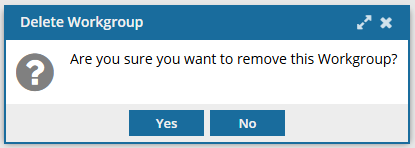 Result: The workgroup is no longer listed under Name.
 -
Verify that at least one Workgroup is listed.
If no Workgroups remain, you must add one before you can save your changes.
-
Click
-
To save your changes, click Update.
If you do not have all the required fields configured, the Update button is not available. Make sure you have entered or selected a value for all the following fields:
- Name
- Status
- Project Activity
- Workgroup
Result: You can see your updated activity in the workflow editor.You can now:- If you are done updating the workflow, to close the workflow editor, click
 Save and Submit.
 - If you want to keep working but save your changes locally, click
 Save Progress.