Copy and paste a Transition
You use transitions to identify what should happen when a workflow Activity is completed. For example, after the a technical review, you can create a transition that specifies the files should go to an editor for review. If you want to create an additional transition to an Activity, you can make a copy of the existing Transition and paste it so that you only have to update the TO Activity field.
 You must have permission to work with workflow templates.
- By default, only users with the following permissions can create project workflows and assignments:
- Administrator permissions
- Access to the Project Module with the Create permission
- Even if you don't have these permissions, you can be granted a special permission to create workflows and project assignments after a project is created.
- If you are an administrator, refer to Allow users to create project assignments and workflows.
 Tips and tricks
- You can have multiple transitions that occur after an activity.
- A transition can be created for an action that progresses the workflow, such as Approve.
- A transition can also be created for an action that returns the workflow to a previous step, such as Decline approval.
- If you remove an activity that a Transition is linked to, the transition box is highlighted in red.
- If there is also an Action that needs to be done during the transition, such as Take a snapshot, you can create the Action and add it to the Transition. Follow the steps in: Manage actions in a template.
- You also can manage transitions in the following ways:

Before you begin
- The changes to a template for a new Transition will be applied to all new workflows that are started using this template.
- For workflows that use this template and are in progress:
- If the workflow has not progressed past the Transition you are adding, the changes will be applied when the workflows moves to the new Transition.
- If the workflow has progressed past the Transition you are adding, the changes will not be applied.
To copy and paste a transition:
-
Click
 Components.
-
In the Folders pane, select Workflows.
 If you have moved the template to another folder, go that location instead.
 -
In the Components pane, select a workflow.
To open the template, do one of the following:
- Double-click the file
- Right-click the file, and then select Edit...
- Click
 the Options menu, and then select Edit...
 Results: You see the workflow activities and transitions in the editor.
 -
In the workflow editor, select a Transition.
 Transitions are shown as long rectangular boxes. When selected, the Transition is highlighted in orange.
-
In the toolbar, click Copy Selected.
 Results: The Paste option becomes active.
 -
In the toolbar, click
 Paste.
Results:
Paste.
Results:- You see a copy of the Transition in the workflow.
- It is connected in the same way as the transition you copied.
-
In the transition's toolbar, select
 Update transition.
Results: The Update Transition screen opens.
Update transition.
Results: The Update Transition screen opens.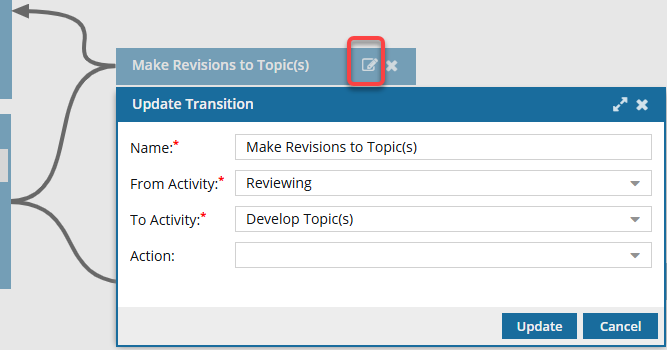
-
In From Activity, you can select a different existing Activity that needs to use this transition.
 Keep in mind that you can have multiple transitions that occur after an Activity.
- A transition can be created for an action that progresses the workflow, such as Approve.
- A transition can also be created for an action that returns the workflow to a previous step, such as Decline approval.
-
Optionally, if you or your organization has created Actions, such as Take a snapshot, you can select one of the custom actions here.
If you don't see the action you need, follow the steps in: Manage actions in a template.
-
To save your changes to the transition, click Update.
Results:
- You can see your transition connected with two lines: one line connecting it from the start activity; one line connecting it to the end activity.
-
To save your changes to the template, do one of the following:
- If you are done updating the workflow, to close the workflow editor, click
 Save and Submit.
 - If you want to keep working but save your changes locally, click
 Save Progress.
- If you are done updating the workflow, to close the workflow editor, click