View details for a translation job
To see all translation jobs in your organization, you can choose to display archived, completed, and canceled jobs. Then you can select a specific job to see more details than the grid can display.
 Required Permissions
 For full access to all translation jobs, you must be an administrator.
- An admin can edit and cancel any translation job regardless of Translation module permissions.
- To configure permissions, administrators can follow the steps in: Update module access permissions.
- For full access to your own jobs, you must be a coordinator.
- Coordinators retain access to their own jobs regardless of Translation module permissions.
- A user who is the coordinator of a job can still edit and cancel it even if they have no explicit Translation module-level Update permission.
- To edit and cancel any translation job, a non-admin user must have both the Read and Update permissions for the Translation module.
- To see all jobs, a non-admin user must have the Read permission for the Translation module

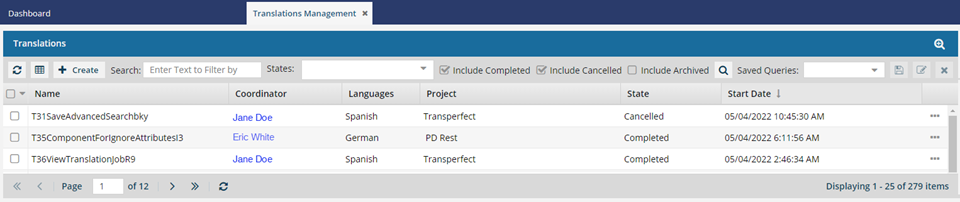
 Tips and tricks
- If you want more details than are shown in this grid, Open the View Translation screen for a specific job.
- When opening the Translation Management tab, users with Read permissions to the module can see all jobs. To configure this setting, administrators can follow the steps in: Update module access permissions.
Things you can do on the Translation Management screen:
- See job details
- Show or hide columns
- Sort the list
- Search
- Filter the list
- Show only jobs with a specific status
- Check the Submitted, Queued, and Processed dates
- Use the State column to troubleshoot issues
See job details
- From
 the Options menu, you can choose View to open the View Translation dialog. To see a description of all the settings on the View Translation dialog, read Send one component to translation or Send components to a translation vendor.
 - From the Options menu, you can Update translation details. Details can only be updated before a translation job is completed.
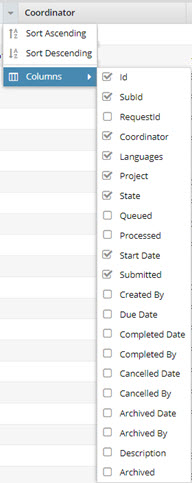
Show or hide columns
- Id (This is an Inspire ID)
- SubId (This is generated by GlobalLink Enterprise -formerly known as Project Director)
- Name (This is the name of the translation job. It's a mandatory column and can't be hidden.)
- Coordinator (This is the name of the person who created the job.)
- Languages
- Project
- State
- Start Date
- Submitted (Translation jobs sent before December 13, 2023, will not have any data in this column.)
You can show or hide the other remaining columns, too:
 |
|
 You can't hide the Name column.
- This displays the name of the translation job.
- It's a mandatory column and can't be hidden.
To add a column that isn't shown by default:
- Put your cursor in the column heading row, next to any column heading.
- Click the down arrow
 , select Columns, and then select the options you want to see in the job list.
Sort the list
To find the job you're looking for, you can use any column to change the order of the list so that you can see what you need first and avoid scrolling through pages of translation jobs.
To sort the list:
- Click a column heading to sort the list by that information.
- To sort the list by a labeled column heading, next to the column name, click
 the down arrow and select Sort Ascending or Sort Descending. You can sort by any column.
 - You can also use the arrow graphic next to the column name to sort in the following ways:
- To sort in descending order, click the gray up arrow
 (it will change to a gray down arrow
  )
) - To sort in ascending order, click the gray down arrow (it will change to a gray up arrow )
- To sort in descending order, click the gray up arrow
Search

To show only items in the list that contain a keyword or phrase:
- Go to the Search text box.
- Enter a term or keyword.
- Click the search icon
 .
.
Filter the list

In States, you can limit the list to show only jobs matching one of the following:
- At Vendor: You successfully submitted the job to an external application for translation
- Cancelled: The translation coordinator stopped the translation process before it was complete
- Completed: The vendor returned the translated files, and they've been imported back into Inspire
- Created: Inspire has prepared the job files and folders
- Exporting: Inspire is sending the job files to an external application
- Failed Retrieving: Inspire could not communicate with the external application to get the vendor's translated files and store them in Inspire
- Failed Sending: Inspire could not communicate with the external application to send the translation files and parameters
- In Progress: You successfully submitted the job in Inspire (previously in a State of Queued and Submitted)
- Partially Completed: The vendor completes and returns some but not all the work
- Processing Retrieval: Inspire is taking the translated files out of the package sent by GlobalLink Enterprise and is saving them in the correct locations in Inspire
- Processing Submission: Inspire is communicating with GlobalLink Enterprise to create a submission in the integrated vendor's system
- Queued Retrieval: Inspire is creating the package of files that were on hold to send to an integrated vendor or for a manual translation
- Queued Submission: Inspire has prepared the translation, but put it on hold before contacting any integrated vendors or starting a manual translation
- Quoted Submission: Inspire is communicating with GlobalLink Enterprise to create a submission so that a quote can be requested and reviewed
- Translating: The job is with the vendor
You can use the States filter by itself, or with a keyword or phrase search.
 If you choose a State of Completed or Cancelled, you must also select the corresponding option following the State field. For example, if you select a State of Completed, but don't select the Include Completed option, you won't see any results in the job list.
Show only jobs with a specific status
If you aren't finding the job you need, it may be hidden if it's in one of the following states:
- Completed
- Cancelled
- Archived

You can use these options alone, with States, or with a keyword or phrase search.
When you close the Translations Management tab, Inspire remembers whether you selected any of these filters. The next time you open the tab, the list of jobs is filtered in the same way.
Check the Submitted, Queued, and Processed dates
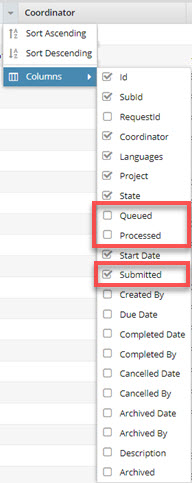
To monitor the progress of a translation job, you can look for:
- Submitted date and time. After you complete the details on the Translate component screen and click Translate, the Submitted column is populated with that date and time.
- The Submitted column helps you verify when Inspire received the job details without error.
- Translation jobs sent before December 13, 2023, will not have any data in this column.
- This column is shown by default.
- You can sort by this column.
- Queued date and time. After a translation job has been submitted to Inspire, it's added to the queue of jobs awaiting either submission to another application for work or manual translation.
- The Queued column helps you verify when Inspire added the job to its list of translations to complete.
- Translation jobs sent before December 13, 2023, will not have any data in this column.
- This column is hidden by default.
- You can sort by this column.
- Processed date and time. After a translation job has been added to Inspire's queue, when it becomes the active job in the queue, the translation job processing begins. When Inspire sends the translation details and content to another application or a translation coordinator, the processed date and time are added.
- The Processed column helps you verify when Inspire has sent the job the translation details and content to another application or a translation coordinator.
- At this time, the translation folders are created. You can see them in the Components browser.
- Translation jobs sent before December 13, 2023, will not have any data in this column.
- This column is hidden by default.
- You can sort by this column.
Use the State column to troubleshoot issues
You can see how a translation job is progressing by looking in this column.
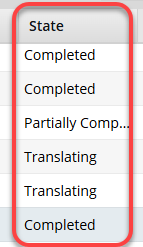
States may include the following:
- At Vendor: You successfully submitted the job to an external application for translation
- Cancelled: The translation coordinator stopped the translation process before it was complete
- Completed: The vendor returned the translated files, and they've been imported back into Inspire
- Created: Inspire has prepared the job files and folders
- Exporting: Inspire is sending the job files to an external application
- Failed Retrieving: Inspire could not communicate with the external application to get the vendor's translated files and store them in Inspire
- Failed Sending: Inspire could not communicate with the external application to send the translation files and parameters
- In Progress: You successfully submitted the job in Inspire (previously in a State of Queued and Submitted)
- Partially Completed: The vendor completes and returns some but not all the work
- Processing Retrieval: Inspire is taking the translated files out of the package sent by GlobalLink Enterprise and is saving them in the correct locations in Inspire
- Processing Submission: Inspire is communicating with GlobalLink Enterprise to create a submission in the integrated vendor's system
- Queued Retrieval: Inspire is creating the package of files that were on hold to send to an integrated vendor or for a manual translation
- Queued Submission: Inspire has prepared the translation, but put it on hold before contacting any integrated vendors or starting a manual translation
- Quoted Submission: Inspire is communicating with GlobalLink Enterprise to create a submission so that a quote can be requested and reviewed
- Translating: The job is with the vendor