Set notification preferences for components
When you're working with a component, and you select an option that requires Inspire to perform a task, such as move a component, you get a notification about its progress. You can review the list of actions in the Components module that trigger a notification and configure your preferences for whether you want a notification, and where you want to see it.
 Tips and tricks
- If you want to set preferences at the module-level for Components, global Notifications must also be On. Set global notification preferences.
- Look for the module name in a grey title bar.

- You can only turn notifications On or Off for the entire module.
- You can't set a preference for where notifications are sent for the entire module.
- You can set a preference for where each notification is sent at the module sub-level for each action.
- For more information on notification preferences, read Change your notification preferences.

 You can manage notifications at the global, module, and action level. If you set all three levels of notification preferences, Inspire uses the most granular setting instead of the global setting.
For example: if you use the following settings, when a new branch is created, you receive an Email notification only.
 Global
- Notifications are On
- Only In-app is selected
 Module
- Components notifications are On
 Action
 - Only Email selected (For Notify when a new branch is created)
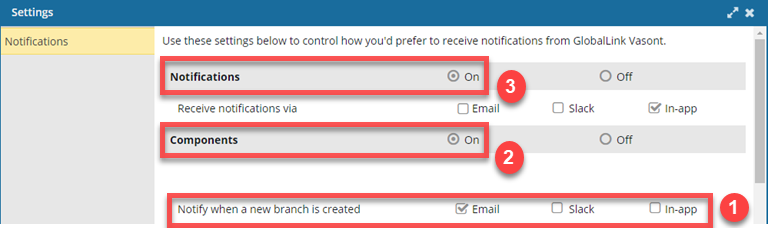
 If you want to set any preferences at the action level, you must turn on global Notifications and module Components notifications.
To set module notification preferences for Components:
-
In the top right corner of the Inspire menu bar, click
 the Settings option.
-
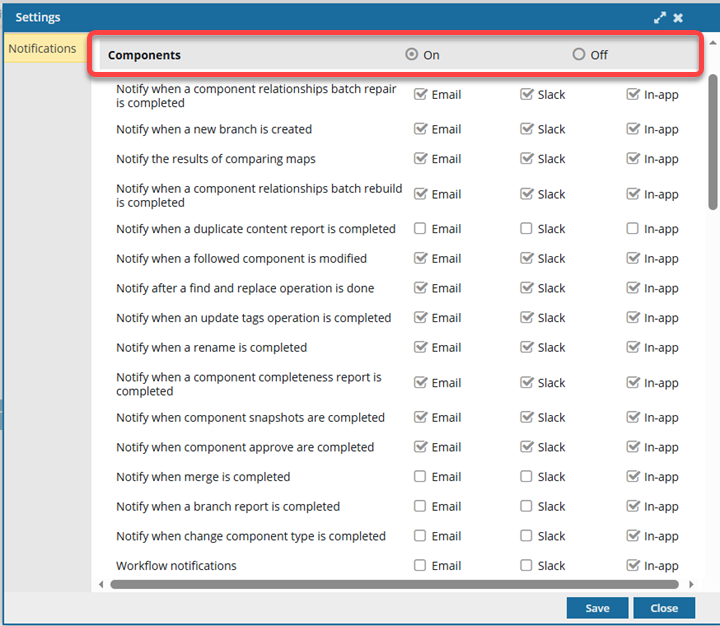
Scroll down to the Components notification settings, and in the grey title bar, select On.
-
Now you can select where you want to receive the notification as Email, Slack (if enabled), and In-app.
If you don't set a preference for a Components module action, Inspire uses the global Notification preference.Notify me when:
- A component relationships batch repair is completed.
 Repair component relationships
 - A new branch is created. Branch components
- I compare maps and get the results. Compare map snapshots
- A component relationships batch rebuild is completed. Rebuild all relationships in one component
- A duplicate content report is completed. Find duplicate content.
- A followed component is modified. Follow components to get update notifications.
- A find and replace operation is done. Use find and replace in the Components browser.
- An update tags operation is completed. Apply a tag in the Components browser.
- A rename is completed. Rename a component in the Component's browser.
- A component completeness report is finished. Check component completeness.
- Snapshots are created. Manage versions in snapshots.
- A component is approved. Approve or unapprove a component.
- A merge is completed between branched versions. Compare and merge branched versions
- A report is created for a component that is a branch or included in one.
- One or more components have their type changed. Change the component type for multiple components at the same time
- A workflow transition is configured to notify workgroup users to confirm if referenced components should be included in the approval. Review notification preferences for workflows
- A component relationships batch repair is completed.
-
Click Save.
 Results: Your user notification preferences are updated immediately after you click Save.