Delete a folder
You can remove a folder from the Components browser if it's empty or if none of the components it contains has restrictions.
 Topics in this article:
- Understand the rules for deleting components in folders
- Delete a folder
- Removing relationships
- Restoring deleted components

Understand the rules and restrictions for deleting components in folders
 Permission requirements
- Normally you do not need any special permissions to delete a folder, as long you have permissions to work in it and update it.
- However, administrators can set permissions to a folder and unselect the Delete permission for specific users or roles. If this is the case for your user account, you can work inside of folder but can't delete it.
- To delete a folder where all relationships are between components inside the folder being deleted, you do not need to be an administrator.
The rules for the force deletion of folders are NOT the same as for components.
- Folders. Both non-admin and admin users can delete a folder in the following cases:
 The components it contains have references.
 - The components are included in a project or a project assignment.
- The components are used in a publishing profile.
- The components are locked after approval.
- The ForceDeleteAllowed feature is set to either true or false.
- The user confirms the deletion a second time.
Neither non-admin nor admin users can delete a folder in the following cases:
 At least one component in the folder is in review.
- At least one component in the folder is included in a translation job.
- Folders. Both non-admin and admin users can delete a folder in the following cases:
 The Update and Delete component permissions are no longer tied together.
- If you want to move a component between folders, you must have the Update permission for the component. The Update permission no longer lets you also delete the component by default. You must explicitly have the Delete permission to send the component to the Deleted Items folder.
- If you have permission to delete a component, you can no longer also move the component between folders by default. You must explicitly have the Update permission to move a component.
Restrictions- You can delete a folder if any of its components are locked for the following reasons:
Locked by you. (Either you have the component open, or you saved and closed it without submitting the changes)
Locked by another user. (Either they have the component open, or they saved and closed it without submitting the changes)
Even an administrator cannot force the deletion of a folder if any of its components are locked for the following reasons:- Locked because it's part of an active review
Locked because it's part of an active translation job (An admin can configure approved components in translation to remain unlocked. Follow the steps in: Allow files to remain unlocked during translation.)
Delete a folder
To delete a folder, you must have permissions to work with the folder. If there are relationships to components outside the folder you are deleting, you can choose to deal with the relationships before deleting the folder. If you are an admin user and the folder doesn't contain any components with restrictions, you can force the deletion of a folder and fix invalid relationships later.
Use caution when using force delete. If a component has reference and is deleted, it may result in broken links. To correct invalid links, follow the steps in: Repair component relationships.
To delete a folder:
-
Click
 Components.
-
To open the Options menu, click
 or right-click the row, and then select Delete.
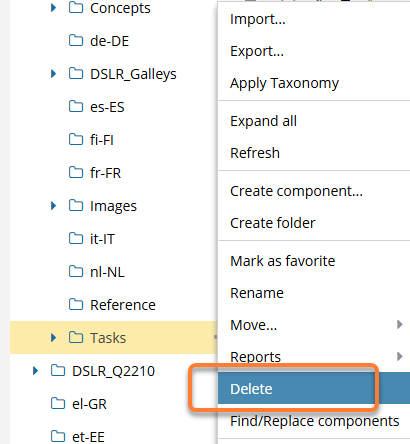 Results:
- If the folder is empty or the following conditions exist, you can delete the folder without seeing any errors:
- Components contain references outside the folder
Components are locked after approval
Components are used in a project
Components are used in an assignment
Components are used in a publishing profile
None of its components are part of an active review
None of its components are part of an active translation job
The ForceDeleteAllowed feature is set to true or false
- If the following conditions exist, you can force the deletion of the folder:
- At least one of its components contain references outside the folder
Components are locked after approval
Components are used in a project
Components are used in an assignment
Components are used in a publishing profile
- None of its components are part of an active review
- None of its components are part of an active translation job
The ForceDeleteAllowed feature is set to true or false
 You see a prompt to confirm you want to delete and break the relationships.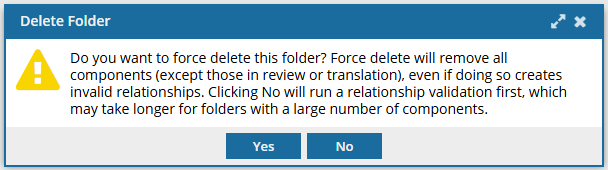
- If the folder contains components with references outside the folder, but none of the folder's components have restrictions:
- Inspire rechecks for references (this process can take a long time if there are a lot of references)
- The folder and its contents are sent to the Deleted Items folder. You must correct invalid links. You can do this manually or use Rebuild All Relationships to help resolve linking errors. Follow the steps in: Repair component relationships.
- If the folder contains at least one component that is restricted, you will see errors.
After clicking Close, neither the folder nor its components are deleted.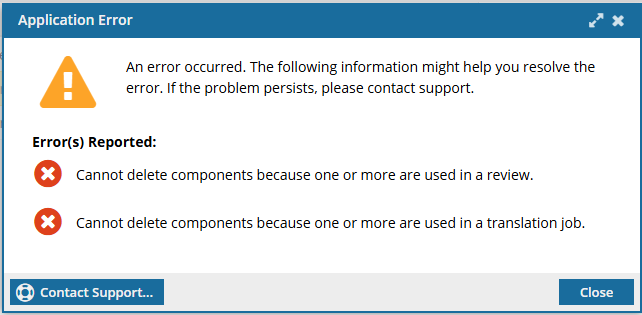
- If any of the following conditions exist:
- At least one of the components is part of a review
- At least one of the components is part of a translation job
You cannot delete the folder.
Next steps:- Remove the components that are in reviews.
- Remove the components that are in translation jobs.
- If the folder is empty or the following conditions exist, you can delete the folder without seeing any errors:
Removing relationships
If you cannot force the deletion of a folder, to remove relationships in components so that you can delete a folder:
- For each component in the folder and any subfolders, See where a component is used. Remove the links in the listed components.
- Submit their changes to unlock a component.
- Unapprove the component if it has an approval lock
- Remove the component from active assignments and projects.
- Remove the component from translation jobs.
- Remove the component from reviews.
- Remove the component from active publishing profiles.
- If you are still having issues, open the folder you want to delete and try to delete the components one-by-one until the folder is empty.
Restoring deleted components
If you delete a folder, the folder can't be restored, but you can re-create it.
- Any components contained in a folder you delete are sent to the Deleted Items folder until you delete them permanently. Follow the steps in Permanently delete components.
- If you want to restore a component, and you deleted the original folder without re-creating it, the component is restored to a system folder that contained the folder you deleted. Follow the steps in Restore deleted components.