Selecting multiple project components to update
When you're working in a project and you want to take the same action on more than one component, select them from the list and use the Selected Components panel to update them all at once.
 A content owner or administrator can set permissions to deny access to components or folders. If your permissions to content have been blocked and you are not an administrator, you cannot use the options in a project's Selected Components panel.

Topics in this article:
- Open the Selected Components panel
- Understand what all those icons mean
- Know which actions you can take from the Options menu
- Display a language column
- Know which actions you can take on multiple project components at once
- Know which actions are limited to the Components browser
Open the Selected Components panel
 Before you begin
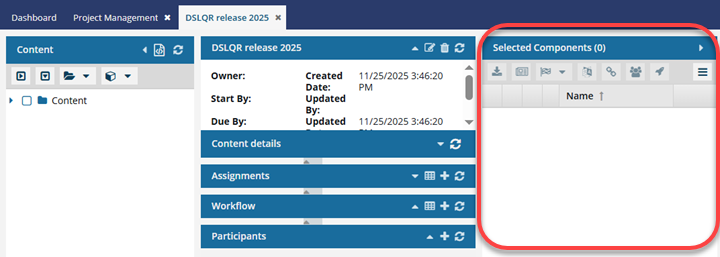
In a project, there are two Selected Components panels.
- On the project's main dashboard screen.
- From the Content title bar, by selecting the
 Select Project Components option.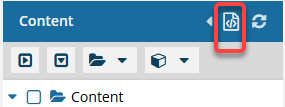
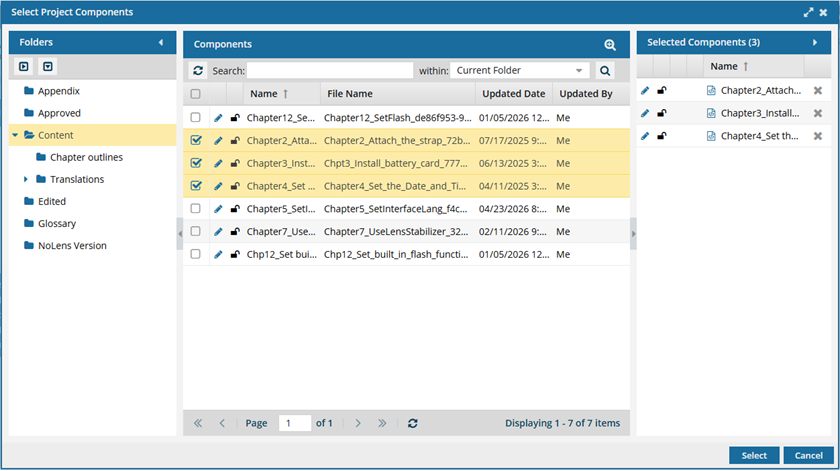
On the Select Project Components screen, you can see the complete name of the components included in the project. If there are many project folders, you can search through all of them at once. Also, if the list of components is long, you can use advanced search to find the components you need. You can select the components here, and after the screen closes, the components are listed on the project's main dashboard (in the Selected Components panel).
These instructions describe the options on the Selected Components panel on the project's main dashboard screen.
- To use the Select Project Components option, follow the steps in: Select project components

To open the Selected Components panel:
- Use the white arrow in the blue border
- Use the gray arrow to the left of the panel
- Select any component in the Content panel
Understand what all those icons mean
Use the first four columns to see details at a glance:
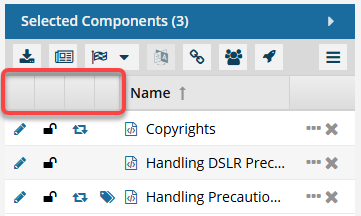
- State (
 ,
, 
 ,
,  ,
,  ). The first column lets you quickly identify appropriate actions you can take on a file.
 - Draft. The component can be edited and isn't ready for publishing or translation yet.
- Invalid. The component has one or more links that need to be resolved. Use the advanced Relationships tool as described in: Repair component relationships.
- Approved (No signature required). The component is ready for publishing or translation and shouldn't be edited. An Inspire user has approved the component for publishing or translation, and it shouldn't be changed. Approved components can be locked with a green system lock.
- Approved and signed. (Signature required). The component is ready for publishing or translation and shouldn't be edited. When approving, you are required to enter your full name to sign electronically. Approved components can be locked with a green system lock.
- In translation. The component can be monitored while it's included in a translation job. An administrator can decide whether the component is unlocked for editing while it is in translation.
- Lock (
 ,
,  ,
,  ,
,  ,
,  ). The first column indicates whether anyone else is currently using the file and whether you can edit it.
- Unlocked. The component isn't being edited by another user or in use by Inspire.
- Locked by another user. Another user has opened this component and made changes that may have been saved but not submitted yet.
- Locked by you. You have opened this component and made changes that may have been saved but not submitted yet.
- Locked by Inspire. Inspire prevents other users from editing the component while it's being processed. This can include the process of reviewing, for example.
- Locked after approval. A component has been approved, and an administrator has configured components to be locked upon approval
- Shared (
 ). The second column tells you the number of references in Inspire. To see the number, hover your cursor over the icon. All references are counted, even if one component references this component multiple times
 - Tags (
 ). The third column indicates whether at least one component tag has been added to a component's Inspire-based metadata. To see a list of all tags applied, hover your cursor over the tag icon.
Know which actions you can take from the Options menu
Use  the Options menu to work with the component:
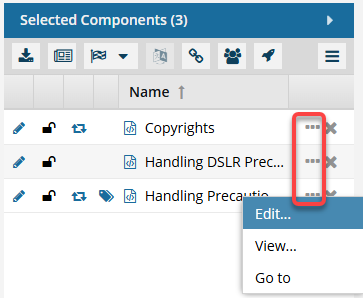
- Edit - Opens the component in the Oxygen XML Editor. If the component is a workflow, it opens in the workflow editor. This option doesn't work for binary components.
- View - Opens the component in the Oxygen XML Editor as Read Only. If the component is a workflow, it opens in the workflow editor as Read Only. If the component is a binary, it opens in a viewer.
- Go to - Displays the component on the Components tab in the grid and selects the component. If the component isn't listed on the first page, Inspire displays the page where it is listed.
Display a language column
You can add the Language column to the Selected Components panel to see the language code. This indicates the language and region in which the components are written.
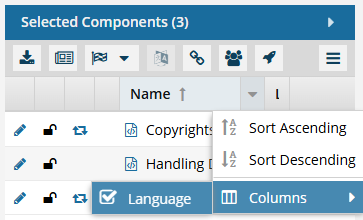
- Put your cursor in the Name column.
- Click the
 drop-down arrow that appears.
 - Select Columns and then the checkbox for Language.
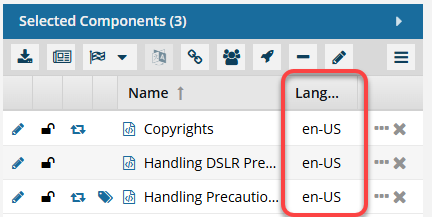
 By default, the Language column is hidden.
- If you choose to display it, Inspire remembers this and changes the default to always show the Language column by default.
- The next time you open the Selected Components panel, the Language column is displayed.
- If you don't want the Language column to be displayed by default, do one of the following:
- Hide the Language column again by clearing the checkbox for Language.
- Put your cursor in the Name column.
- Click the drop-down arrow that appears.
- Select Columns and then clear the checkbox for Language.
- Clear your browser's cache. This returns the default display to hide the Language column.
- Hide the Language column again by clearing the checkbox for Language.
Know which actions you can take on multiple project components at once
You can modify all listed components at once in the following ways:
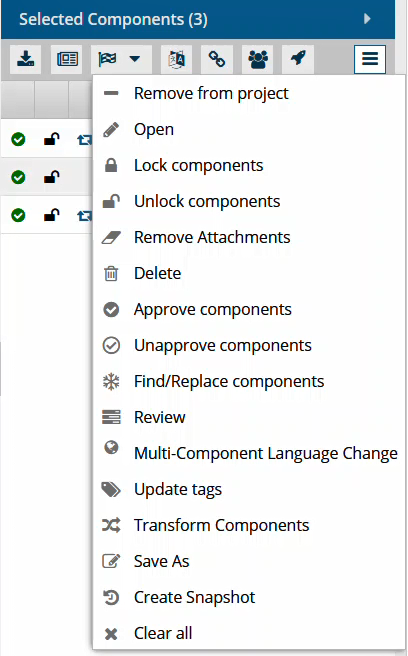
 Export. Download the selected project components by opening the Export Components screen and selecting an export configuration.
  Export multiple components from the Content pane
 Publish. Use the selected project content to create a deliverable in an output format (ex. PDF). Publish multiple project components
 Run a report. Submit a request for Inspire to provide details about a component before you send it for publishing or translation. You can select one of the following reports:
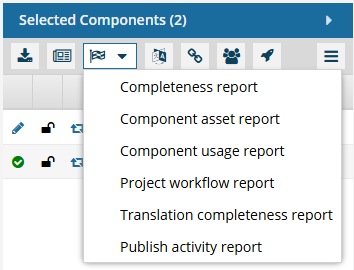
- Completeness report... Open the Check Component Completeness screen to select what you want to see in the report.
- Component asset report — Generate a report to see all references, including topics, images, and other maps.
- Component usage report — Generate a report that shows the complete hierarchy of references. This report provides more details than when you select a component and choose Details to open the Where Used tab.
- Project workflow report—Generate a report to see all the workflows that include this project component.
- Translation Completeness Report—Generate a report to verify the translation state of referenced components.
- Publish activity report— Generate a report to see who has published a map, how often, how long it took to create the map's deliverables, and if it was successful or had issues. You can select one or more maps or bookmaps.
 Translate. Open the Translate Component screen to enter job details and send components to translation. Send multiple files to translation.
 Manage Relationships. Open the Manage relationships screen to view references to other components. Manage relationships for multiple project components.
 Set Permissions. Open the Set permissions screen to assign access levels to users and roles.
 Start Workflow. If you want to start a workflow by first selecting the components you need to include, use the Start Workflow option. When you select this option from a project, Inspire opens the Start Workflow screen to select the template that contains the process you want to use. This option is also available in the Component's browser.
 This option can only be used to create a Topic workflow. It cannot be used to create a Sequential Reviewer workflow.
 Remove from project. Set permissions for multiple components in a project.
 Open. Open multiple project components to edit (unlocked, non-binary) or view (locked or binary) each one in its own tab. Open multiple project components for editing.
 Lock components. Prevent other users from editing. Lock a project component
 Unlock components. Allow other users to edit. You can now unlock any component with a system lock if you have either of the following permissions: Administrator or can_unlock_system permissions, which is set by an Admin in Module Access Management for the Content browser on the Properties tab. Unlock a project component
 Remove Attachments. Select multiple components, such as book maps, and remove all attachments simultaneously. Before completing the action, a confirmation message is displayed to prevent accidental removal. Remove attachments in bulk from project components
 Delete. Send the selected project components to the Deleted Items folder.
- You cannot delete a component from Inspire or send it to the Deleted Items folder if it is being used in a project or project assignment.
- To delete a component, you must first remove it from all assignments, all projects, and then follow the steps in: Send a component to the Deleted Items folder.
 Approve components. Add a checkmark and a filled-in circle to identify the component as ready for publication or translation and shouldn't be edited. Approve project components
 Unapprove components. Add a checkmark and an empty circle to identify the component as not ready for publication or translation and can be edited. Unapprove multiple project components
 Find and replace. Search for text in one or more components without opening them. Update a component without opening it by using the Replace option. Inspire creates a report for your find/replace search. Find and replace project content
 Review. Open the Create Review screen to start a new review with the selected components. Create a DITA review from a project component
 Multi-Component Language Change. Change the language for all selected components to the same language. You must have Administrator permissions to use this option. Change the language for multiple project components
 Update tags. Open the Update tags screen to select a pre-defined tag. Apply tags to multiple project components
 Transform Components. If you have the same data that can be used in different formats, you can quickly change a component's structure. An XSLT can be uploaded to your Inspire instance so that you can quickly change a component with the same data fields to have a slightly different look, or put the data in a different order. Transform project components
 Save As. Select multiple components from different folders, and then use Save As to create new components from them.
 Create Snapshot. Select one or more components, and create On Demand snapshots. Create a snapshot on demand
 Clear all. Remove all selected components from the Selected Components panel.
Know which actions are limited to the Components browser
The options in the Selected Components panel that you select for a project are slightly different from the options you can select in the Components browser.
If you want to perform the following actions on multiple components at once, you must do it in the Components module on the Component's Selected Components panel.
Run a report. Submit a request for Inspire to provide details about a component before you send it for publishing or translation. You can select one of the following reports:
- Approval report View an Approval report for multiple components
- Branch Report View a branch report for selected components
- Completeness report View a completeness report for selected components
 Move. Open a screen to select a target folder. Move components
 Apply Taxonomy. Available only to customers who request the feature. Select an ordered classification of components based on their relationships. Apply taxonomy to all eligible components
 Create Project. Open the Create Project screen to start a new project with the selected components. Create a project from components
 Add to Project. Open a list of projects to select from. The selected topics are added to the project. Add existing components to a project
 Compare DOCX. Available only if the DOCX feature has been purchased and two DOCX files are selected. Open the Import component compare results screen to name the new file that shows the differences between two DOCX files. Compare two DOCX files
 Follow components. See a notification when another user deletes or updates a component. Follow multiple components at once
 Unfollow components. Stop seeing a notification when another user deletes or updates a component. Unfollow multiple components at once
 Rename Files. Change the component display and optionally the file name. Rename multiple components at the same time
 Save as CSV. Copy the details for the selected components from the Component as browser, and put the data in a comma-separated values (CSV) file that is automatically downloaded to your computer. All details from all columns in the Component's browser are included, whether shown or hidden. Save a CSV list of selected components
 Rebuild All Relationships. Request a rebuild of component relationships for the selected components and all components referenced by them. This action cannot be undone. You must confirm if you want to continue. Rebuild all relationships in multiple components
 AI Assistant.
To access the premium AI feature, you must purchase it separately. Contact your Vasont customer representative to invest in efficiency and discover how AI can elevate your search experience today!