Work with component attachments
If you want other users to see a file for reference, but don't want to cross-reference it in the component's content, you can add the component to the attachments list. You can select another component in Inspire as an attachment. This is useful if you want to attach a file for reference. For example, if you have a DITA map component, and you want to attach a PDF file for reference.

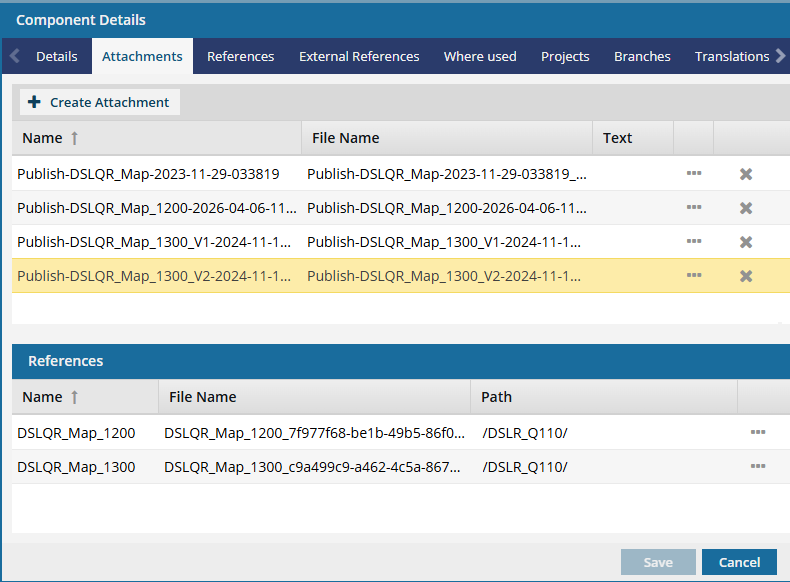
 Things you can do on the Attachments tab:
- See a list of files that have a relationship type of Attachment to the selected component.
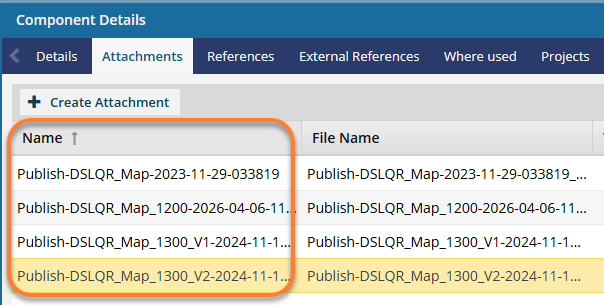
- You can see the name of the attachment, but you can't open it from this tab.
- You can also see the File Name with the GUID to find exact matches when searching.
- Add an existing component to the Attachments list.
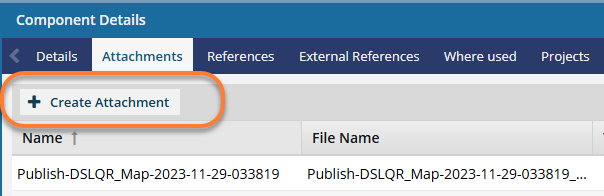
- You must either create the component you want to attach or import it into Inspire first.
- After selecting the component, you can enter information about the attachment.
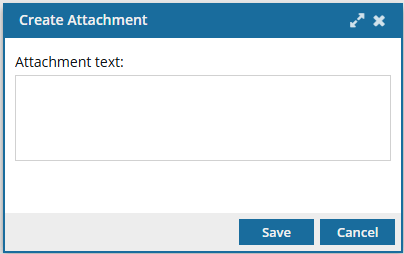
- You don't have to enter any text. This field is optional.
- You can enter up to 1000 characters.
- The text is displayed on the Attachments tab.
- The same text is used for all components you selected to attach.
- If you want to add different text for each attached file, you must add them separately.
 If an attachment was added without any Text, you cannot go back and add text to it. You can remove the attachment and re-attach it with text comments.
- See where the attached component is stored.
- You can customize the columns to show the path to the attachment.
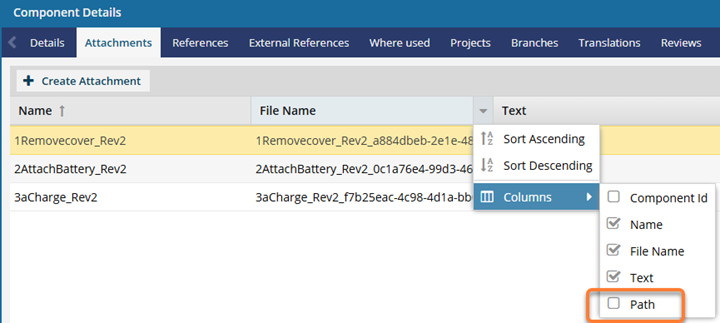
- Use
 the Options menu and select Go To. This option opens the Components browser and highlights the folder where the attachment is stored.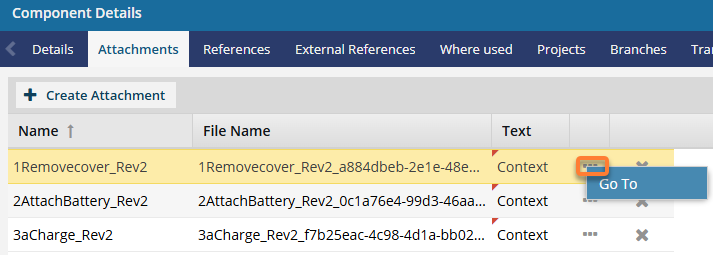
- You can customize the columns to show the path to the attachment.
- Remove an attachment. If you don't want a file to have a relationship type of Attachment with the selected component, you can remove it from this list. Removing a file from the attachments list does NOT remove the file from Inspire.
- To remove one attachment from the list, use the
 in the attachment's row.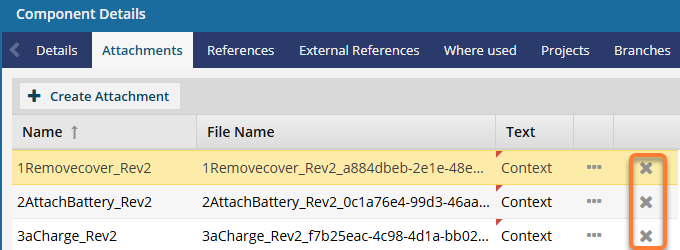
- To remove all attachments at once for multiple components, use the Selected Component's panel.
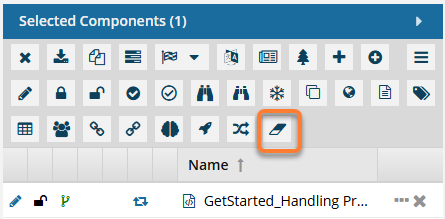
 Follow the steps in: Remove relationships to attachments in bulk.
- To remove one attachment from the list, use the
- See the names of other components that reference the same attachment. When you open the Details screen for a component with a green paper clip and select the Attachments tab, a new lower pane called References will show all other components it's attached to.
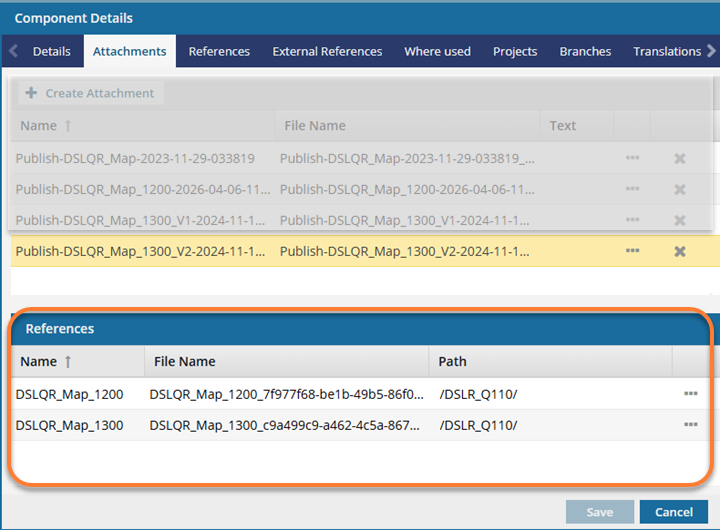
Use
the Options menu and select Go To. This option opens the Components browser and highlights the folder where the component is stored.