View a completeness report for a project component
You can submit a request for Inspire to provide details about a component before you send it for publishing or translation. This report provides comprehensive details about a component and the content it references. It can include details about translation, filtering of conditional text, approval state, electronic signatures, invalid states, invalid XML according to a specific set of rules, comments, track changes, out-of-scope references, and tags Additionally, if a component has been sent for translation, Inspire can check to see if the translation has been completed or if it still needs to be translated (the job is in progress).
 Tips and tricks
 If you want to generate more than one completeness report at a time, you must go to the Components browser. There, you can select multiple components and use the Selected Components panel. Follow the steps in: View a completeness report for selected components.
 Translation Completeness Report. After a component is translated, you can check the translation status of all its referenced components by creating a Translation Completeness Report.
This report shows the status of the component and its references by Target Language. You can see in one place whether a translation is missing or out of date.
 Create a completeness report in a project for a translated component

To view a completeness report for a project component:
-
Click
 Projects.
-
On the Project Management tab, all projects in your organization are listed. To find a specific project, you can:
- Filter the list of available projects by words in the project name. In the Search text box, enter a keyword, and then click the magnifying glass
 .
. - Filter the list of available projects to include only those you own or are participating in. In Type, select an option to filter the list by that criterion.
- To include completed projects in the list, select Include Completed and then click the magnifying glass .
- Filter the list of available projects by words in the project name. In the Search text box, enter a keyword, and then click the magnifying glass
-
To open one project, select the project and double-click it.
You can also open a project by:
- Right-clicking the project and then selecting Open.
- Clicking
 the Options menu and then selecting Open.
-
In the Content pane, find the component you want to create a report for.
To see the complete name of the components and use advanced search to search through all folders within a project, click
 the Select Project Components option.
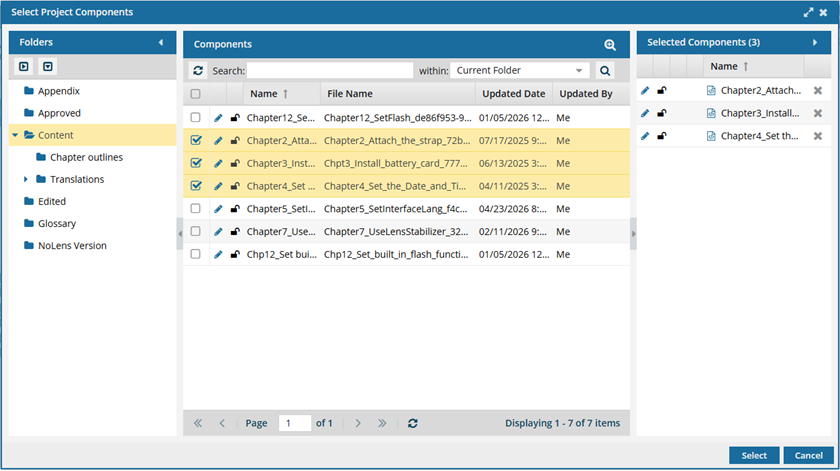
- To see more text in the Components pane, collapse the Folders panel by clicking
 the arrow that's pointing left.
- To quickly expand or collapse the folders, use the
 expand all and
  collapse all buttons.
- To find a component by keyword, in Search, enter words or phrases used in the component's name. In Within, select where in the project you want to search (Current Folder, Current and Subfolders, All Folders). Click Search .
- To find a component by creating a query, click
 Advanced Search.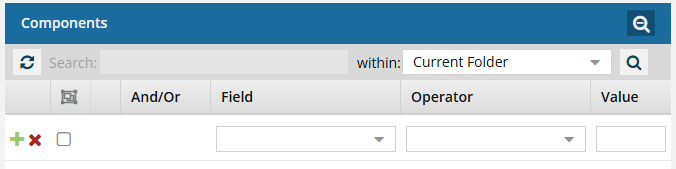
- Fields correspond to the columns in the grid. In the Field list, select the column you want to search in, such as Component State.
- After you select a Field, you must describe the relationship it has with the Value. In the Operator list, to include or exclude some or all of the values that you want to use, select an operator, such as
<>(not equal to). - The options in the Value list change depending on what you selected in Field. In the Value, select or enter the word, phrase, or number you are searching for in relation to the Field. For example, Component State (Field)
<>(Operator) Invalid (Value). - In Within, select where in the project you want to search (Current Folder, Current and Subfolders, All Folders).
- Optionally, to enter another clause to your query, click
 Add. Select whether you want to narrow your search by requiring that all statements must be true (And), or expand your search by requiring that any of the statements can be true (Or).
 - Click Search .
- To select multiple components to manage, select the checkbox for each component.
 Result: The components are listed on the Selected Components panel.
 - To close the Select Project Components screen, click Select.
- To see more text in the Components pane, collapse the Folders panel by clicking
-
Right-click the component, select Reports, and then select Completeness report...
You can also start the process by clicking the Options menu, selecting Reports, and then selecting Completeness report...
-
Optionally, on the Check component completeness screen, you can quickly clear all report options and choose only the few you need using the Deselect All option.
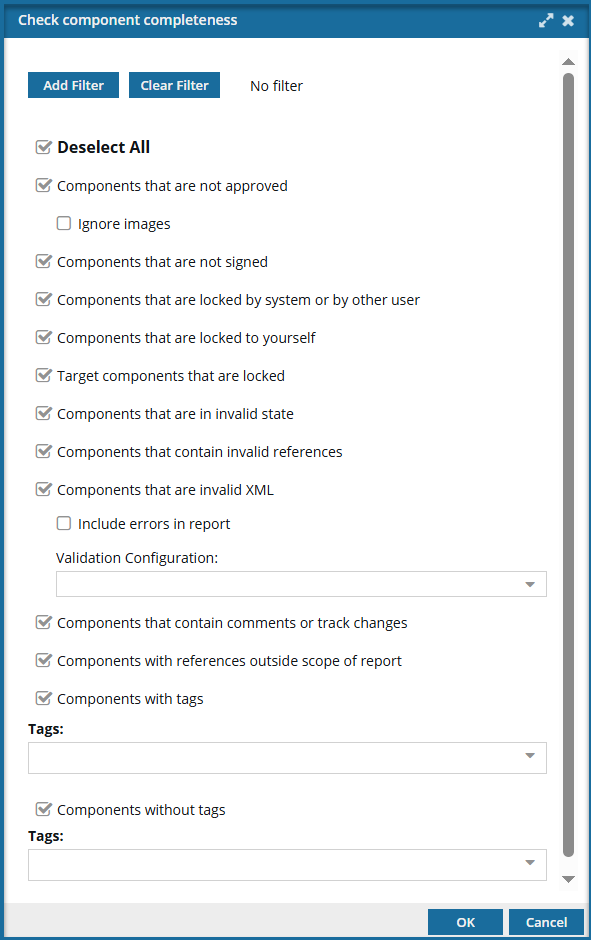
- By default, all report options are selected.
- After you click Deselect All and choose only the report options you need, Inspire remembers your selections. The next time you select the Completeness Report option for any component, only the options you chose previously are selected by default. If you want to return to the default of having all report options selected, clear your browser cache.
-
Optionally, on the Check component completeness screen, to filter on conditional text:
-
On the Filter profiling attributes screen, select the attributes that you want to include in this report.
To find an attribute:

- Expand all categories and show all attributes. Go to the toolbar and click Expand all .
- Show only the categories and hide all child attributes. Go to the toolbar and click Collapse all .
- Use a filter to limit the list of categories and child attributes. In Saved Filters, select an option.
- Expand all categories and show all attributes. Go to the toolbar and click Expand all
-
On the Filter profiling attributes tab, click Select.
You see the profiling attributes you select on the Check component completeness screen, listed below the Add Filter button.
-
On the Filter profiling attributes screen, select the attributes that you want to include in this report.
-
On the Check component completeness screen, all verification tests are selected by default. If there is something you don't want to see in the report, clear the checkbox for that option. By default, all the following checks are completed in the report:
- Components that are not approved (
 Approved,
  Draft)
- To exclude files from the report that have a Type of Binary, select Ignore Images.
- Components that are not signed (
 When you approve a component, you may be required to attach your electronic signature)
 - Components that are locked by system or by other user (
 System lock,
  Approval lock,
  Other user lock)
 - Components that are locked to yourself (
 You made changes that aren't submitted)
 - Target components that are locked (
 if any translated files returned from the vendor are locked)
 - Components that are in Invalid state (
 one or both issues: a component has a problem with its references to other components; a component has invalid XML, and it is a binary)
 - Components that contain invalid references (links to conrefs, xrefs, topicrefs, etc., that are broken)
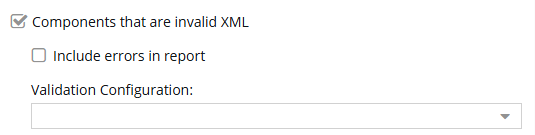
- Components that have Invalid XML (one or both issues: well-formed XML, valid XML)
 Important notes:
If you want to see a description of how the content breaks an XML standard or rule, select Include errors in report. For example, if an XML file is missing the required
<title>element, and you select this option, you will see an error similar to the following: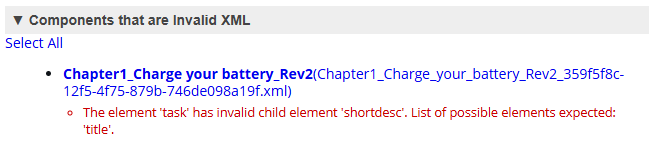
If your organization uses different rules to validate content, an admin can create Validation Configurations to let you choose which set of standards to use. Also, Validation Configurations are the only way to validate content using Schematron rules.
- If you don't see any options in this list, and validation configurations do exist, the administrator has not flagged any as Active.
Admins can follow the steps in: Create a validation configuration.
- Components that contain Comments and Track Changes (identified if a component contains any of these artifacts.)
- Components with references outside scope of report (This option helps you identify components that contain references to content outside the scope of a selected map or bookmap. When you select this option, the report includes a dedicated section that lists components containing cross-references to topics or components not included in the map or bookmap. This check can help ensure that referenced content is included where needed and improve the completeness and accuracy of published outputs.)

In the example above, the message is telling you that the Chapter 4 component references Chapter 5, but the Chapter 5 component is not included in the map.
- Components with tags (Lists all selected components that have at least one of the tags listed.)
 You must select at least one tag for the heading to appear in the report.
 - Components without tags (Lists all selected components that are missing at least one of the tags listed.) You must select at least one tag for the heading to appear in the report.
- Components that are not approved (
-
On the Check component completeness dialog, click OK.
Result: When you complete a task that triggers a notification, such as creating a report, the Slack and email message bodies contain:
- A summary header.
- A link at the bottom of the message [See Full Version]
- You can click the [See Full Version] link to expand a section under the link with the full details.
-
In the top menu, click
 Notifications, and then See all notifications.
-
From the list of notifications, select the one labeled Component Completeness Report.
You see a report similar to the following:
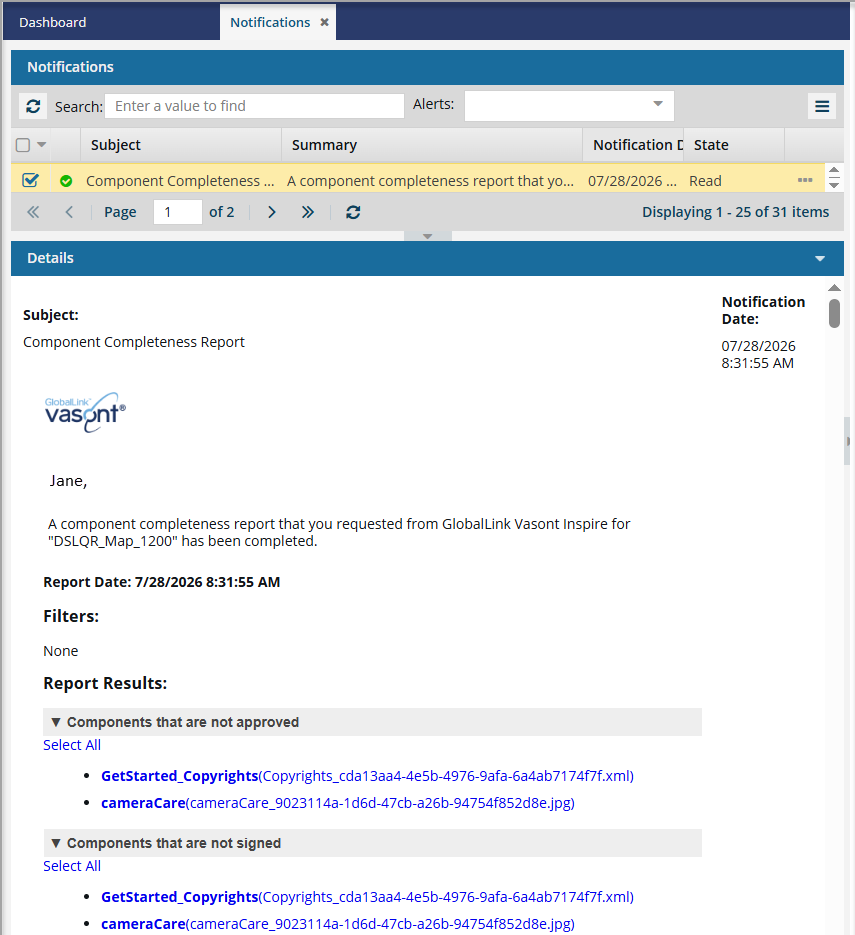
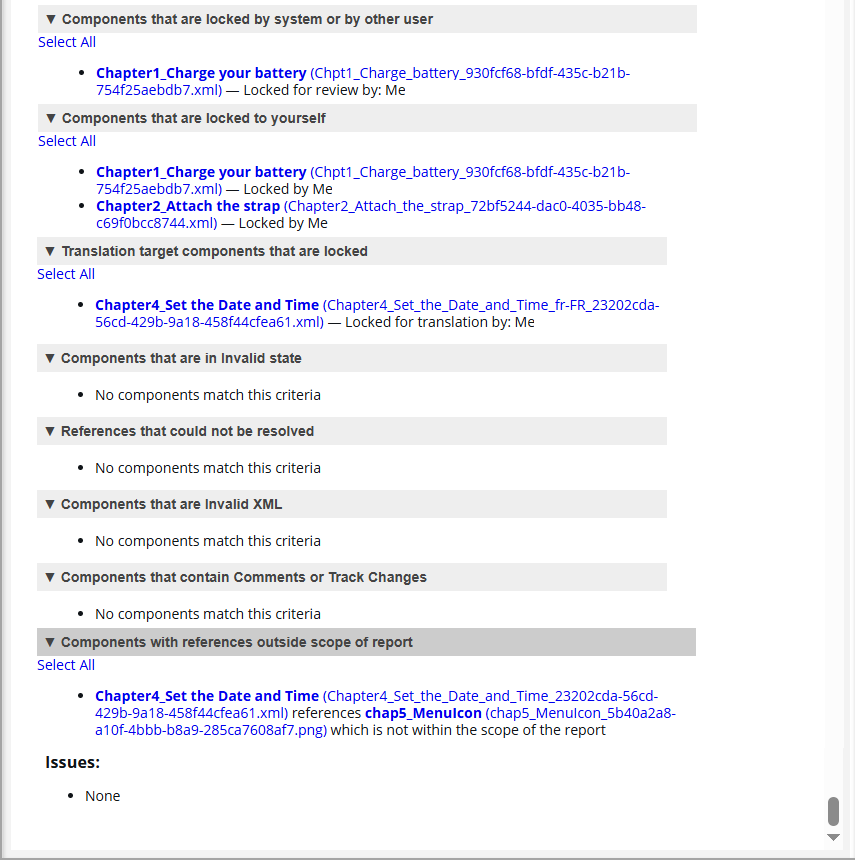 The Components that are locked by system or by other user section is sorted first by lock reason, then by user.
 The Components that are locked to yourself section is sorted by component name.
-
The same message sent to your email is displayed below the list in the Details pane.
Result: If the component meets one of the criteria, it's listed. If it doesn't, the report will display No components match this criteria.
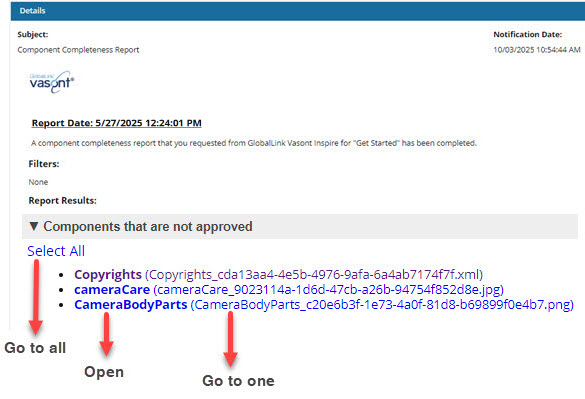
Go to all. If you want to open the folder that contains all the components listed in a section of the report, click the Select All link.
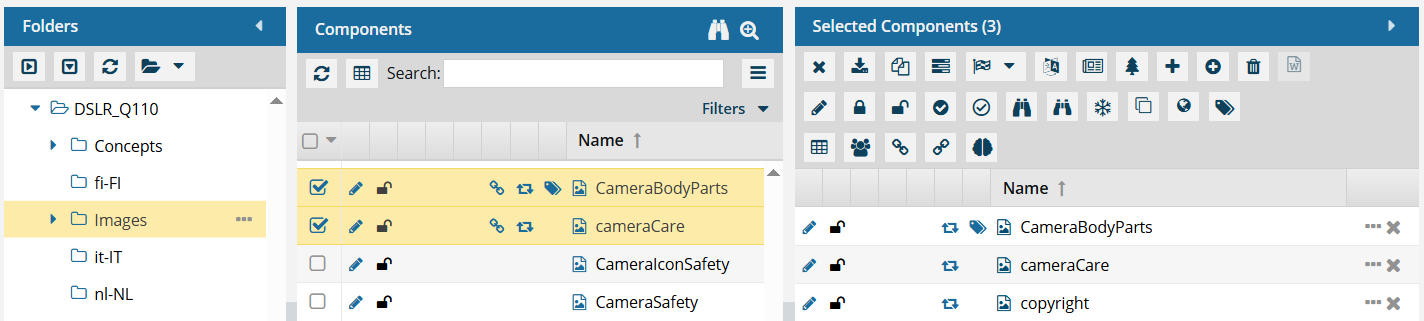
- If you click this link from an email, a browser tab opens, and Inspire opens to the Components browser.
- If you click this link from a notification inside Inspire, the Components browser opens.
- In the browser, you see all the components highlighted that are from that section of the report.
- If the components are in different folders, you see the items from the first folder listed in the Folders pane.
- The components are also listed in the Selected Components pane.
Open. If the component's content needs to be updated, you can click the component Name, which opens it in the Oxygen editor.
- The Name is listed first.
- The Name does not contain the file extension. For example, "Copyrights".
- If the component is locked or a binary, you see the component in a read-only viewer.
Go to one. If you need to update a component using a system function, such as Rename, you can click on the File Name, which opens the folder where it's stored.
- The File Name is listed second, after the shorter Name and in parentheses ().
- The File Name contains the file extension. For example, "Copyrights_cda13aa4.xml".