View associated reviews
You can see if the selected component has been included in any reviews on the Component Details' Reviews tab. If the selected component was included in a review, but the review has been archived, it won't be listed here. To quickly open a listed review, use the Options menu.
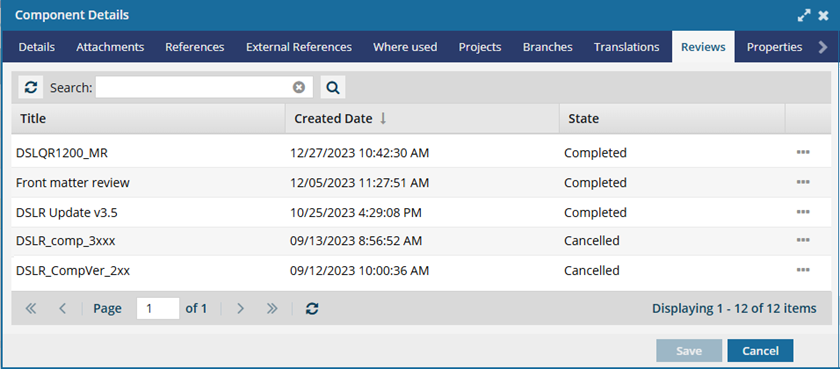

To view associated reviews:
-
Click
 Components.
-
In the Components pane, select the component you want to open.
 You can verify you have the correct component by looking in the More component information panel at the Preview.
- The Preview pane is always shown no matter which tab you select.
- Use the scroll bar to see more content in the preview.
- You can collapse the Preview pane if you want to make more space for the Details or Where used pane.
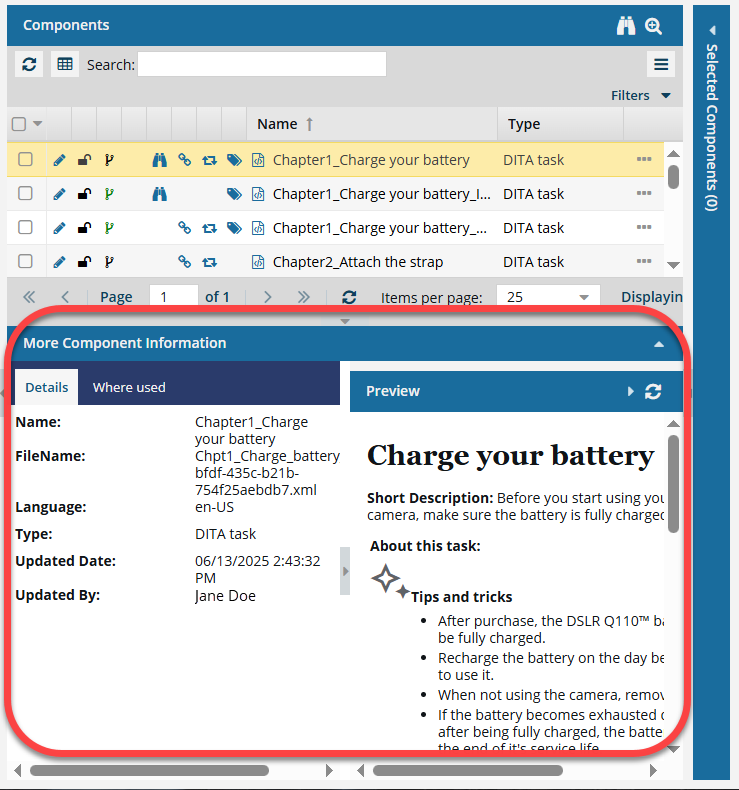
If the panel isn't open, to expand it, click
 the down arrow in the panel's title bar.
-
Right-click a component, and then click Details...
You can also access this option from the component's
 Options menu.
 -
On the Components Details dialog, click the Reviews tab.
 If the selected component was included in a review, but the review has been archived, it won't be listed here. You can open the reviews module and search for the review using the Include Archived option.
 -
If the number of reviews is large, to find a review:
- Sort the list by selecting a column title.
- Filter the list by words in the review name by entering text in the Search text box and clicking Search
 .
. - Move to the next or previous page in the list using the page navigation options at the bottom of the list.
-
Optionally, you can open an associated review by selecting the Options menu, and then selecting Go to.