Understand the manual translation process
If you don't want Inspire to manage sending the files for translation, you can send them yourself.
 Required Permissions
 For full access to all translation jobs, you must be an administrator.
- An admin can edit and cancel any translation job regardless of Translation module permissions.
- To configure permissions, administrators can follow the steps in: Update module access permissions.
- For full access to your own jobs, you must be a coordinator.
- Coordinators retain access to their own jobs regardless of Translation module permissions.
- A user who is the coordinator of a job can still edit and cancel it even if they have no explicit Translation module-level Update permission.
- To edit, cancel, archive, and delete any translation job, a non-admin user must have both the Read and Update permissions for the Translation module.
- To see all jobs, a non-admin user must have the Read permission for the Translation module.

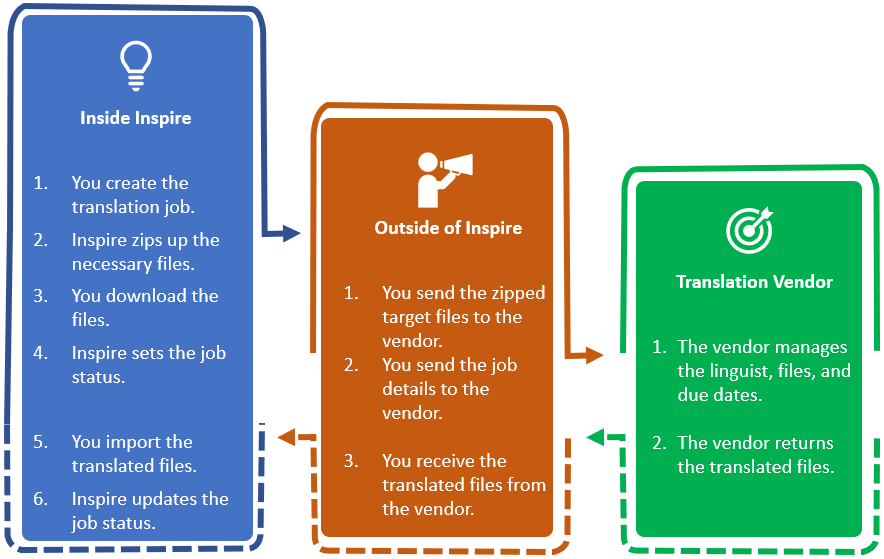
Inside Inspire:
- You create the translation job.
- In Translation Project, you must select a Manual option.
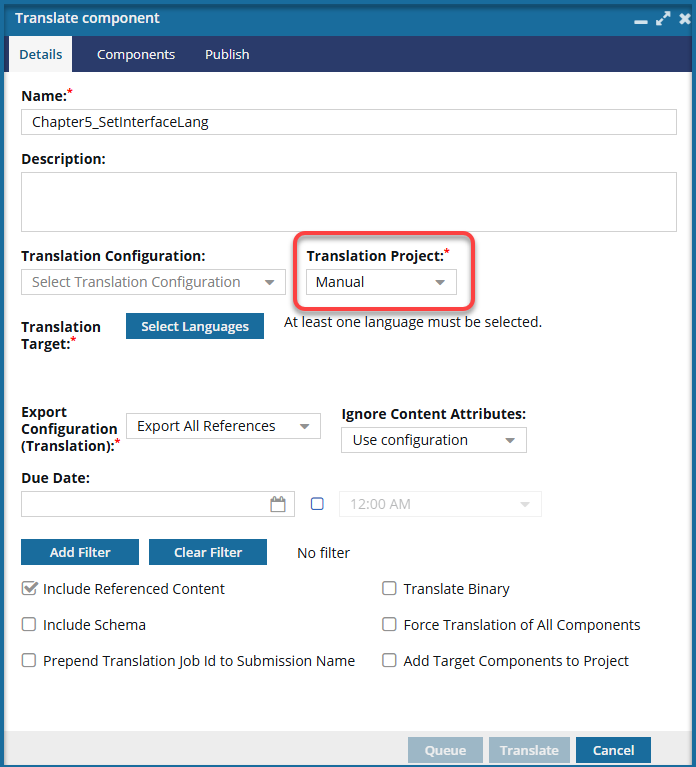
 If you don't see an option for a manual project, your administrator can create one.
 You can queue a Manual job. The Add Target Components to Project option is available only when translating from within a project.
- In Translation Project, you must select a Manual option.
- When you start the job, the files you need are prepared and zipped.
- First, Inspire prepares the job.
- Inspire creates a folder for each language you select. The folder's location is based on the component you select for translation.
- Inspire creates a copy of the component you want translated and puts it into the new language folder. A new copy, also known as the target translation component, is created for each language you selected.
- Inspire locks the source files being sent to translation. By default, source components are locked; however, you may see different behavior. An administrator can allow files that are in translation to be unlocked. Inspire may set the Reading property when creating target components for translation.Inspire sets the Reading property in these cases:
- If it doesn't exist yet
- Only if the language Reading property is rtl (Right-to-Left)
- For example:
<concept id="concept_guid" xml:lang="ar-Ar" dir="rtl"> - Inspire makes no changes if the language Reading property is ltr (Left-to-Right)
- First, Inspire prepares the job.
- Inspire sends you a notification with a link. You can download the translation job content from that link.
- In the Translations module, on the Translation Management screen, the State is set to In Progress. If the translation job uses a Manual project configuration, you see a State of Translating instead of In Progress.
- To import the translated files, open the
 Translations module. On the Translation Management screen, select the job and then use the Import translation option. Important Notes:
 - When you import the translated files, you'll overwrite the original copies in the language folders. Inspire created these files as placeholders when you started the translation job. You aren't losing any information when you overwrite the files because the content you sent for translation still exists in the ZIP file Inspire sent you.
- If the translation job uses a Manual project configuration, a notification is also sent to the user who imports the translated files.
- For example, Jane Doe creates the translation job and is the translation coordinator. After the files have been translated, John Smith imports them. Both Jane and John will receive a notification that the files have been imported.
- This notification is only sent when the user who imports the files is not a Translation coordinator.
- Inspire marks the job as Completed. An email notification is sent to the Translation coordinators notifying them that the translation was completed.
Outside Inspire:
- Open your notifications and find one with the subject: Translation Job Success.
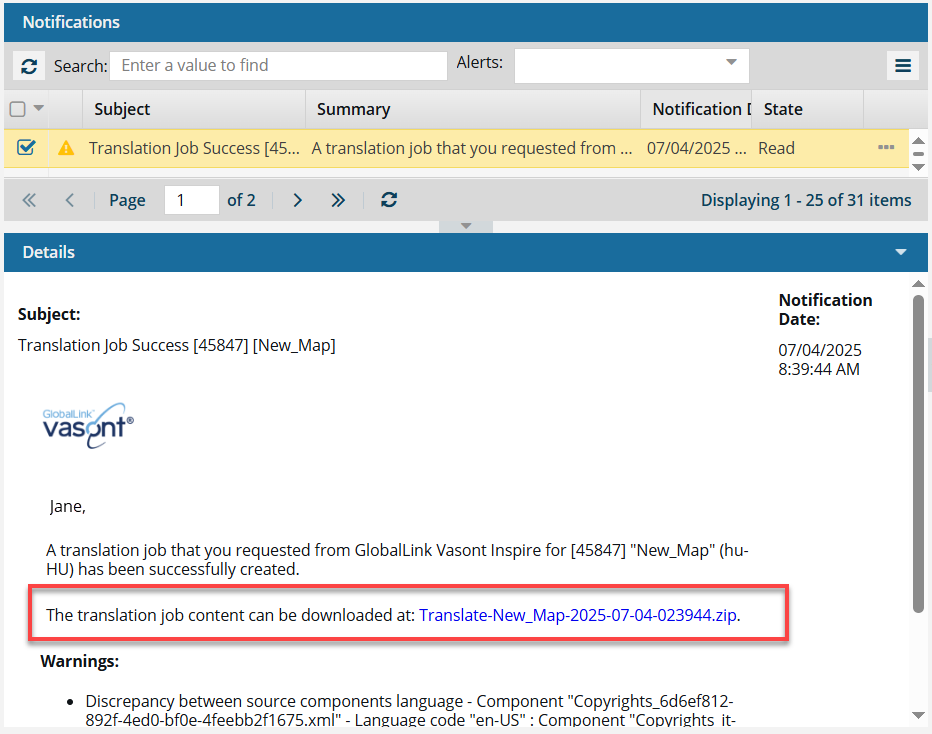
The translation job content can be downloaded from that link in this notification.
The ZIP file contains the target language components that are placed into folders for each target language.- Exported components use the following format:
Export-{Component Name}-{date/time}.zip
- For example, Export-Cloud_Computing-2022-12-21-03588.zip
- {Component Name} is the source component you select.
- The Component Name is truncated after 50 character
- Exported components use the following format:
- Send files and job details to the vendor.
- Receive the translated files from the vendor. You can zip them or import the files one at a time.