Unapprove multiple project components
When you're working in a project where you've collected components, you can easily let other reviewers know that components have gone back to a draft form by giving them an unapproved state.
 Required permissions
To unapprove a component, you must either be an administrator or have all the following roles and permissions:
- Added to the Content Browser's can_unapprove module property. Follow the steps in: Control who can unapprove components.
- Permissions to update the component.
- Permissions to the project
Otherwise, you will see the Unapprove option is greyed out and unavailable.
 A content owner or administrator can set permissions to deny access to components or folders. If your permissions to content has been blocked, and you are not an administrator, you cannot use the Approve or Unapprove options.

To unapprove multiple project components
-
Click
 Projects.
-
On the Project Management tab, to open a project, double-click it.
 You can also open a project by clicking
  the Options menu and selecting Open.
 -
In the Content pane, click Expand All
 .
.
-
Select the checkboxes for the approved components you want to unapprove.
You will see one of the following approved icons next to an approved component:
- If no signature is required: a green checkmark
 .
. - If a signature is required: an e-signature icon
 .
.
To see the complete name of the components and use advanced search to search through all folders within a project, click  the Select Project Components option.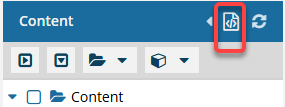
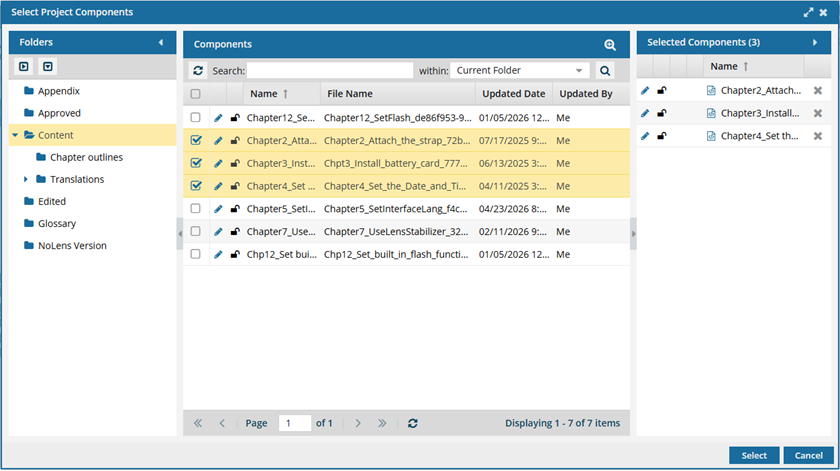
- To see more text in the Components pane, collapse the Folders panel by clicking
 the arrow that's pointing left.
- To quickly expand or collapse the folders, use the expand all and
 collapse all buttons.
- To find a component by keyword, in Search, enter words or phrases used in the component's name. In Within, select where in the project you want to search (Current Folder, Current and Subfolders, All Folders). Click Search
 .
. - To find a component by creating a query, click
 Advanced Search.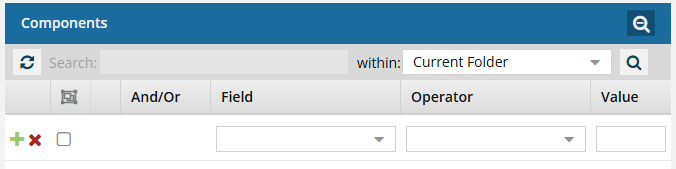
- Fields correspond to the columns in the grid. In the Field list, select the column you want to search in, such as Component State.
- After you select a Field, you must describe the relationship it has with the Value. In the Operator list, to include or exclude some or all of the values that you want to use, select an operator, such as
<>(not equal to). - The options in the Value list change depending on what you selected in Field. In the Value, select or enter the word, phrase, or number you are searching for in relation to the Field. For example, Component State (Field)
<>(Operator) Invalid (Value). - In Within, select where in the project you want to search (Current Folder, Current and Subfolders, All Folders).
- Optionally, to enter another clause to your query, click
 Add. Select whether you want to narrow your search by requiring that all statements must be true (And), or expand your search by requiring that any of the statements can be true (Or).
 - Click Search .
- To select multiple components to manage, select the checkbox for each component.
 Result: The components are listed on the Selected Components panel.
 - To close the Select Project Components screen, click Select.
- If no signature is required: a green checkmark
-
In the Selected Components panel, click
 the More menu and then select
  Unapprove components.
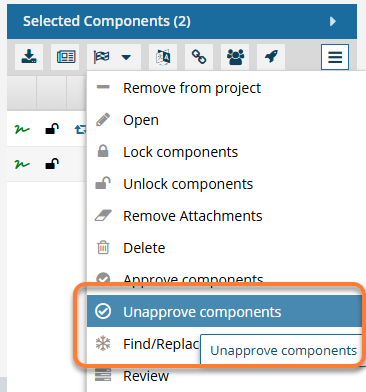 You must be an administrator or be added to the Content Browser's can_unapprove module property to unlock the component.
Otherwise, you see the Unapprove option as greyed out and unavailable.
-
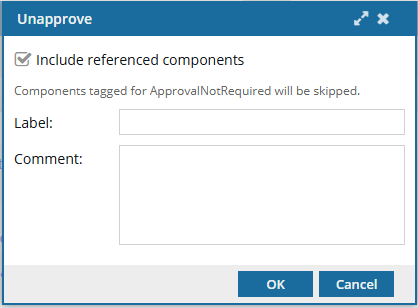
On the Unapprove screen:
-
Optionally, to improve context tracking during the unapproval process, enter 50 or fewer characters in Label, such as a version number or name.
All selected components receive the same label.
-
Optionally, to explain why you unapproved the components or provide guidance on next steps, in Comment, enter up to 2000 characters.
All selected components receive the same comment.
-
Click OK.
Results:
- The components are cleared from the Selected Components panel.
- In the Content pane's components list, you'll see a blue pencil icon
 next to the lock icon for the unapproved components.
 Go to the
  Notifications module and check for any Issues.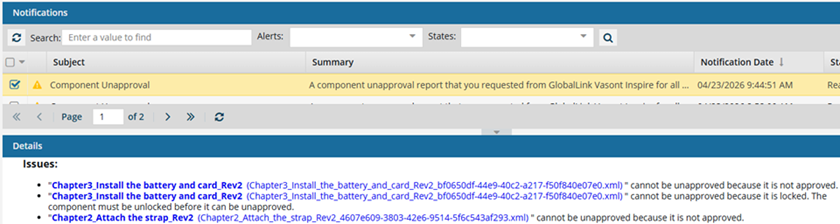
For example, referenced components might be skipped if they are:
- Locked
- In review
- Tagged with ApprovalNotRequired
- Not approved yet
Any previously attached e-signature for approval remains part of the component's history even after you Unapprove a component. Follow the steps in: See Approval signatures.
-
Optionally, to improve context tracking during the unapproval process, enter 50 or fewer characters in Label, such as a version number or name.