Search for filename length
Inspire has a character limit on filenames. To identify long file names so that you can rename them to something shorter, use an advanced query with a Field of Filename length. You can also use this search to find short filenames.

 Tips and tricks
Inspire uses different names for the same component to help you find a topic quickly no matter what task you are doing.
- The Component name is meant to be user-friendly to help authors and coordinators quickly understand the topic's content. For example, Chapter 1 Install the Battery.
- The Filename includes the Component name (which you can override), plus a GUID and the extension (file type) added by Inspire. For example, Chapter_1_Install_the_Battery_86ce4dac-6e86-4336-9fcf-4ddc19530604.xml
- Inspire restricts the Filename to 150 characters or fewer.
- If your filename is too long, you might encounter errors when performing tasks.
- For example, if you import a file back into Inspire, the filename must not exceed 200 characters or Inspire won't import the file.
- There is no column in the Components grid for Filename Length.
- If you save the Components grid as a CSV, there is no column for Filename Length.
To search for topics with a long filename:
-
Click
 Components.
-
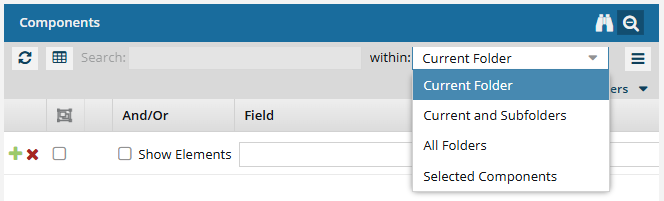
On the Components pane, in within, choose one of the following folder options.
- Current Folder
- Current and Subfolders
- All Folders
- Selected Components
-
To open the query builder, click Advanced Search
 .
.
-
To find topics with a filename of a certain length, complete the following substeps using the query builder to add search parameters.
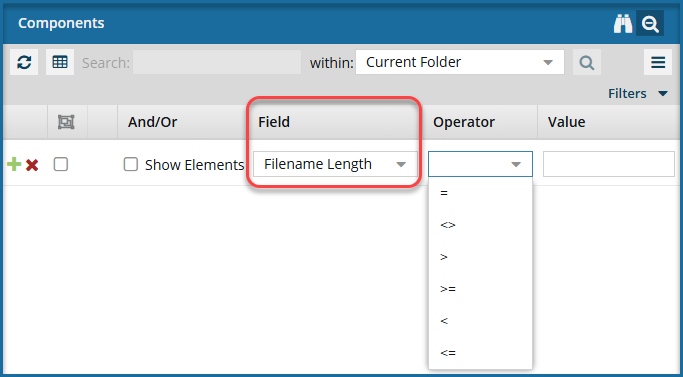
- In the Field list, select Filename Length.
- From the Operator list, select a value.
- In Value, enter the number of characters as it relates to the Operator. For example, to find files with a length of 150 or more, you could choose an Operator of >= (greater than or equal to) and enter a value of 150.
-
Optionally, you can add more parameters in the query builder:
-
Click Add
 to add another search parameter.
-
Click Remove
 to remove a search parameter.
- If you have multiple parameters in the query, choose the appropriate criteria from the And/Or list.
- To group search parameters, select the checkboxes for two or more consecutive parameters and click Group selected clauses.
-
To ungroup search parameters, click Ungroup clauses
 .
.
-
Click Add
-
Verify the search parameters for your query and then click Search
 .
.
 Results: A list of components that match the search parameters appears.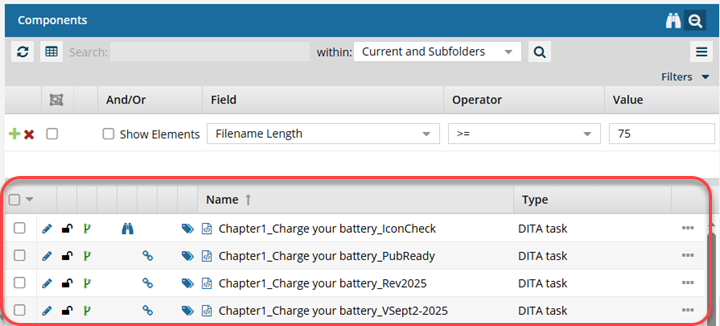
-
To save the list of components that match the search as a CSV file, click Save as CSV
 .
.