Save a query
You can create and save queries to be used at a later time. You can also share saved queries with other users.
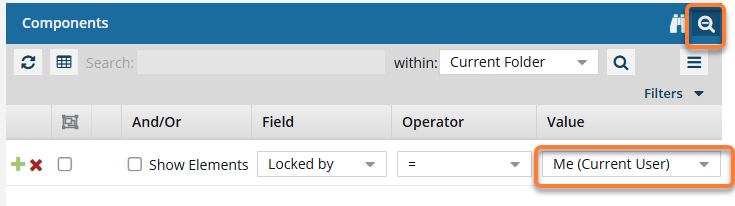
 To make advanced search queries reusable and easier to share, in Value, you can select the option called Me(Current User). This option displays results for the user currently running the query, not the user who created it.
 - The Me(Current User) option is available only for Advanced queries where Value requires a user.
- For example, if in Field you select Locked by.

 Topics in this article
- Save a query without sharing it
- Save a query with all users and roles
- Save a query with specific users and roles
Save a query without sharing it

-
Click
 Components.
-
To open the query builder, click Advanced search
 .
.
-
Create a query that you want to save for later.
For help creating a query, follow the steps in Use the advanced search query builder.
-
In the search toolbar, click Save
 .
.
Save a query with all users and roles

-
Click Components.
-
To open the query builder, click Advanced search .
-
In the search toolbar, click Save query as
 .
.
-
On the Query Details dialog, click Save.
Save a query with specific users and roles
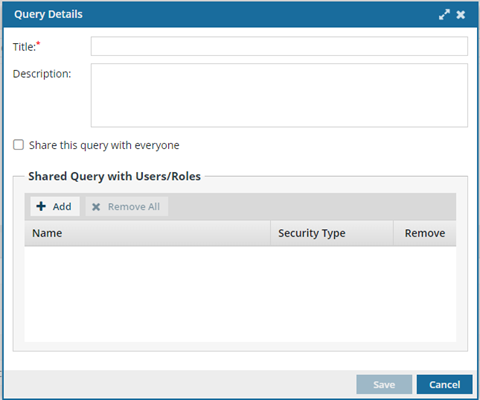
To save a query with specific users and roles:
-
Click Components.
-
To open the query builder, click Advanced search .
-
To open a query to share:
- Create a query that you want to save for later. You can follow the steps in Use the advanced search query builder.
- In Saved Queries, select the query you want to share, and make a modification to the query.
-
In the search toolbar, click Save query as .
-
On the Query Details dialog, enter the following information:
- In the Title box, enter a unique title in 500 or fewer characters.
- Optionally, in Description, enter additional information for this query in 1000 or fewer characters.
- You can see who you can share with (all users and roles defined in your system) in the Shared Query with Users/Roles list.
- If selected, clear the Share this query with everyone checkbox.
- To share this query with specific users or roles, click Add.
-
On the Select User/Role dialog:
- Select the users or roles that you want to share this query with.
- Click Select.
- On the Query Details dialog, click Save.