Review a map
You can review a DITA map to give feedback on the topics that are included and the topic sequence.
 Tips and Tricks
- After you
 add comments or make changes you can manage them in the Review panel on the right side of the editor.
 If you start on a review but need to stop before it's done and finish it later, you can:
- Save your changes
 .
. - Do one of the following:
- Close the tab

- Click Save for Later

- Close the tab
 Saving your changes and closing the review doesn't update the progress shown for the review on the Dashboard or the Review Management tab. This percent only changes when an entire task in the review is completed, such as when you click Complete Review.
- Save your changes

 Regardless of your permissions, when you're reviewing a map, if you click on a topic reference link:
- If the target component is not also included in the review, you can only open it in a read-only viewer from a review.
- If the target component is also included in the review, you can open it to comment or edit it from a review.
You can add topics to a review if they are in a map but not in the review.
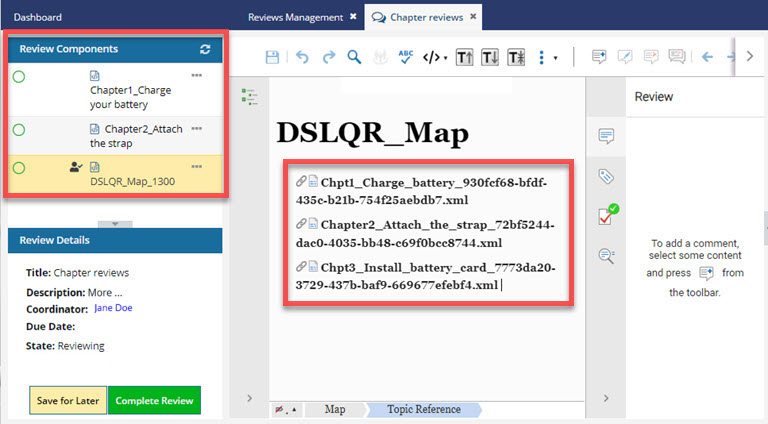
In the example image above:
- A topic in the map called Chpt3_Install_battery_card is in the map that's being reviewed
- The Chpt3_Install_battery_card topic is not in the list of Review Components, which means it isn't included in the review.
To help you distinguish between structured components and binary in the Review Components pane, Inspire now uses color icons for the following component types: PDF. A red document icon with a red A logo used by Adobe for PDF files.
 Microsoft WORD. A blue document icon with a blue letter W to identify Microsoft Word text files.
 Microsoft EXCEL. A green document icon with a green letter X to identify Microsoft Excel spreadsheet files.
If you're reviewing a map component, and you identify changes that need to be made in referenced component:
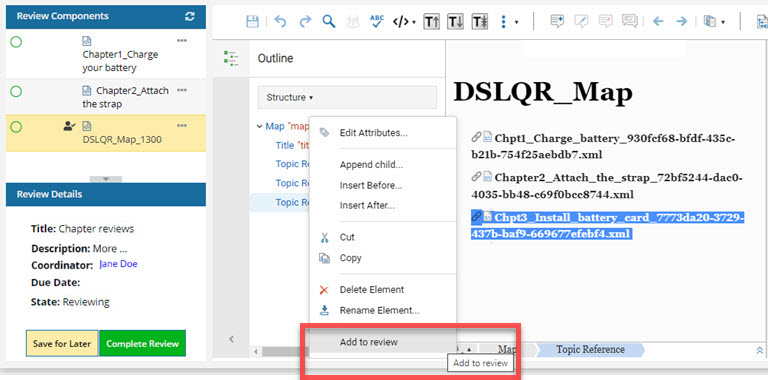
- You can add that component to the review and make changes, even if you aren't a review coordinator or administrator.
- If review locks are configured, after you add the component to the review it is locked and included in the review.
For more help, read Add map topics to a review.
Any user who has access to a review can add comments.
- If a component has a Scope of Context Only, comments must be added in the Collaboration panel.
Add comments directly to content
In the review editor, you can select the text and use the comment options in the toolbar.

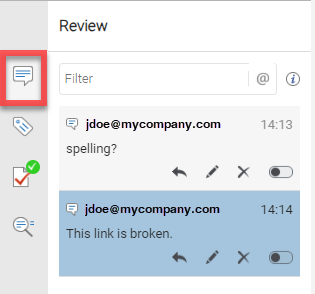
You can manage comments in the right pane by clicking  .
.
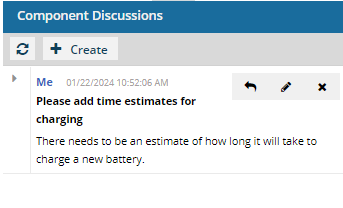
Add comments in the Component Discussions pane
Adding a comment outside the component text is helpful when:
- A component has a Scope of Context Only.

- There are too many comments in the component already. (Text added to the Component Discussions pane is not shown in the review editor.)
Each component in a review has its own Component Discussions pane. Select the component you want to discuss first, and then open the Collaboration panel, go to the Component Discussions pane, and add text.
The Collaboration panel is automatically opened for you.
- It is always available in a review regardless of component type or user permissions.
- All comments and replies are shown by default.
- You can hide it using
 the collapse button.
Add comments for the entire review
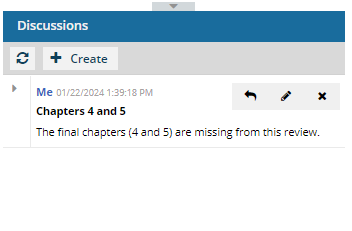
If you have feedback that isn't specific to one component, you can start or join a discussion about the entire review.
Go to the Collaboration panel, then the Discussions pane, and add text.
The Collaboration panel is automatically opened for you.
- It is always available in a review regardless of component type or user permissions.
- You can hide it using the collapse button.