Resend completed files to GlobalLink Enterprise
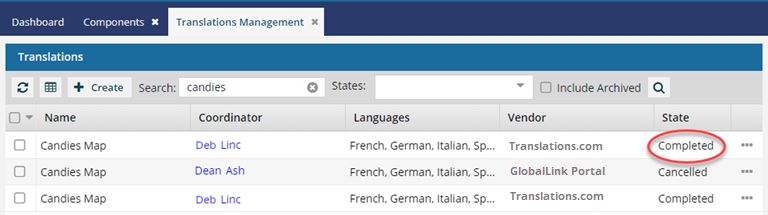
When you integrate the content you develop in Inspire with GlobalLink Enterprise (formerly known as Project Director), your vendors work in GlobalLink Enterprise to do the translation work. If a vendor finds a problem in one of the files, they can still complete their work on the remaining files and send them all back to you when they're done. In this scenario, you'll have to fix the errors found by the vendors and then send the files back to GlobalLink Enterprise, even though the translation job is marked in Inspire as Completed.
 Required Permissions
 For full access to all translation jobs, you must be an administrator.
- An admin can edit and cancel any translation job regardless of Translation module permissions.
- To configure permissions, administrators can follow the steps in: Update module access permissions.
- For full access to your own jobs, you must be a coordinator.
- Coordinators retain access to their own jobs regardless of Translation module permissions.
- A user who is the coordinator of a job can still edit and cancel it even if they have no explicit Translation module-level Update permission.
- To edit and cancel any translation job, a non-admin user must have both the Read and Update permissions for the Translation module.
- To see all jobs, a non-admin user must have the Read permission for the Translation module.

To resend the original files after you fix them, you have to sign in as an administrator to the GlobalLink Portal module.
 GlobalLink Portal was formerly known as GlobalLink Transport.
To resend translated files:
- Sign in to GlobalLink Portal.
- Open the project with the files that need to be resent.
- Go to the Deliverables tab.
- Upload any corrected files that need to be redelivered.