Publish multiple components
After you've created components and developed content, you can transform your Inspire content into a format your customers can use, such as PDF or HTML.
 You may not have permissions to publish under the following conditions:
- A content owner or administrator can set permissions to deny access to components or folders. If your permissions to content have been blocked, and you are not an administrator, you can use the Publish option in a project's Content pane, but it will fail with a warning.
- An Inspire administrator can define at the user and role level whether the Publish action is available.
 By default, only administrators can publish content in Inspire.
- You can see the Publish option only if you're an administrator or have the can_publish module property.

 Tips and tricks
- Set notifications: If you have changed the defaults and want to see publishing notifications, make sure you configure them before publishing. Follow the steps in Set notification preferences for publishing.
- Use a Publish Configuration. The same settings on the Publish Component screen can also be set by an administrator in the Publish Configuration.
- If you select options on the Publish Component screen, your settings are used even if they are in conflict with the Publish Configuration that an admin creates.
- If you select options on the Publish Component screen that don't conflict with the Publish Configuration that an admin creates, then both sets of options are used.
- Publish with a DitaVal file: DitaVal files specify the conditions to include and exclude when you generate your map's output. DitaVal files are useful if you're using conditional attributes extensively in your documentation.
- Use tokens in the Publish Name: When publishing a component or from a profile, you can optionally use a token in the job's Publish Name to pull in data so that you don't have to type it in every time you send the component out for publishing.
- You can use characters reserved for XPath and system variables in the Publish Name.
- To add a token when publishing a component, follow the steps in Publish a component with tokens.
- To add a token to a publishing profile, follow the steps in Publish from a profile with tokens.
- Automatically reuse publishing settings. To streamline repeat publishing tasks, Inspire can now remember publishing settings on a per-component basis without a publishing profile. When a component is published, the settings you use are saved and automatically reused the next time you publish that same component.
- An administrator must enable the Remember Publishing Settings By Component feature. Admins can follow the steps in: Remember publishing settings.
- Opening the Publish dialog for a component restores the settings used during its most recent publication.
- Do not select anything in Publish Configuration when this feature is enabled. If you do, publishing settings are not remembered.
- Other users can modify the publishing settings at any time, and the updated choices will be saved for future publications of that component.
- Settings are NOT saved on a per-user basis.
 For a more permanent collection of settings that other users can't modify, you can create a publishing profile. Follow the steps in: Work with publishing profiles.
To publish multiple components:
-
Click
 Components.
-
Repeat steps 2 and 3 until you've selected all the components you want to publish.
Inspire may remember the components you choose on the Selected Components panel. After you select Publish from the toolbar, those components remain listed on the Selected Components panel. If you want to choose different components to act on or clear the components listed, go to the Selected Components toolbar and click the Clear all icon
 .
. -
On the Selected Components pane, click the Publish icon
 .
.
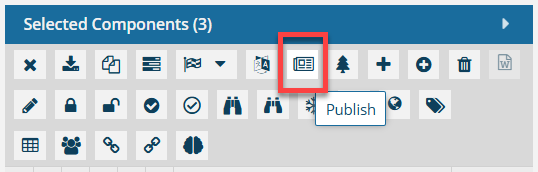
 Result: The Publish Component screen opens.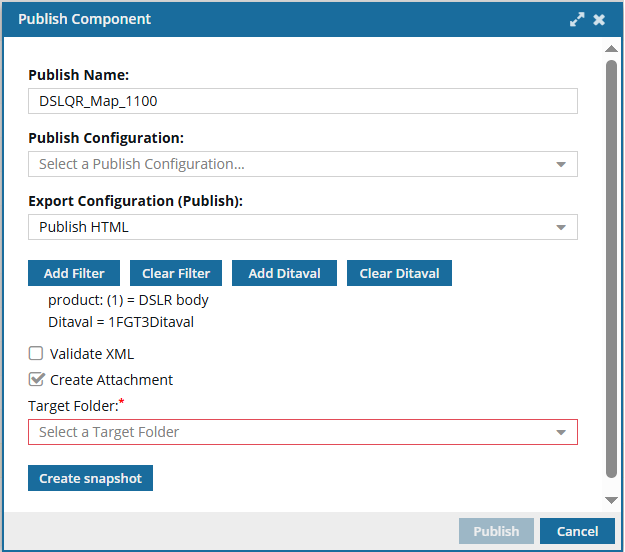
 Important notes:
 - You only see the Add Ditaval button if you have included a map as one of your selected components.
- If an administrator enables the Remember Publishing Settings By Component feature:
- Inspire prepopulates the screen with the settings used during its most recent publication.
- If you modify the publishing settings, the updated choices will be saved for future publications of this component.
-
Optionally, you can select a DitaVal file that exists in Inspire.
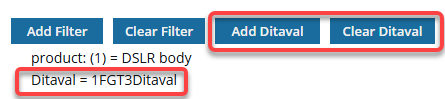 You can select only one DitaVal file.
-
Select the checkbox for a DitaVal file and click Select.
Result: You see the name of the DitaVal file you selected on the Publish Component screen listed under the Add Filter and Clear Filter buttons.
-
Select the checkbox for a DitaVal file and click Select.
-
On the Publish Component dialog, click Publish.
Result:
In the top-right corner, you see a message that Inspire is preparing your publishing job.

After Inspire successfully submits the job, you receive a notification that you can review on the Notifications tab, in Slack if it's configured for notifications, and in email.
 When you complete a task that triggers a notification, such as publishing content, the Slack and email body contain:
- The notification with ten or fewer Issues, Errors, and Warnings.
- A link at the bottom of the message [See Full Version].
- You can click the [See Full Version] link to expand a section under the link with the full details.
If there are any components you don't have permissions to, they are listed in a publishing notification. The components named in the Issues section are not published.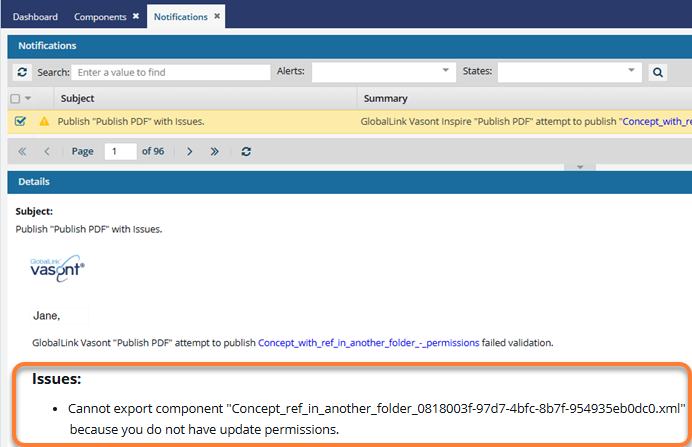 Tips and tricks
You can use Publish Server to see job status and histories, download files related to a job, and re-publish content from an existing job. To learn about job management, read Welcome to Publish Server.