Publish as DOCX
DOCX is the file format used by Microsoft Word to store documents. The DOCX format does include XML. For some customers, Inspire provides a publishing configuration and a publishing plug-in for DOCX.
 You may not have permissions to publish under the following conditions:
- A content owner or administrator can set permissions to deny access to components or folders. If your permissions to content have been blocked, and you are not an administrator, you can use the Publish option in a project's Content pane, but it will fail with a warning.
- An Inspire administrator can define at the user and role level whether the Publish action is available.
- By default, only administrators can publish content in Inspire.
- You can see the Publish option only if you're an administrator or have the can_publish module property.

 Before you begin
- If you don't see the DOCX options described in this topic, contact your Vasont salesperson to purchase this feature.
 Tips and tricks
If the DOCX publishing option is supported for your organization, when you publish a component, on the Publish Component screen, you can select the Publish Docx option.
If published successfully, you can download a deliverable in the DOCX file format that you can open in Microsoft Word.
- Other places where you can publish. Anywhere you can access a component, you can select the Publish option.
To publish an Inspire component as a DOCX file:
-
Click
 Components.
-
In the Components pane, right-click the component and then select Publish.
 Result: The Publish Component screen opens.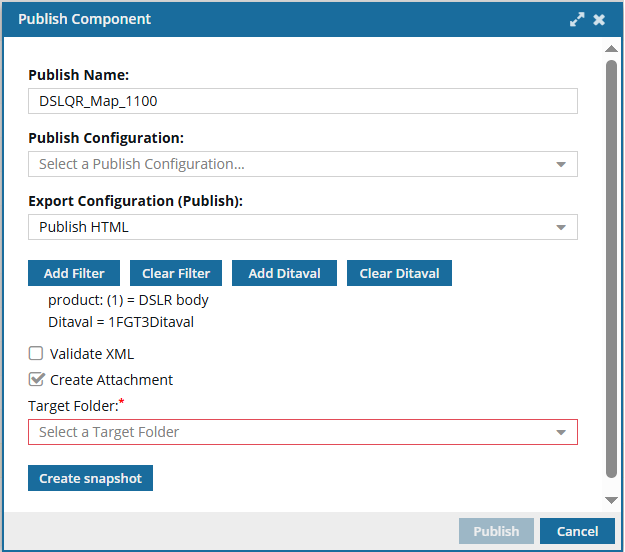
-
On the Publish Component dialog, click Publish.
Result:
In the top-right corner, you see a message that Inspire is preparing your publishing job.

After Inspire successfully submits the job, you receive a notification that you can review on the Notifications tab, in Slack if it's configured for notifications, and in email.
Tips and tricks- You can use Publish Server to see job status and histories, download files related to a job, and re-publish content from an existing job. To learn about job management, read: Welcome to Publish Server.
- Open Publish Server from a link in the following places:
- In your
 notification after you submit a publishing job or Open and manage messages on the Notifications tab
 - On the
 Publishing tab by clicking
  Go to Publish Server
- In your
- For the DOCX publishing formats, you download a single standalone file.
- Open Publish Server from a link in the following places:
- By default, when you select one component to publish, Inspire provides a Publish Name using the component's File Name without the GUID. You can change the Publish Name, and you see it on the Publish portal in the Title column.
- The Publish Name is not the same as the deliverable (published content) name.
- You can create whatever job Name you want.
- Deliverables are named by Inspire using the following default format: Publish-{ComponentName}-YYYY-MM-DD-HHHHMM. However, an administrator can configure Inspire to omit the timestamp from the published file name.
- You can use Publish Server to see job status and histories, download files related to a job, and re-publish content from an existing job. To learn about job management, read: Welcome to Publish Server.