Compare component snapshots in a single pane
You can use a component's snapshot history to select two versions and display the differences between them in a read-only viewer. This feature is only available for components that are not binary, map, or workflow components.
 Tips and tricks
When you compare two snapshots, make sure you only select those with content changes.
- To know if there are content changes, after you select Details... and the History tab, look in the Content Changed column.
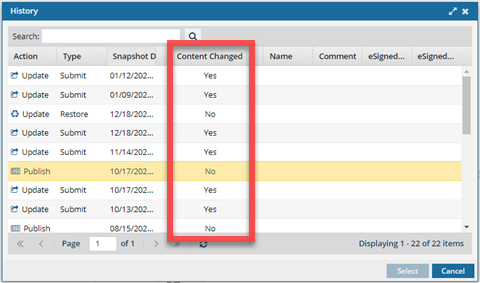
- If you select a snapshot where there were no content changes, you won't be able to click the Select button.

More ways to compare components:
- To see a side-by-side comparison of a component, follow the steps in Compare component snapshots side-by-side.
- To quickly compare an older snapshot to the current version, follow the steps in Compare a snapshot to the current version.
- To compare a binary or workflow component, take an on-demand snapshot of the most recent version, and then publish that and the historical snapshot to a PDF to see the differences.
- To compare map components, follow the steps in Compare map snapshots.
To compare component snapshots in a single pane:
-
Click
 Components.
-
In the Components pane, right-click the component and then select Details...
You can access the same menu by clicking
 the Options menu.
 -
Select the checkbox next to the two snapshots with content changes that you want to compare.
 Notes
Notes- If there are multiple pages of snapshots, you can navigate to the other pages to select a snapshot for comparison.
- Look at the bottom of the screen to see which snapshots you've selected. They're listed in the Selected History pane.
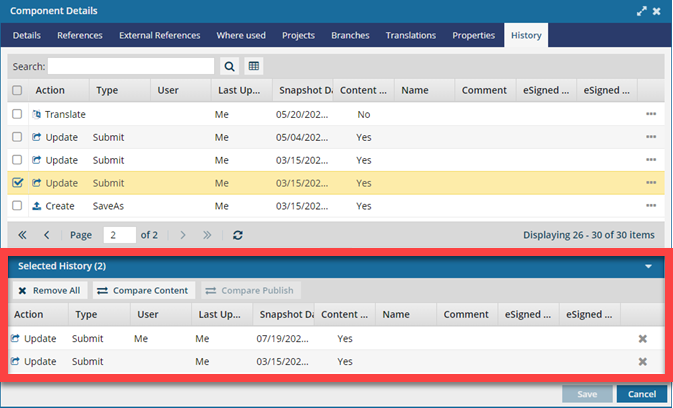
- Make sure the snapshot you select has content changes (Content Changed column is Yes).
-
On the Selected History pane, click
 Compare Content.
 Results: A comparison of the snapshots opens as read-only in the editor.
 -
In the comparison window, you see:
- A yellow bar at the top telling you comparison details.

- You see the differences between components in the following ways:
 displays new text you add
 displays text you deleted
 displays changes to attributes
- A yellow bar at the top telling you comparison details.
-
To change font size or show or hide differences, use the following toolbar options:
- To adjust the text size in the editor, click:
 to Increase font size
 to Decrease font size
  to Reset font size
- To show or hide attribute changes, click:
 to Toggle attribute changes
- To show or hide tags, click:
 to Toggle tags
- To scroll to the changes, click:
 to see the Next change
 to see the Previous change