Creating reviews
You can collect components into a review for evaluation, comment, or editing by other Inspire users. You can create a review in multiple places depending on where you're working in Inspire. Although you can create a review for any component in Inspire, the ability to review it depends on whether the component is editable.
 Tips and tricks
You can create a review in all the following places:
- The Components browser
- A project
- The Reviews Management tab
 You can also create a Context Only review in these same places.
- If a component is a binary file, such as an image that can't be edited, or if the component is locked, you can still send the component to review.
- In the review, the component is identified with a Review Scope of Context Only.

To design a review, complete the Create Review screen.
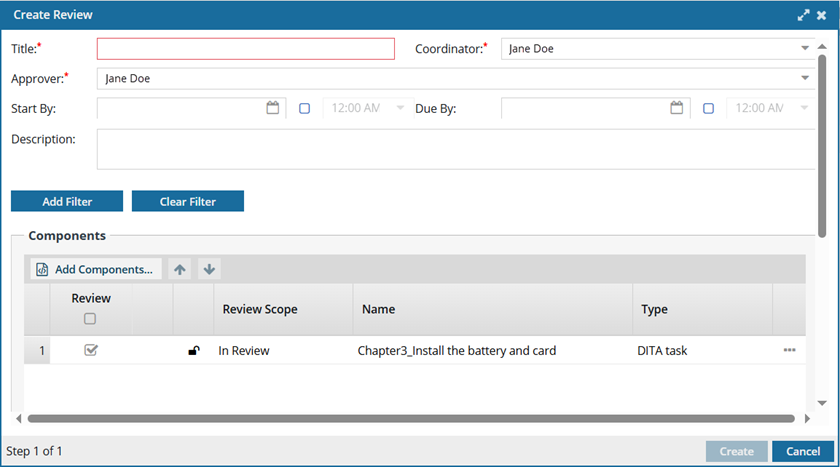
It includes four main sections:
- Review details to set the review title, deadlines, and role for the coordinator and approver
- Review options to add any profiling attribute filters
- Review components to list the files that need to be reviewed
- Review assignments to specify the users who need to complete the review
Review Details
The first part of the Create Review form lets you specify a review title, dates, and a description.

- Title. A descriptive name for the review using 50 characters or fewer.
- Coordinator. A user who can create and manage a review. The user must belong to the Review Coordinators role.
- Approver. This role is assigned to the review Coordinator by default. You can change the default to assign the approver role to any Inspire user with permission to work on reviews. The review Approver must enter the information on the Review Approval screen before a review can be completed.
 Important notes
- This field is required. You can change the default assignment, but you cannot leave it blank.
- This field only lists active Admin users and users with Content browser module permission property can_approve. Follow the steps in: Control who can approve components.
- Start By. An optional field to specify in the review notifications when the reviewers should start on their assignments.
- Due By. An optional field to specify in the review notifications when the reviewers should complete their assignments. The reviewers will see the review deadline in orange text on the due date is the current date, and red text when the review assignment is overdue.
- Description. An optional field to provide additional details or instructions to the reviewers. You can use 3000 characters or fewer.
 Previously, you could only see the Description on the Reviews Management screen. Now, you can also see the Description in the following places:
- Dashboard screen. Look in the My Reviews section.
- The text will truncate with an ellipse if it doesn't fit, but you can hover over Description to see the complete text.
- While working on the review. In the review editor, check the Review Details section during the review for a reminder of the instructions.
- The text will truncate if it doesn't fit, but you can click More... in the Description to see the complete text.
- Dashboard screen. Look in the My Reviews section.
Review options
The second part of the Create Review form lets you set any filters.

 Filters. When you create a review, you can specify which content to show the reviewer by applying a filter based on profiling attributes. For more details on using filters, read Filter Reviews
 Previously, this screen contained an option to restrict discussions during the Resolving phase. Now all reviews work as if this option were selected. No new discussions can be saved by any type of user when the review is in the State of Resolving.
- The Create button is active in both the Component Discussions and the Discussions panes.
- You can enter text on the Create Discussion screen, but after you select Create, you see a warning that "Discussions can only be created during the review phase."
- Only the review coordinator or administrator can edit or delete messages in the Component Discussions and Discussions (for the entire review) panes when the review is in the Resolving state.
- If the review is not in a State of Resolving, reviewers can add, edit, and delete their own comments in the Collaboration panel until all users have completed their review or the review is canceled.
Review components
The third part of the Create Review form lets you list the components to be reviewed and shows the Review Scope.
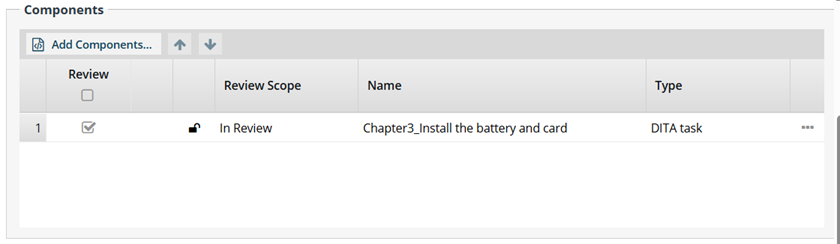
 Components. A topic in DITA is an independent chunk of information that covers a single idea or task, authored as a unit and stored in its own file. Topics are categorized by information type, such as a concept, task, map, or glossary entry.
You can add binary components (images, PDFs, WORD docs) to a review.
- Binary components open in a viewer regardless if the state is In Review or Context Only.
- After a binary component is added to a review and the coordinator creates the review, all components in the review are locked in the Components browser, including binary components.
- When a component opens in a read-only viewer, you can use the review's Discussion pane to add comments
 You can send a DITA map for review to get feedback on the included topics and their sequence.
- Maps can be reviewed like any other DITA component.
- The map opens in the Oxygen editor.
- Reviewers can comment or edit it.
 Component tips and tricks
Adding components that have attachments.
If a component has an attachment, you see a paper clip icon before Review Scope.
 = Has an attachment (black paper clip icon)
 = Is an attachment (green paper clip icon)
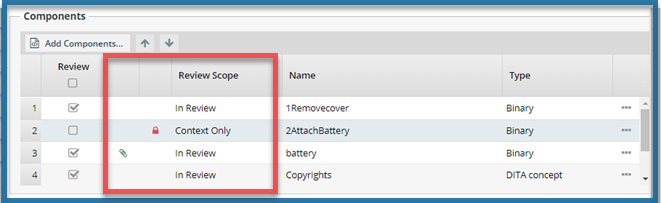
- If you add an unlocked component to a review, and the component has one or more attachments, Inspire automatically adds the attached components to the review
- If the component is a binary file (image, PDF, WORD doc), it can only be opened in a read-only viewer regardless of whether it is unlocked or locked.
- If the component is NOT a binary file (a DITA topic) and it is locked, it can only be opened in a read-only viewer.
- If the component is NOT a binary file (a DITA topic) and it is unlocked, it can be opened in the Oxygen editor.
A review coordinator or administrator can change a component that is In Review to Context Only by clearing the checkbox in the Review column.
Attached components are also locked with a system lock in the Components browser until the review is resolved Component details.
- Review. Select this checkbox for the topics you want reviewed. You cannot select it if the component is open, locked, a binary, or is Context Only.
- Review Scope. Identifies if a component is:
- Unlocked and not binary = In Review
- Locked or binary = Context Only
- Name. The File Name of the component without the GUID.
- Type. Identifies the structure or schema of the topic.
Review assignments
The fourth part of the Create Review form lets you assign a user to review the components and grant or deny them permission to edit the text during review.
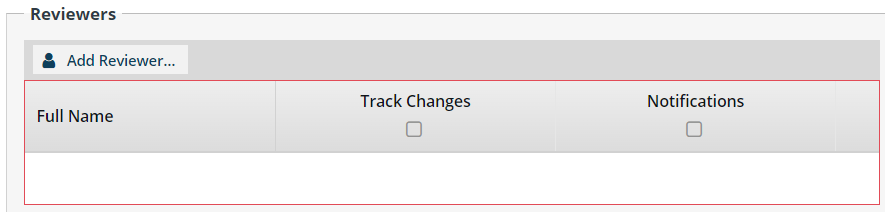
- Full Name. The username as it appears in the user's profile. For example, Jane Doe. You can add multiple reviewers. The first user listed must complete their review assignment before the next user in the list can start their review.
- Track Changes. Identifies if the user can only add comments to the text in review (Track Changes is not selected) or if the user can edit the text in review (Track Changes is selected). An administrator can remove all reviewers' ability to edit content and track changes.
- If an administrator sets the ReviewCommentOnly feature to false, you can select or clear the Track Changes option.
- If an administrator sets the ReviewCommentOnly feature to true, you can only create a review with comments in the Create Review and Update Review screens. The Track Changes option does not appear.
- By default, the ReviewCommentOnly feature is set to false, and you can select or clear the Track Changes option.
- Administrators can read about how to manage this feature in Limit reviews to comments only.
- Notifications. Identifies if the reviewer is notified when they have a review assignment to complete.
 When you complete a task that triggers a notification, such as creating or completing a review, the Slack and email message bodies contain:
- The notification with ten or fewer Issues, Errors, and Warnings.
- A link at the bottom of the message [See Full Version].
- You can click the [See Full Version] link to expand a section under the link with the full details.