Create a completeness report in a project for a translated component
You can get a written account of a component's translation status by creating a Translation Completeness report. The report tells you which languages the component has been translated into, whether the translated components in the language subfolders are locked, and whether it has branches.
 Tips and tricks
- You don't have to be a translation coordinator to generate a Translation Completeness report.
- You can run the report on one or multiple components. You can also select a map component to check the translation status of each referenced component.
 If you select multiple components at once:
 - All reports will use the same report options.
You will generate a separate report for each component.
 If you want to select different report options for different components, generate one report on one component at a time.
 - You can access the report option in the Projects browser from:
- The right-click or
 Options menu
 - The Selected Components pane
- The right-click or
- You can configure what is in the report, including:
- Target languages
- Images
- Branches
- You can access the report from your email or the Notifications tab.

To create a completeness report on a translated project component:
-
Click
 Projects.
-
To quickly create a report for one translated component:
-
In the Content pane, right-click the component (or use the Options menu).
- Select Reports, and then select Translation Completeness Report.
-
In the Content pane, right-click the component (or use the
-
To use the Selected Components panel:
- In the Content pane, select the checkbox for the component you want to create a report for.
-
On the Selected Components pane, select
 Reports, and then select Translation Completeness Report.
-
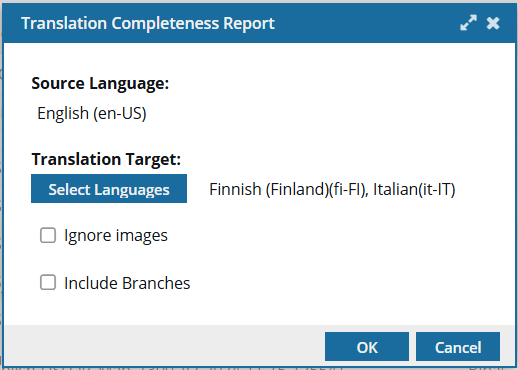
On the Translation Completeness Report screen:
-
In Translation Target, all languages that the component has been translated into are listed. To identify which languages you to include in the report, click Select Languages and select the checkbox for any language you want to include.
Critical notes:
- If you just created a translation completeness report, the next one may list the languages from the previous report's component. You can reset the Select Languages value by clearing your cache.
- Not all Target languages are listed by default if you run the report from the Selected Components panel.
-
Click OK.
 Results:
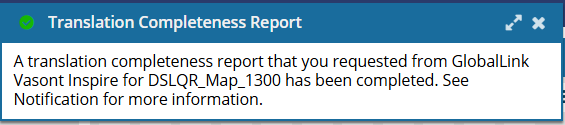
You see two notifications for each component you selected.

-
In Translation Target, all languages that the component has been translated into are listed. To identify which languages you to include in the report, click Select Languages and select the checkbox for any language you want to include.
-
In the top menu, click
 Notifications.
-
From the list of notifications, select one that says Translation Completeness Report.
Results: You see a report similar to the following:
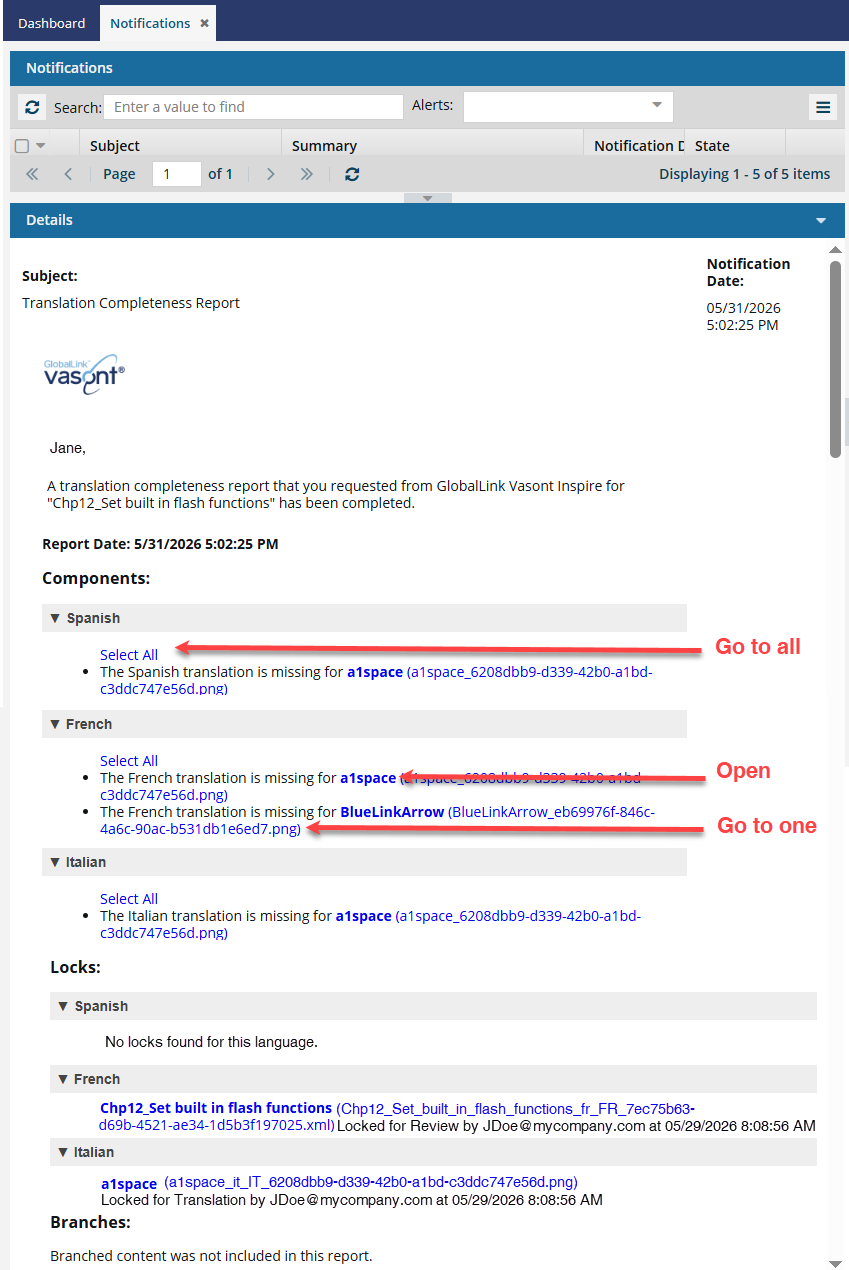
You can click any of the following types of link:
- Select All. Click this link to open the folder containing all the components listed in a section of the report.
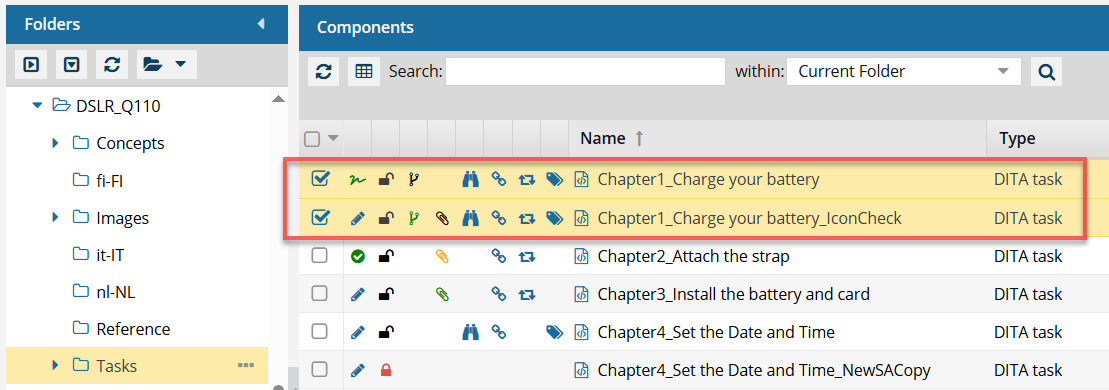
- If you click this link from an email, a browser tab opens, and Inspire opens to the Components browser.
- If you click this link from a notification inside Inspire, the Components browser opens.
- In the browser, you see all the components highlighted from that section of the report.
- If the components are in different folders, you see the items from the first folder listed in the Folders pane.
- The components are also listed in the Selected Components pane.
- Open one. If the component's content needs to be updated, you can click the component Name, which opens the component in the Oxygen editor.
- The Name is listed first.
- The Name does not contain the file extension. For example, "Chapter1_Charge your battery_IconCheck".
- If the component is locked or a binary, you see the component in a read-only viewer.
- Go to one. If you need to update a component using a system function, such as Rename, you can click the File Name, which opens the folder where it's stored.
- The File Name is listed second, after the shorter Name and in parenthesis ().
- The File Name contains the file extension. For example, "Chapter1_Charge_your_battery_IconCheck_070e9999-fe40-4747-b57d-ba1096b925ed.xml"
- Select All. Click this link to open the folder containing all the components listed in a section of the report.