Add organization users

Organization managers can add new users in License Manager. If the user account exists in your TPAuth directory, you can add the user to your organization by entering their email address. If the user does not exist in your TPAuth directory, you can invite them to log in after entering basic details about the user.

Tips and Tricks

  • If your License Manager session times out due to inactivity, you may be asked to authorize your corporate account before License Manager opens again.
  • Signing out of License Manager does not sign you out of Inspire.

To add a user to your organization:

  1. To open License Manager:
    1. In the top right corner of the Inspire menu bar, click the default profile picture or the one you previously added.
    2. Select My Profile...
  2. You may be asked to authorize your corporate account before License Manager opens.
  3. In License Manager, go to the menu on the left side and select Organizations.
  4. On the Organizations screen, click Edit.
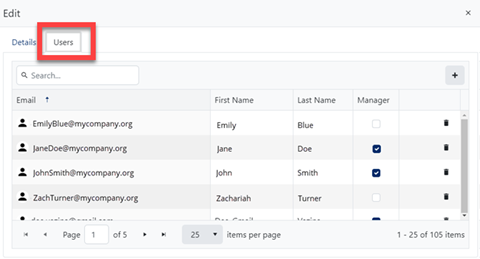
  5. On the Edit screen select the Users tab.
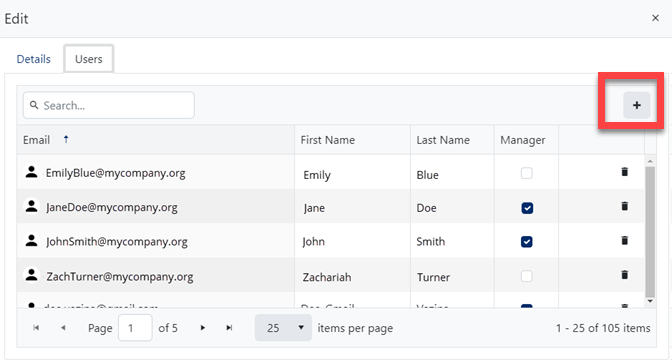
  6. To add a new user, in the top right corner, click Add.
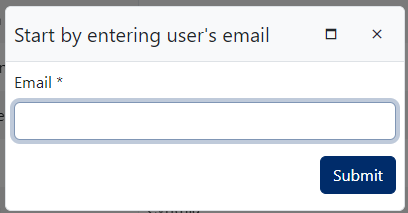
  7. On the Start by entering user's email screen, enter the Email address and click Submit.
    Results:

    If the user exists in TPAuth:

    • The account is added to the organization.
    • You are returned to the list of users on the Edit screen.
    • To save your changes, click Update.
    • You are finished with these steps.

    If the user does not exist in TPAuth, continue on to step 8.

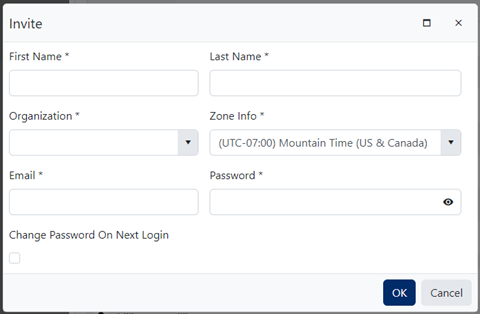
  8. On the Invite screen:

    1. Enter the new user's First Name. This is how the user's name will appear in Inspire.
    2. Enter the new user's Last Name. This is how the user's name will appear in Inspire.
    3. In Organization, select your company or one of its instances that you want to grant this user access to.
    4. In Zone Info, select the area which observes the uniform standard time for your location.
    5. In Email, enter the unique identifier used for electronic communication in the form of Username@Domain, such as jdoe@mycompany.com.
    6. In Password, enter a string of characters and numbers for the user to log in for the first time.

      Password Requirements:

      • Length: 15–256 characters.
      • Password history: Cannot reuse any of your last 12 passwords.
      • Character requirements: Must include characters from at least 3 of these 5 categories:
        • Uppercase letters (A–Z)
        • Lowercase letters (a–z)
        • Numbers (0–9)
        • Special characters (e.g., !, @, #, $, %)
        • Other Unicode alphabetic characters (e.g., Asian-language characters)
      • Change frequency: Can only be changed once every 15 days.
      • Expiration: Standard users: 365 days
      • Common and personal words: Cannot contain common words or personal information.
    7. If you want the password you set to be used only once, select Change Password On Next Login.
    8. On the Invite screen, click OK.
    Results: On the Organizations screen, you see the user you added.
  9. On the Edit screen, click Update.