Add comments to text in review
You can share your comments directly in the content of a component by selecting the text. You can view comments from other reviewers assigned to the review and reply to their comments. If you have comment-only permissions, you won't have access to the editing options on the toolbar.
 Tips and Tricks
You can also add comments in the Component Discussions pane.
Adding a comment outside the review editor is helpful when:
- A component has a Scope of Context Only.

- There are too many comments in the component already. (Text added to the Component Discussions pane is not shown in the review editor.)
- For steps on using this feature, read Add comments using the Component Discussions pane.
- A component has a Scope of Context Only.
If you start on a review but need to stop before it's done and finish it later, you can:
- Save your changes
 .
. - Do one of the following:
- Close the tab

- Click Save for Later

- Close the tab
 Saving your changes and closing the review doesn't update the progress shown for the review on the Dashboard or the Review Management tab. This percent only changes when an entire task in the review is completed, such as when you click Complete Review.
- Save your changes
 Regardless of your permissions, if a topic contains a link (cross reference or key reference) to another component, when you click the link:
- If the target component is not also included in the review, you can only open it in a read-only viewer from a review.
- If the target component is also included in the review, you can open it to comment or edit it from a review.
- Regardless of your permissions, if a topic contains
 a Content Reference, you cannot open the topic that contains the reference in a review.
- The icon that you use to open the topic with the reference (
 ) is only available when editing the topic, and is not available in a review.
 - The referenced content is shown with a grey background.
- You can't comment on the referenced content.
- No matter your permissions, you cannot edit the referenced content.
- The icon that you use to open the topic with the reference (

To review a component using only comments in the Review editor:
-
Click
 Add Comment or use the keyboard shortcut Ctrl + Alt + M.
Text that has a comment is highlighted in purple. The Review panel on the right side of the editor shows the name of the user who added the comment, the date and time it was added, and the comment. You can select a comment by selecting the highlighted text in the editor or using the Review panel.
-
To reply to a comment, in the Review panel, in the comment's box, click the reply arrow
 .
.
- On the Add Reply dialog, enter your text.
- Click OK.
-
To edit a comment, in the Review panel, in the comment's box, click the pencil icon
 . You can also go to the toolbar and click
  Edit Comment.
- On the Edit Comment dialog, edit the text.
- Click OK.
-
To fade out comment text to show you've resolved the issue in the comment, click the Mark as Done toggle
 .
.
-
To re-activate the comment so you can reply or edit it, click the Mark as Done toggle
 again.
-
To re-activate the comment so you can reply or edit it, click the Mark as Done toggle
-
To delete a comment that you created, it must have no replies. You can delete a comment in the following ways:
- In the editing pane, place your cursor in the highlighted content. On the toolbar, click the Delete Comment
 button.
 - In the editing pane, hover your cursor over the highlighted content, and in the pop-up window click
 Remove.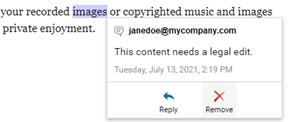
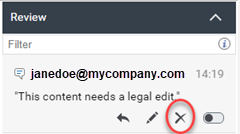
- In the Review panel, in the comment's box, click the Remove icon
 .
.
- In the editing pane, place your cursor in the highlighted content. On the toolbar, click the Delete Comment
-
If you need to undo a change, in the toolbar, use the Undo
 button. To redo a change use the Redo
  button.
-
To scroll through next and previous comments, in the toolbar, use the arrow buttons


-
To show and hide tags, in the toolbar, click the Tags display mode menu
 , and then select one of the following:
- Full tags
- Full tags with attributes
- No tags
-
To change the size the font displays in, in the toolbar, click one of the following:
-
Increase font size

-
Decrease font size

-
Reset font size

-
Increase font size
-
To see different versions, in the toolbar, click the Track changes view menu
 , and the select one of the following:
- View all changes/comments
- View final
- View original
-
To see only content that has profiling attributes attached to it, click
 and then on the Filter Profiling Attributes, select the checkboxes for the attributes you want to see.
-
To display text with all types of associated attributes, click
 . To hide text with associated attributes, click
  .
.
-
After you finish adding comments, click Save.
-
To track your progress in the review, select the circle next to the component in the Review Components pane to mark items you have completed.
A review coordinator might include components for context only. You can view these topics in the editor, but you can't add comments. Context-only components don't have a circle to track your progress.
-
Repeat steps 2 through 17 for all components in the review.
To stop and finish a review later, you can:
- Save your changes .
- Do one of the following:
- Close the tab
- Click Save for Later
- Close the tab
- Save your changes