Add a component to a review
When you're reviewing content by adding comments and tracking changes, you can also add a component to a review if you want to suggest changes, and it isn't included in the review. You add the component by opening the review Details. You must have special permissions to add a component to a review.
 You must have one of the following permissions to add a component to a review in progress:
- Administrator
- Non-administrator with the can_add_component_to_review module property
 If you want to allow a non-administrator user to add a component to the review in the Review Editor:
- The map containing the component must be included in the review.
- For the Collaborative Review module, the user must have the following properties:
- can_add_component_to_review
- can_add_component_to_review_from_map

To add a component to a review:
-
Click
 Reviews.
-
Right-click the row, and then select Open details.
You can also access this option by clicking
 the Options menu and selecting Open details.
 -
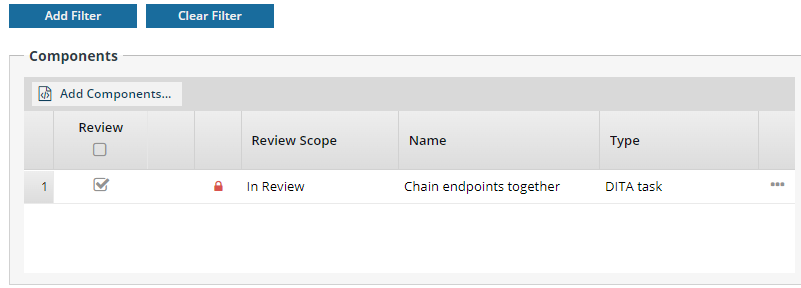
On the Update Review screen, in the Components list:
-
Optionally, you can specify what content should be shown to the reviewer by applying a filter of profiling attributes.
- Select Add Filter, and select the profiling attribute or category that you want to use to show content marked with that attribute.
- Optionally, to remove a filter, select Clear Filter, and clear the checkbox for the profiling attribute or category that you don't want to use.
Keep in mind:- Filters must already be applied in the content you're sending to review. If they aren't, then the content that the reviewer sees won't be changed in any way.
- When a reviewer opens the review component with a filter applied, Oxygen shows or hides text according to the filter(s) selected.
- If any content has no profiling attributes applied, it is always shown no matter what filter you add when creating a review.
-
The component(s) you selected in the Components browser are listed in the Components section. You can do any of the following:
- Add more components.
 Using the Add Components button opens the Select Components screen. After you select a component, you can look in the Selected Components panel to see if it's locked by you or the system.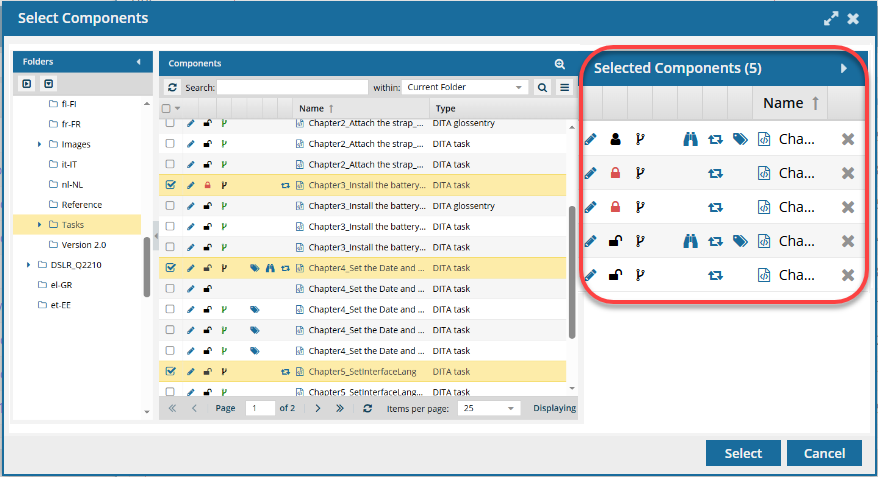
 If you are working with a review that's associated with a project, when you add components you see the Select Project Components screen.
 - To re-order the topics, select one, drag it to a new place in the list, and then drop it. You can also re-order the list by selecting a component and using the
 Up and
  Down arrows to move it.
 - Clear the Review checkbox to specify that a topic is Context Only (for reference, maps, images, and locked components).
- Open the component to make sure it's the one you want. Select the Options menu and then Go To. This option opens the Components browser (if not already opened) and selects the component.
If you add unlocked components to a review, and the components have one or more attachments:If the attachment is a binary component, it is added as one of the following:
If the binary is unlocked, it is added as In Review
If the binary is locked, it is added as Context Only
If the attachment is not a binary, and it is unlocked, it is added as In Review
- Add more components.
-
Optionally, you can specify what content should be shown to the reviewer by applying a filter of profiling attributes.
-
On the Update Review screen, click Update.
 Results:
 - You receive a notification that Inspire has updated the review.

If you had the review open, you must close it to see the new components. - You receive a notification that Inspire has updated the review.