Find a workflow on the Projects tab
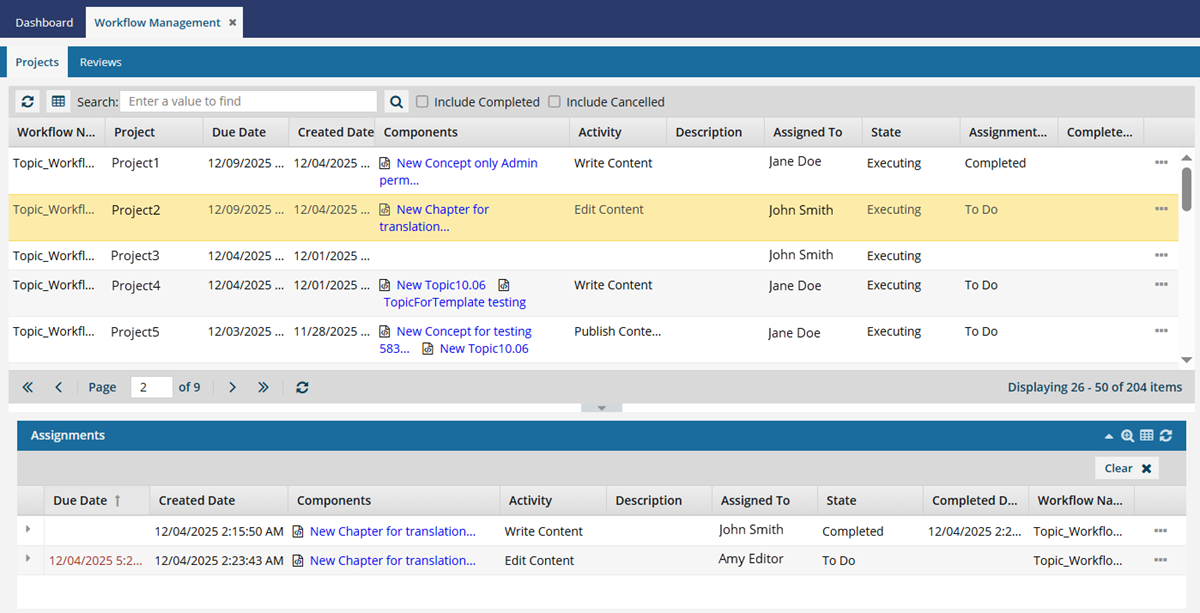
You can use the Workflows module to see all project assignments created in Inspire in one place. On the Projects tab you can see all project workflows and assignments. To find all the assignments for a workflow, you can do a basic search for the workflow first.
 Tips and tricks
- Review assignments, as a part of project workflow activities, are also displayed on the Projects tab.
- If you want to see only Review type workflows, follow the steps in Find review workflows on the Reviews tab.
- In the top pane, you can see all project workflows listed. This list shows you all workflows created across every project in Inspire. By default, workflows that have been Completed or Cancelled are not included, but you can select an option to add them to the list.
 In the top list of projects and workflows, you can search in the following columns:
- Workflow Name
- Project
- Due Date
- Created Date
- Activity
- Description
- Assigned To
- State
- Assignment State
- Completed Date
 Columns you can't search in:
- Components
- In the top pane, by default, only workflows for projects that haven't been cancelled or completed yet are shown. To display those project workflows, select the Include Completed and Include Cancelled options.
- If you need to search for a specific project, workflow, or assignment property, you can use advanced search tools to create logic that asks a question about the data in your workflows. Follow the steps in Use advanced search on the Projects tab.

To use a basic search to find workflows on the Projects tab:
-
In the top menu, select
 Workflows.
-
To sort the list, next to the Workflow Name column name, click
 the down arrow and select Sort Ascending or Sort Descending.
-
To search for a workflow, in the Search text box, enter part of a Workflow Name.
 Tips and tricks
- Using parenthesis. Inspire recognizes a parenthesis character ( ) as something that indicates a grouping of search items. If you want to search for a text value that actually contains a parenthesis character ( ), you must tell Inspire to interpret it literally. To do that, use a slash \ before any parenthesis character ( ). For example, if you want to search for the following value: Chapter1_Intro(with_endnotes), in the Search for box you would enter Chapter1_Intro\(with_endnotes\).
-
Click Search
 .
Results: Your search results are shown in the top list on the Projects tab.
.
Results: Your search results are shown in the top list on the Projects tab.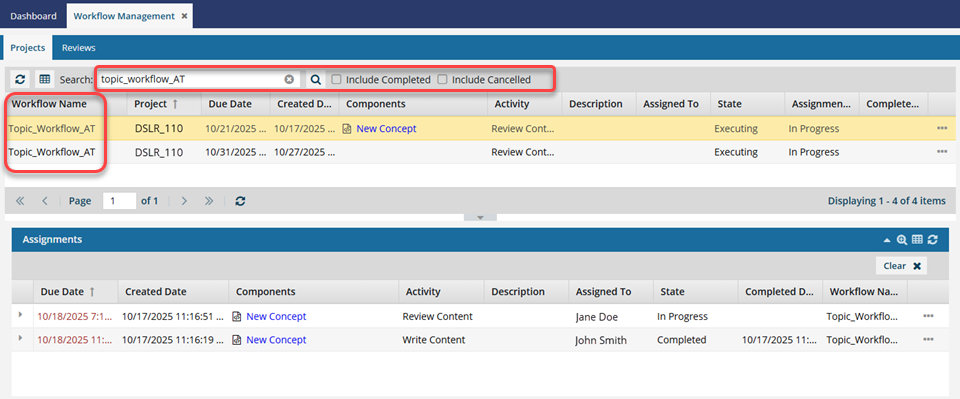
- To see the assignments for a workflow, select it and then look below in the Assignments panel. For more information, read: Use the Assignments panel in the Workflows module.
- Optionally, to save the list of workflows that match the search as a CSV file, click
 Save as CSV.
 To clear your search criteria and see the entire list, in the Search text box, click
  Clear.