Create a review report from the workflow pane
After you open a project, you can go to the workflow pane, and for any review workflow use the Options menu to open the Review Report screen to select report options and create the report.
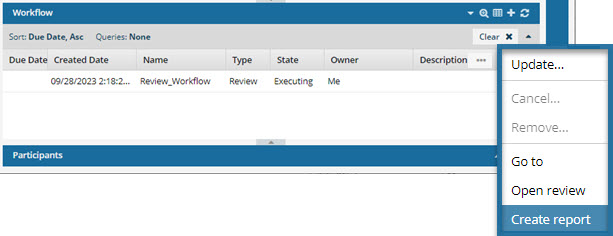

To create a review report from the workflow pane:
-
Select
 the Options menu, and then select Create report.
 Results: The Review Report screen opens.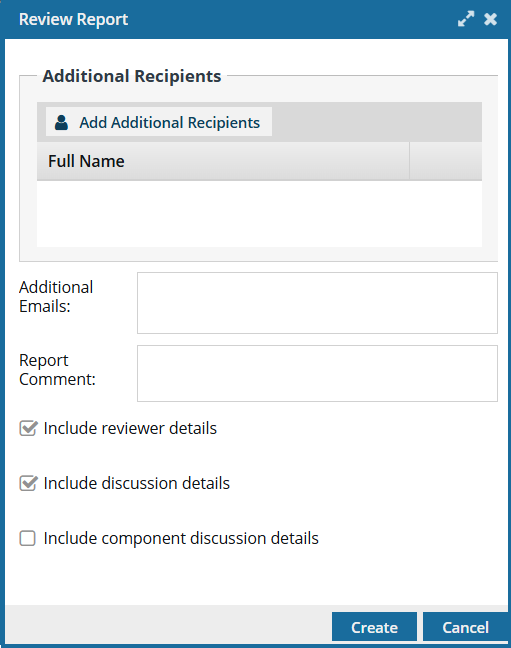
-
Optionally, to send the report to anyone without an Inspire account, in Additional Emails, enter an email address.

- To add more than one email address, use a semicolon (;) in between each address. For example, "user1@email.com; user2@email.com" — do not use Enter to put each address on a different line.
- The Additional Emails box turns red until you add a complete and valid email address.
-
Optionally, you can choose not to Include reviewer details by clearing this checkbox.
Notes:
- By default this option is selected.
- Reviewer details displays a list of users who participated in the review.
- If you clear this checkbox, the report still contains the Reviewers section, but it states that "The reviewer details were not included in report."
-
Optionally, you can choose not to Include discussion details by clearing this checkbox.
Notes:
- By default this option is selected.
If a reviewer has feedback that isn't specific to one component, they can start or join a discussion about the entire review. This is done by opening the Collaboration panel, going to the Discussions pane, and adding comments. These are the discussion details that are included in a review report by default.
- The discussion details section displays a list of users, the date they commented, and what their comment was.
- If you clear this checkbox, the report still contains the Review Discussions section, but it states that "The discussion details were not included in report."
-
Optionally, you can Include component discussion details in the review report.
Notes:
- By default, this option is not selected.
- Each component in a review has its own Component Discussions pane. The reviewer can select the component they want to discuss, open the Collaboration panel, and then add text in the Component Discussions pane.
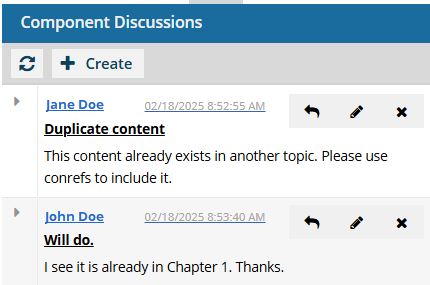
This is the text you are including in the report. You see it in the report as:

For each component, you will see:
- Component name (In the example, Chapter3_Install_the_battery_and_card)
- Subject (In the example, Duplicate content)
- Reviewer name (In the example, Jane Doe and John Doe)
- Date of comment (In the example, 02/18/2025)
- Message (In the example, This content already exists...)
- To see a reviewer's comments when they select the text directly in the Review Editor, look in the Review components section of the report.
- If you clear this checkbox, the report still contains the Component Discussions section, but it states that "The discussion details were not included in report."
-
Click Create.
You see the following notifications:
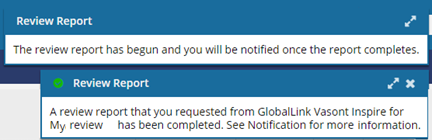 For steps on how to view the report, read: View a review report.