Using multiple transitions with one activity
You use transitions to specify what should happen when a workflow Activity is completed. For example, after a technical review, you can create a transition that specifies the files should go to an editor for review. If you want to create different paths that a workflow can take based on how the Activity is completed, you can configure an Activity to allow multiple transitions.

 You must have permission to work with workflow templates.
- By default, only users with the following permissions can create project workflows and assignments:
- Administrator permissions
- Access to the Project Module with the Create permission
- Even if you don't have these permissions, you can be granted a special permission to create workflows and project assignments after a project is created.
- If you are an administrator, refer to Allow users to create project assignments and workflows.
- Users must be project Participants to start a project workflow.
- The Create Review activity must be assigned to a workgroup of users who are review coordinators.
- The Reviewing activity must be assigned to a workgroup of users who have reviewing permissions.
 Before you begin
- Read an example use case
- Learn about Transition Types
- Understand how multiple transitions are evaluated in an active workflow
 Ready to start?
Read an example use case
For example, in a topic workflow where content is being developed, you can include an Activity for an editor to review a writer's content.
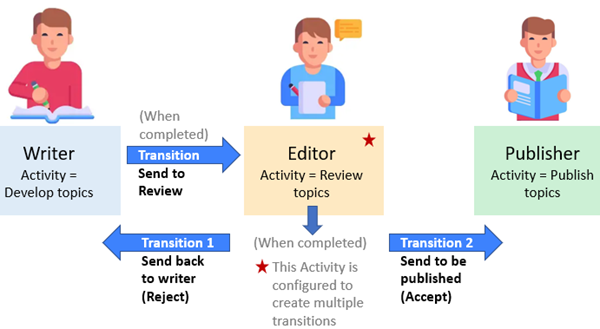
You want the reviewer to not only mark the review as completed, but also specify whether:
- The content has too many issues and needs to go back to the writer
- All issues have been resolved, and the workflow can move to the publishing activity
In Inspire, your workflow would look similar to the following:
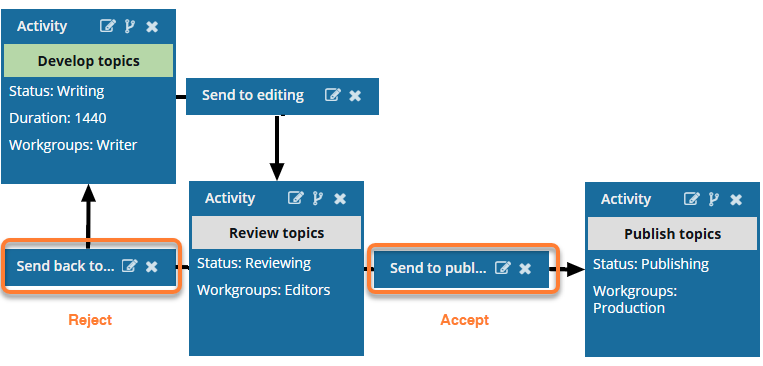
To create different workflow paths using transitions:
- Configure the Review topics Activity with the Create multiple transitions option selected.
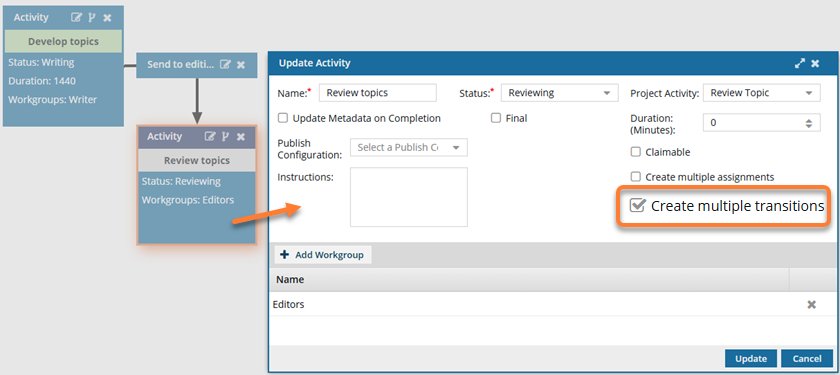
- Create a transition for the Accept workflow path you want to create (Send to publisher).
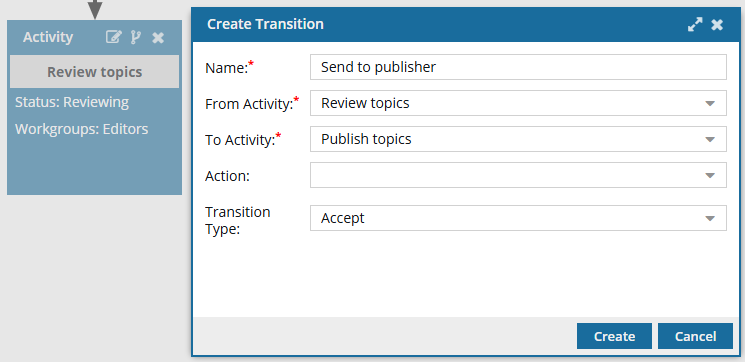
 In Transition Type, you select Accept.
 - Create a transition for the Reject workflow path you want to create (Send back to writer).
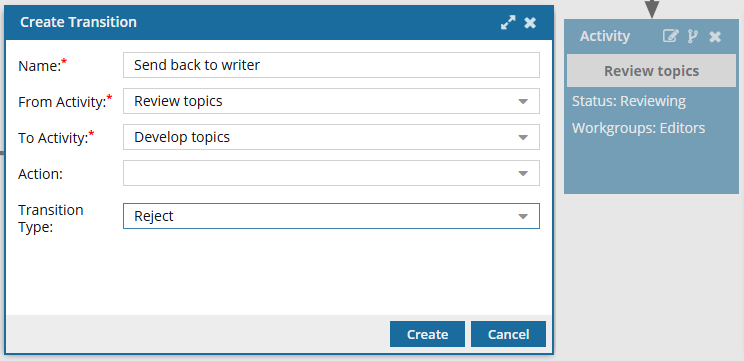 In Transition Type, you select Reject.
- When an active workflow is created from this configuration, the Editor will either accept or reject the assignment.
- The workflow will advance to the chosen option.
Learn about Transition Types
When you create or update a transition, if the From Activity has the Create Multiple Transitions option selected, you must select a Transition Type.
If you select this Activity option, you can create as many transitions as you need in any combination. You do not have to configure any transitions with a Transition Type of Reject. For example, you could create:
- 1 Accept transition and 1 Reject transition
- 1 Accept transition and 2 Reject transitions
- 3 Accept transitions
A Transition Type identifies what should happen when an Activity's task is completed. Currently, you can only choose from one of the following types:
- Accept
- Reject
 At this time, you cannot add new Transition Types or edit the two existing ones.
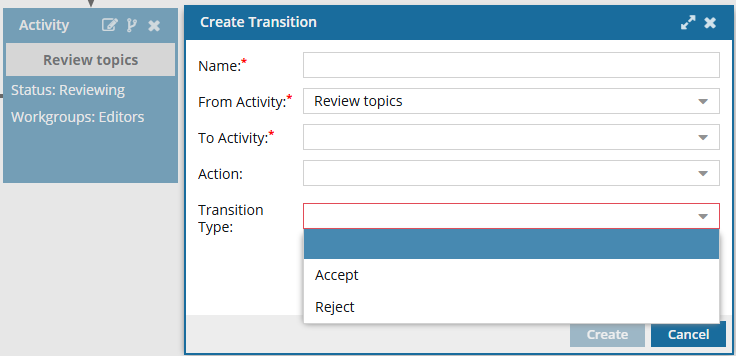
When you create or update a transition, no default Transition Type is selected. The box will remain red until you select an option.
Understand how multiple transitions are evaluated in an active workflow
 If an Activity has more than one transition, and it's assigned to multiple users:
- Only the last user to complete the Activity's task will see the Next Task screen with the options corresponding to the Transition Types you created (the option to Accept or Reject).
- Only the last user can advance the workflow.
 If an Activity has more than one transition, and it includes multiple assignments:
- If a user is completing an assignment that is not the last one, the user is prompted to mark the assignment as Accepted or Rejected. After an option is selected, the task is set to a State of Completed-Accepted or Completed-Rejected. In this scenario, the Next Task screen is not displayed.
- If a user is completing the last assignment, the Next Task screen is displayed, and the user can decide how to advance the workflow.
If all assignments have a State of Completed-Accepted, the Next Task screen shows all transitions that are configured with a Transition Type of Accept.
- If all assignments have a State of Completed-Rejected, the Next Task screen shows all transitions that are configured with a Transition Type of Reject.
- If the assignments have a mix of States (both Completed-Accepted and Completed-Rejected) the Next Task screen shows all transitions you configured (both Accept and Reject Types).