Share an editing session
When you're working in the Oxygen editor, you can allow another user to edit the component at the same time. You can send a URL to the Inspire user yourself, or you can allow Inspire to notify the user for you. When the second user opens the editing session, they'll see your changes, and you'll see theirs. You can also share an editing session with another reviewer when you're participating in a Review.
 Tips and tricks
- You can also quickly share a component with other users in places such as chat, emails, and apps like Slack and Microsoft Teams. In the Component's browser, you can access a URL from a component's
 Options menu (or right-click menu). The URL can be used to allow another user to view or edit the component. Follow the steps in: Share a component using a URL.

How does sharing work?
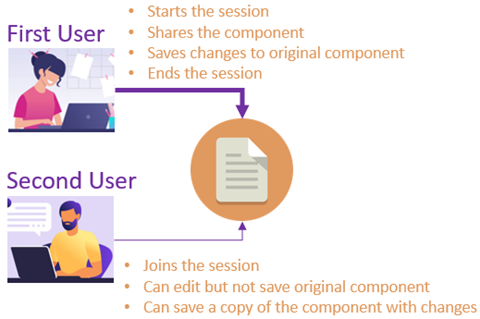
All changes are synchronized to one copy of the component — the copy of the user who initially opened the component and shared the session. As the first user, only you can save changes to the component. If there are conflicts between your changes and the users you are sharing the editing session with, you can resolve the edits before saving the component.
Tips and tricks
- Although this graphic only shows two users sharing an editing session, you can invite multiple users to join by sending them the link.
- The Track changes feature works differently if you join a session.
- The user starting the session has the
 Track changes option in the toolbar and can turn it on and off.
 - All other users joining the session don't have the Track changes option in the toolbar.
- All changes are tracked by default for all users joining a shared editing session and this option can't be turned off.
- The user starting the session has the
Inviting other users to an editing session
 button creates a URL for an editing session, similar to a chat room.
- You can copy and send the URL to the second Inspire user any way you want, such as in email or a chat application.
- The second user can just click the link you send to join.
- The second user can also paste the URL into Inspire's browser address bar.
- You can also choose to let Inspire notify the user for you.
- Providing an active URL is the only way to invite another Inspire user to a shared editing session.