Search for translation jobs
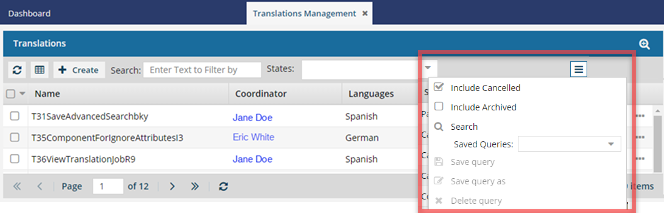
To find a specific translation job, you can do a basic search to filter the list and see only jobs that include a keyword or phrase. Unlike a basic search, where you can only use a few columns, you can do an advanced search if you want to build a query using any column.
 Required Permissions
 For full access to all translation jobs, you must be an administrator.
- An admin can edit and cancel any translation job regardless of Translation module permissions.
- To configure permissions, administrators can follow the steps in: Update module access permissions.
- For full access to your own jobs, you must be a coordinator.
- Coordinators retain access to their own jobs regardless of Translation module permissions.
- A user who is the coordinator of a job can still edit and cancel it even if they have no explicit Translation module-level Update permission.
- To edit and cancel any translation job, a non-admin user must have both the Read and Update permissions for the Translation module.
- To see all jobs, a non-admin user must have the Read permission for the Translation module

 Basic search tool. To quickly find a specific translation, go to the Search text box, enter a term or keyword, and click the magnifying glass icon.
Keep in mind that your search results are filtered based on the following checkboxes:
- Include Completed
- Include Cancelled
- Include Archived
 Advanced search tool. Opens a query editor to perform a more targeted search.
To open advanced search, click the magnifying glass with a plus sign  .
.
To create a search query, fill out the following fields:

- And/Or
- Field
- Operator
- Value
To save, edit and delete a query, use the advanced search toolbar:

To access a saved query, choose a query from the dropdown list.

To hide advanced search, click the magnifying glass with a minus sign  .
.
 Tips and tricks
- If you need to find components that are part of a cancelled translation you can use Advanced search:
- Component State = Needs Translation
- Locked components = No
- If your screen isn't at full size, look for the search options under the More menu
 .
.