Save changes in referenced components
After you create a reference in one component to another component, Inspire tracks the relationship.
When you make changes to an existing component, you might be editing content that is used by another component.
- You can Check Where a component is used in the Oxygen editor.
- In the Oxygen editor, after you click
 Save and Submit, you may be asked to Confirm your changes. This only happens if your administrator enables an optional feature to help you manage referenced content.
 - The optional feature setting is called SubmitConfirmation.
- Administrators can follow the steps in Enable a Submit confirmation.
If any of the following conditions are true, you won't see a confirmation.
- Your administrator has NOT enabled the SubmitConfirmation option.
- Your administrator has enabled the SubmitConfirmation option, but you are making changes to content that is NOT referenced by another component.
In these cases, Inspire saves your changes and closes the Oxygen editor without any other interaction.

 You can see at-a-glance if a component is referenced by other components in the Components browser.
- Components that are referenced by another component are marked with
 a Referenced components icon. A component is only counted once, even if it includes multiple references to this component. For more details, read Check for references in the Components browser.
 - If you want to see how many times other components reference a component, and not how many individual components, look for
 the Shared components icon. All references are counted, even if one component references this component multiple times. For more information, read Check for sharing references in the Components browser.
Check Where a component is used
When you edit a document, you can see the structure of XML elements in the Outline panel.
- From this outline you can right-click the Concepts element and select an option called Where used. This option lets you see other topics that reference the one you are editing.
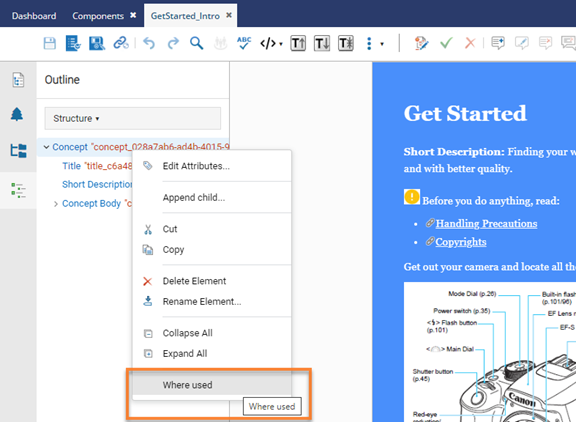
- On the Where used screen:
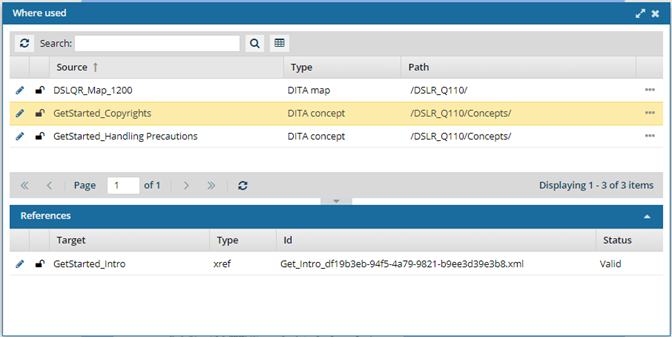
- If there are no components listed under the Source column, then there are currently no other topics that reference the one you are editing.
- If there are components listed, to see more details about the reference, select a component in the Source column. The details are shown in the References section.
For more information, read Find relationships with other topics in the Outline panel.
Confirm your changes
In the Oxygen editor, after you click Save and Submit, you may be asked to confirm your changes if:
- An administrator has enabled an optional feature to help you manage referenced content
- You are making changes to content that is referenced by another component.
If both of the above conditions are true, after you click Save and Submit, you see the following screen:
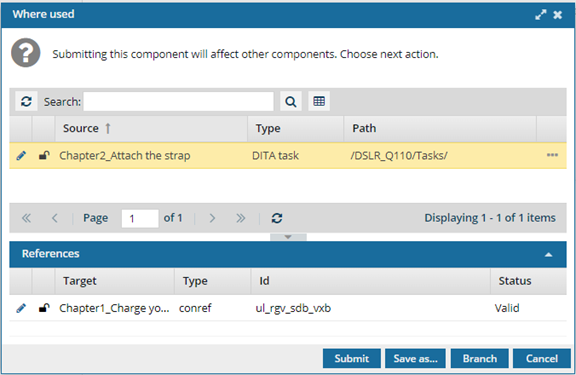
You can see the component that will be affected by your updates on the Where used screen in the References section.
You can choose from the following options:
- Submit. Saves the changes you made which will also appear in the other components that reference the content.
 You may see a prompt to add a check-in comment. When you're working in the Oxygen-based editor, if you use Submit to upload your changes to the Inspire database, you may be prompted to enter a check-in comment before the editor closes. You only see the Component Comment screen if an administrator turns on an optional feature. The comment is optional and can be left blank.
 - If no comment is entered and the user selects Save or Cancel, only the changes to the component are saved and the Oxygen editor closes.
- If a comment is entered and the user selects Save, both the changes to the component and the comment are saved. The comment can be seen in a Comments column in the following places: Components browser (hidden by default), Component's History record, Changesets tab.
If you can Edit References In Place, and you make changes only to an expanded reference, then your comment will appear only in that edited component's History record. - Save as... Opens the Save As screen to create a new component with the changes you made. This option closes the original component without saving any changes. The newly created component opens in Oxygen. This option does not update any of the other components that referenced the original component you were editing.
- Branch. Opens the Save As Branch screen that lets you specify where to save it (target folder) and a branch label. This option saves the current content as a new branched component. This option does not update any of the other components that referenced the original component you were editing.
- Cancel. Closes the Where used screen and returns you to the Oxygen editor. No changes are saved to the database.