Insert a content reference to a ditabase file
When you're working on a document in the Oxygen-based editor, you can insert content that exists in Inspire as a DITA document. If you want to create a link to the content instead of inserting it directly into the topic, use the Cross Reference option. To link to content that exists in Inspire but is not a DITA document, use the File Reference option. To link to content that exists on a web page, use the Web Link option.
A ditabase topic is a composite topic. Before maps, ditabase was used to collect multiple topics and structure them within a single topic file.
When working with ditabase files, you can do the following:
- Import a ditabase file and Inspire recognizes it. The ditabase file has a Type of DITA Composite.
- Create a reference to a ditabase topic in Oxygen and the link resolves without errors.
- When you click
 Save and Submit, Inspire creates a valid reference.
 - See Details about the component and on the References tab.
- See Details about the component and on the Where used tab.
- Manage relationships for the topic and update the ditabase reference.
- Publish the topic without errors related to the ditabase reference.

To create a content reference to a ditabase file:
-
In the toolbar menu, click
 Link, and then select
  Content Reference...
 If you previously inserted a reference while working in this topic:
- Inspire skips the step where you select a component.
- Inspire automatically opens the last topic you used to insert a cross reference.
- To choose a new component to reference and open the Content Reference screen, in Target file, click
 the folder.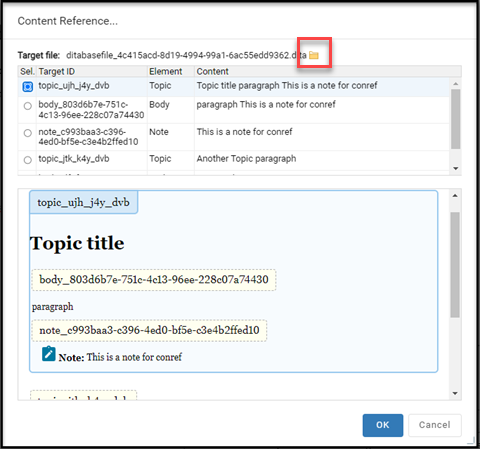
-
On the Select Component screen, in the Folders pane, navigate to the folder where the ditabase component is located.
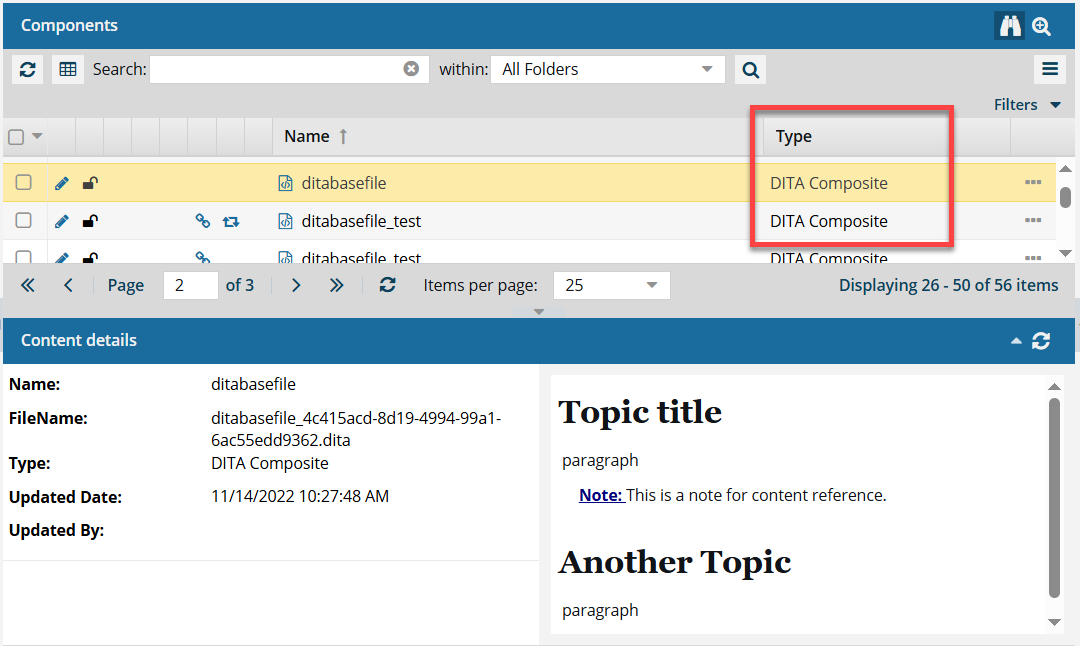 In Inspire, a ditabase file has a Type of DITA Composite.
 -
On the Content Reference screen, use the element table to find the part of the content you want to insert. For example, you could select the Topic title or a Note.
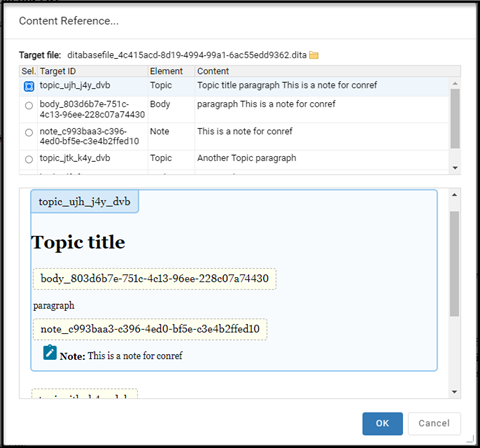
-
On the Choose content reference screen, click OK.
 Results: You'll see a link icon next to the cross reference.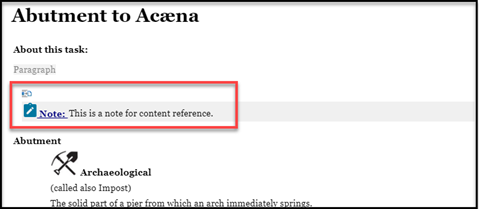
- The content is inserted.
Troubleshooting:If you make changes to links and references, you can ensure the most up-to-date information is being displayed by following these steps:
a. Go to the toolbar.
b. Click
 Refresh references.
 -
Click Save and Submit.
 After creating a reference to another component, Inspire tracks the relationship.
- If the following statements are both true:
- An administrator has enabled an optional feature to help you manage referenced content
- Changes are made in the referenced component that impacts the reference
- The user is warned that this referenced component will be updated also.
- If the following statements are both true: