Find an assignment by Reason
If you need to use multiple criteria to find an assignment, you can build queries. You can locate specific assignments by the Reason that a user added when they completed an assignment.
In the Assignments panel or on the Dashboard, after right-clicking an assignment and selectingComplete, the Response screen opens.
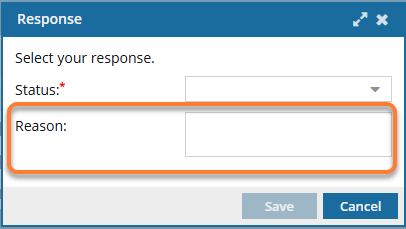
- Optionally, in Reason, you can enter text to explain why you selected the Status. You can use up to 200 characters.
- The Reason data is displayed with the Status in the Assignments panel.
- You can search on the data displayed in the Reason column.

You can use the following operators and values when creating a query to find an assignment by Reason:
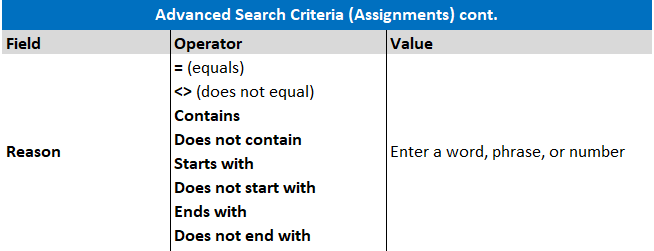
To use operators and parameters to find components:
-
Click
 Projects.
-
If the Assignments pane isn't expanded yet, click
 the expand arrow.
-
In the Assignments pane, click the advanced search magnifying glass
 .
.
 Result: The Filter Assignments query builder screen opens.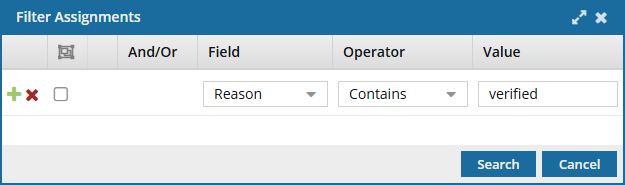
-
Complete the following substeps using the query builder to add or verify search parameters.
- In the Field list, select Reason.
- In the Operator list, select an operator.
- In the Value list, enter a word, phrase, or number you think the Reason data may contain.
-
Click Add
 to add another search parameter.
-
Click Remove
 to remove a search parameter.
- If you have multiple parameters in the query, choose the appropriate criteria from the And/Or list.
- To group search parameters, select the checkboxes for two or more consecutive parameters and click Group selected clauses.
-
To ungroup search parameters, click Ungroup clauses
 .
.
-
Verify the search parameters for your query and then click Search
 .
.
 The filtering status bar displays at the top of the Assignments pane and includes the sort and filter criteria that was used for the search. You can click Clear to remove the search criteria and refresh the Assignments pane. Results: You see a list of assignments that match the search parameters.
 -
To save the list of assignments that match the search as a CSV file, click Save as CSV
 .
.