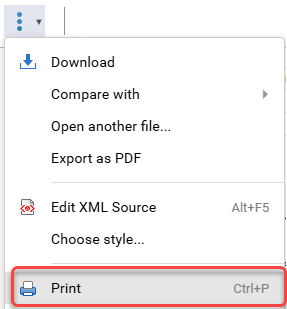
File management options on the toolbar
When you're editing a component you can access the toolbar at all times to manage file options such as saving your content, downloading, and printing. For a list of the other tasks you can complete using toolbar options, follow the steps in Use the editor toolbar.
What do you want to do?

Save your changes locally: This option keeps the component open in the editor and locked so other user's can't make changes while you are working.
- Toolbar option:
 Save
Save - Keyboard option: Ctrl + S
Submit your changes to the Inspire database: This option closes the component and unlocks it so other users can edit it.
- Toolbar option:
 Save and Submit
 - Keyboard option: Ctrl + Shift + S
 You may see a prompt to add a check-in comment. When you're working in the Oxygen-based editor, if you use Save and Submit to upload your changes to the Inspire database, you may be prompted to enter a check-in comment before the editor closes. You only see the Component Comment screen if an administrator turns on an optional feature.
 The comment is optional and can be left blank.
- If no comment is entered and the user selects Save or Cancel, only the changes to the component are saved and the Oxygen editor closes.
- If a comment is entered and the user selects Save, both the changes to the component and the comment are saved. The comment can be seen in a Comments column in the following places: Components browser (hidden by default), Component's History record, Changesets tab.
If you can Edit References In Place, and you make changes only to an expanded reference, then your comment will appear only in that edited component's History record.
Save the content in a new file: This option opens a new screen so that you can specify where you want to save the component, enter a new name, and specify the content's language.
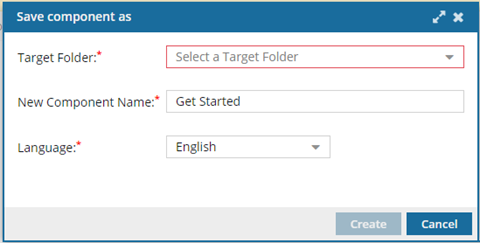
- Toolbar option:
 Save as
 - Keyboard option: Ctrl + Alt + S
Download the current component: This option automatically saves the XML file to your local Downloads folder.
- Toolbar option:
 More menu, Download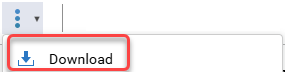
Print the component: This option opens the print screen for your browser, showing the content of the current component without any formatting.
To print a component with formatting, publish the component.
- Toolbar option: More menu,
 Print
Print - Keyboard option: Ctrl + P