Approve component references
If a component contains links to other components, such as in a map, you can select the component and see a list of all referenced components. From this list you can select the component and a few or all referenced components to approve at the same time.
 Requirements
- You must have at least one of the following roles or permissions:
- Be an administrator.
- Non-admins must be added to the Content Browser's can_approve module property. Follow the steps in: Control who can approve components.
- You must have permissions to update the component.
Otherwise, you see the Approve option is greyed out and unavailable.
 Tips and tricks
- The source component doesn't have to be approved before you can approve referenced components.
- You don't have to approve the source component to approve its references.
- If you want to approve a referenced component individually, you can follow the steps in Approve a component in the browser.
- This feature is available in the Components browser only. It isn't available in a project.
- If an
 electronic signature is required, you can sign once for all selected referenced components.
 - If an electronic signature is not required, you see the approved
 checkmark in front of all selected referenced components in the Components Browser.
 - A system lock may be set. An administrator can control if a system lock is placed on the component after a user approves it. By default, this optional feature is set to false, and a lock is not placed on a component after approval.
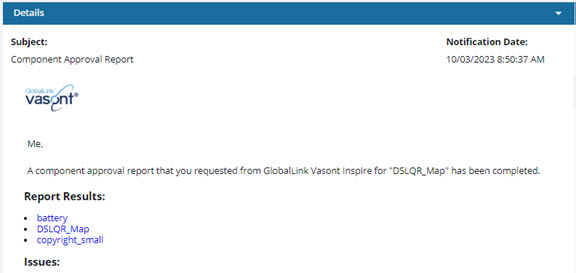
- An Approval report is created automatically whenever you use the Approve referenced components option.

 If there are a large number of references, Inspire may take some time to load them all.
- By default, the Show referenced components option is unselected.

- If you want to select specific components to process, you must wait for Inspire to load all the references.
- If you want all components selected, you can skip the loading and clear the Show referenced components option.
 Before you begin
- You may be prevented from selecting a component to approve if the ApprovalNotRequired tag has been attached to the component. For more details, read Exclude a file from approval using a tag.
- Components tagged with ApprovalNotRequired will not be displayed on the screens showing referenced components.
To approve component references:
-
From the top menu, click
 Components.
-
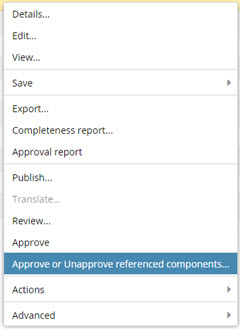
Right-click the row and select Approve or unapprove referenced components.
 You can also click
  the Options menu, and then select Approve or unapprove referenced components.
 -
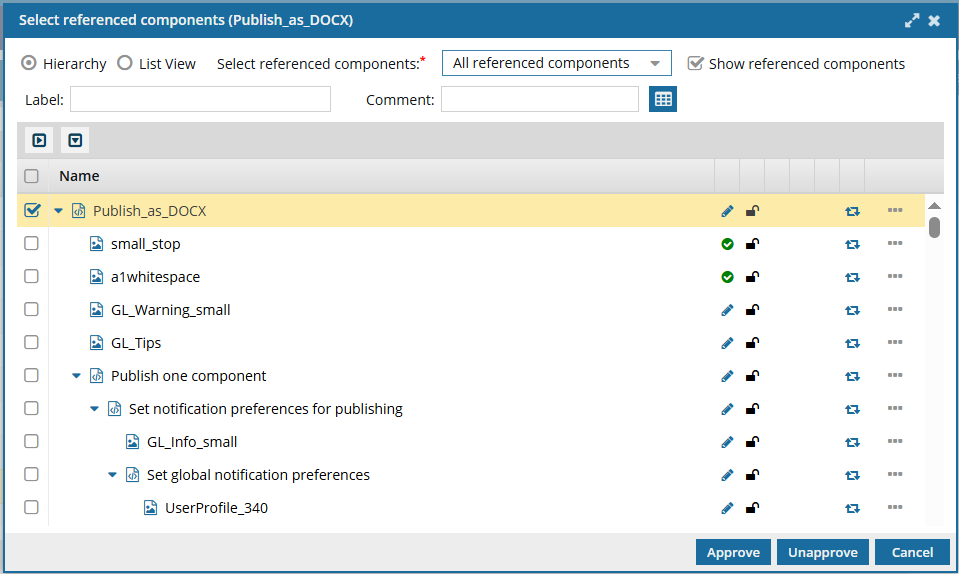
By default, you see references in a hierarchical view. If you want to work in this view, do any of the following:
-
Only the source component is selected. To approve all references in the source component, select the checkbox in the header row before Name.
You can clear the checkbox for the source component if you don't want to approve it yet.
-
To help you find a reference, use the expand and collapse buttons:
- To expand all parent topics, click

- To collapse all parent topics, click

- To expand one parent topic, click

- To collapse one parent topic

- To expand all parent topics, click
-
Only the source component is selected. To approve all references in the source component, select the checkbox in the header row before Name.
-
If you want to work with references in a list instead of a hierarchy, select List View, and then do any of the following:

-
To approve all references in the source, select its checkbox.
You can clear the checkbox for the source component if you don't want to approve it.
-
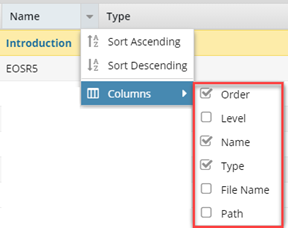
Another way to find a reference is to change which columns are displayed. Place your cursor next to the name of any column and click the down arrow. Select any of the following options:
-
To approve all references in the source, select its checkbox.
-
Optionally, if you want to include additional notes with the approval:
 The following fields do not affect the filename.
- In Label, add a word or phrase to help you search for or identify an approval.
- In Comment, enter a reason for or description of the approval.
-
Optionally, to save the list of references to a CSV file:
-
Click
 Save as CSV.
By default:
Save as CSV.
By default: - The components are listed in the CSV in the following order:
- By Sequence ID
- This means you see the components listed in CSV in the same order as in Hierarchical view.
- The CSV file contains the components based on the filters you select.
- The components are listed in the CSV in the following order:
-
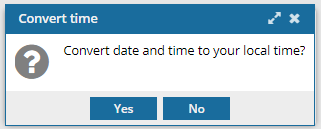
On the Convert time confirmation screen, select Yes or No.
 Result: You see a notification telling you the name of the file that was downloaded to your computer.
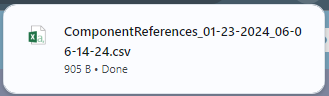 The CSV file name uses the following format: ComponentReferences_MM-DD-YYYY-HH-MM-SS-Millisecond.csv
-
Click
-
Click Select.
If an electronic signature is required:
- On the Electronic Signature screen, enter your Full name.
- If you are asked to authenticate your account, click Login.
 Results:You see a message that the approval process has started.
 After you see a notification that the process completes: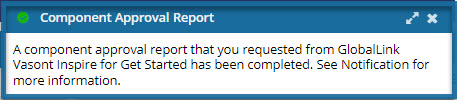
- You see an approval icon before the component Name in the Components browser.
 A green system lock may be set. An administrator can control if a system lock is placed on the component after a user approves it. By default, this optional feature is set to false, and a lock is not placed on a component after approval. For more information, Admins can read Control if a lock is set after approval.
- If you added a value to the Label and Comment fields, you can see them in the following places:
 Changesets module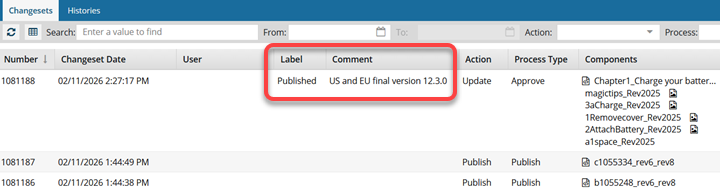
- Component Details on the History tab
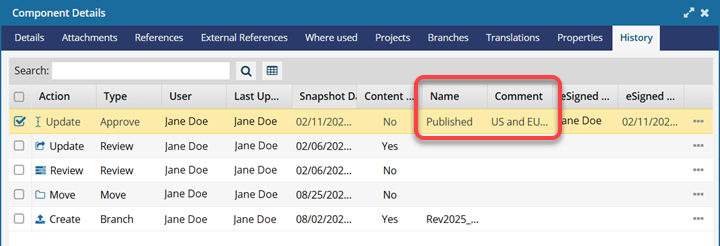
- To see the automatically generated report, open your Notifications and select the one with a Subject line of Component Approval Report.